Christmas elf photo maker: turn yourself into an elf
By PiXmas Editorial Team · Updated November 20, 2026
There are three ways to turn a photo into a Christmas elf. An AI image tool can redraw you in a full elf costume, free elf hat and ear stickers can go on any photo in about two minutes, and a dancing elf app puts your face on an animated body for a short video. AI gives the most realistic still picture, the stickers are free and never leave your phone, and the dancing video is the classic December group chat joke.
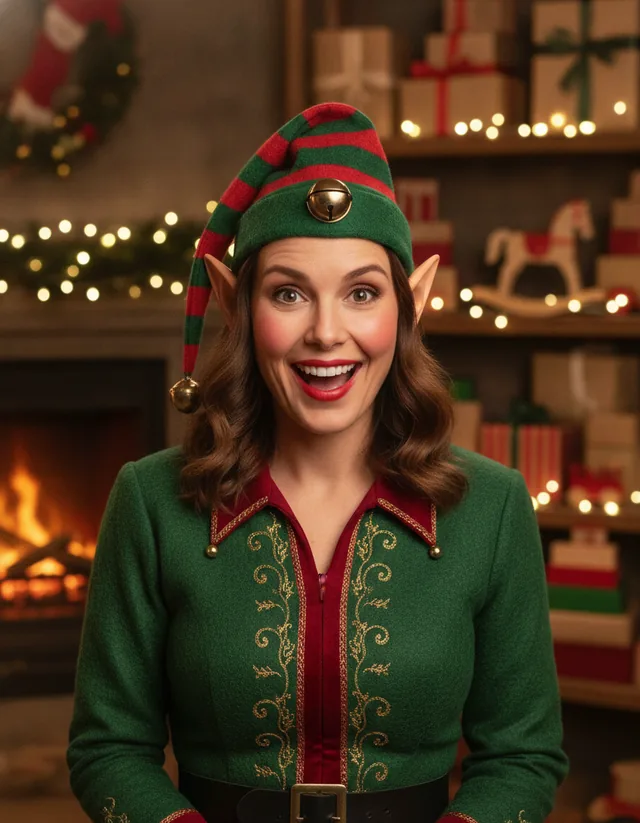
Free elf hat and elf ears stickers
Two transparent PNG stickers, free for personal photos and cards. Drop them on a photo in Canva, Picsart, Photoshop or any app that lets you add an image on top of another one. The ears come as a pair in one file; crop or duplicate them if your editor makes that easier.
Create more festive portraits with our ChatGPT Christmas photo guide, then add snow, lights, fonts, and frames using the free Christmas photo editor.
-
 Elf hat sticker
Download PNG
-
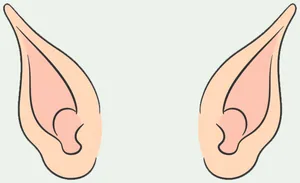 Elf ears sticker (pair)
Download PNG

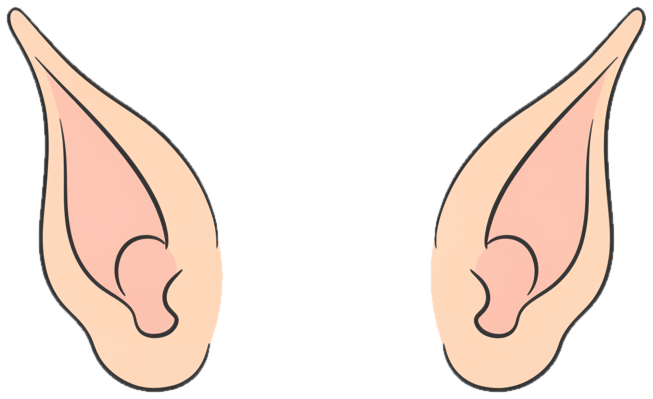
Want more pieces, like a Santa hat, reindeer antlers or a red nose? The full set of free Christmas stickers uses the same transparent PNG format.
AI portrait, stickers or dancing video
| Method | What you get | Cost | Upload needed? | Pick it if |
|---|---|---|---|---|
| AI elf portrait | A new still photo of you in costume, in a workshop or snowy scene | Free tiers of ChatGPT and Gemini, with limits | Yes, your photo goes to the AI service | You want a picture for a card, a profile or the office party slideshow |
| Elf hat and ear stickers | Your real photo with a cartoon hat and ears on top | Free | No, if your editor works on the phone | Kids, pets, or a funny edit you can make in two minutes |
| Dancing elf video | A short animated clip with your face on dancing elves | Some dances free, most paid (checked November 2026) | Yes, face photos go to the app | You want the family group chat laughing on Christmas Eve |
Method 1: make an AI elf portrait
An AI image tool keeps your face and redraws everything else, costume, ears, light and background, in one go. ChatGPT and Google Gemini both edit uploaded photos in their free versions, with a limited number of images. Start with a good photo: face clearly visible, eyes open, even daylight, nothing covering the ears (a hat in the original photo confuses the result). A plain wall behind you helps a little; the face counts for more.
Then give the tool one detailed instruction:
Turn this photo into a Christmas elf portrait. Keep my face, hair, skin tone and expression exactly the same. Add a green felt elf costume with red trim and gold buttons, a pointed striped elf hat with a small bell, and pointed elf ears. Put me in a warm, cozy toy workshop with shelves of wrapped presents softly blurred behind me. Chest-up framing, natural light, photorealistic.
Look closely before you save. The usual problems are ears that grow out of the hat instead of the head, extra fingers, a face that drifts toward a generic smile, and text on boxes in the background that turns to gibberish. Fix them one at a time ("keep everything, but put the ears on the sides of the head below the hat"). If the face keeps changing, a sharper, closer source photo helps more than any rewording.
A few prompt changes that work well: swap the workshop for "a snowy North Pole village at dusk", ask for "a vintage 1950s Christmas card illustration style" for a painted look, or add "holding a wrapped present with a red bow" so the hands have something to do.
Method 2: add elf hat and ear stickers
This is the version for kids, pets and anyone who would rather not upload a face. It looks like a sticker edit, on purpose, and that's part of the joke.

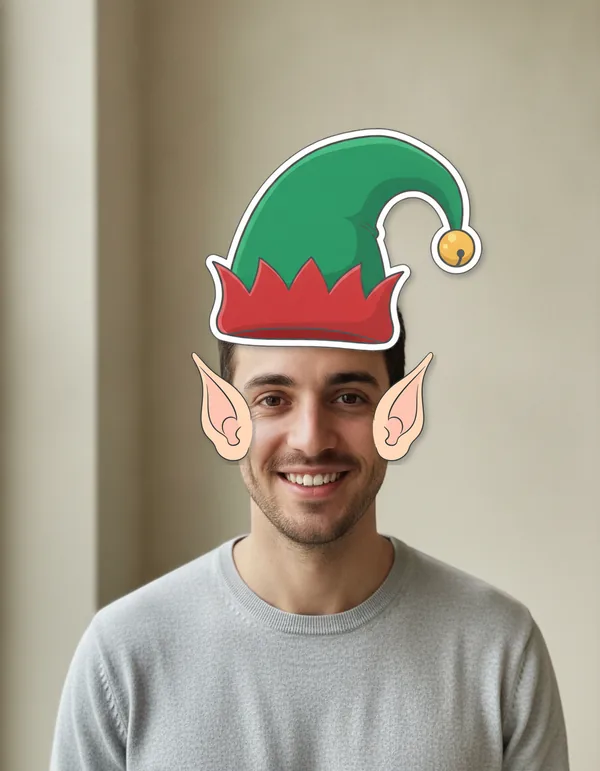
Steps in Canva (free, iPhone, Android or browser)
- Download the elf hat and elf ears PNGs above.
- In Canva, create a design in the size you want (Instagram post, profile picture or a custom size), then upload your photo and both stickers.
- Place the photo first and stretch it to fill the page.
- Add the ears. Crop the pair down to one ear, duplicate the element, then crop the copy to the other ear. Put each base over a real ear, with the tip about level with the eyebrows.
- Add the hat last, so it sits on top of the ear tips. Make the cuff a bit wider than the head (around 1.2 times the head width looked right in our example) and slide it down until the cuff covers the hairline.
- Rotate the hat to match the tilt of the head. A straight hat on a tilted head is the giveaway that ruins most sticker edits.
- Download as PNG or JPG.
Two small touches make a difference. Lower the brightness of the ears a notch if the photo was taken indoors, because our ears are drawn in bright daylight colors. And a faint shadow under the hat cuff, if your editor has a shadow effect, stops it from looking like it's floating. The same steps work for a Santa hat; our guide to adding a Santa hat to a photo has angle tips for side views.
For pets, scale the hat to the width between the ears and skip the elf ears altogether. Dogs and cats already have ears, and a third pair is more creepy than cute. More pet ideas are in our comparison of the best Christmas pet photo editors.
Method 3: the dancing elf video
The dancing elf video goes back to ElfYourself, a holiday site that OfficeMax launched in December 2006 and that is published today as an app by Magic Mirror (it has no link to PiXmas). The idea has barely changed in 20 years: you upload up to five face photos, line each one up with an elf head, pick a dance and share the clip. The app is a free download with a few free dances; most dances cost extra, sold one at a time or as a season pass (checked November 2026). JibJab, which was involved with ElfYourself for a few years after 2008, sells its own Christmas face-in-video e-cards as part of a paid membership.
Video is a different format from a photo, with different tools. If you'd rather build your own clip from elf portraits or sticker photos, with music and transitions, our Christmas video maker guide covers slideshows, GIFs and Reels from photos.
Elf photo ideas worth trying
- The whole family as Santa's workshop crew, each person with a "job" prop: a wrench, a roll of wrapping paper, a clipboard for the nice list.
- An office team photo where everyone is an elf except the manager, who gets a Santa hat.
- A before and after pair for a profile picture: plain you on the left, elf you on the right.
- The dog as the head elf, hat only, sitting next to a stack of presents.
- Grandparents as elves on the front of a homemade card. If I had to bet on one idea making the grandkids laugh, it would be this.
- An "elf report" photo for the fridge: a kid in the sticker hat holding a sign they wrote themselves.
Elf portraits also make good Christmas avatars. Crop square, keep the face in the middle, and see our Christmas profile picture guide for exact sizes on Instagram, WhatsApp, Discord and the rest.
Elf photos of kids: privacy first
Every method except stickers sends a face photo to a company's servers. For your own selfie, that may be fine. For a child's photo, read the app's privacy policy first and look for four answers: whether the photo is stored, for how long, whether it's used to train AI models, and how to delete it. If a policy doesn't answer those, use the sticker method instead. Our guide to AI Christmas photo privacy walks through what good and bad policies say. Also, think twice before posting kids' elf photos publicly; a family group chat or a printed card shares the joke with far fewer strangers.
Elf portraits with PiXmas
PiXmas turns one photo into Christmas portraits, elf looks included. PiXmas for iPhone is on the App Store, and the PiXmas web tools for elf portraits, profile pictures, stickers and frames are available at picsmas.com. Until then, the free stickers and the AI prompt on this page will get you an elf photo today.