
Christmas photo editor: free ways to add snow, lights and text
By PiXmas Editorial Team · Updated November 20, 2026
You don't need a special Christmas app to edit a photo for the holidays. Four edits do almost all the work (falling snow, a warm color grade, soft light bokeh and a festive font), and free tools handle each one: Snapseed or your phone's Photos app for color and snow, Canva for text, frames and stickers. Below you'll find each edit step by step, two free snow overlay files, and 8 free Christmas fonts with their licenses.
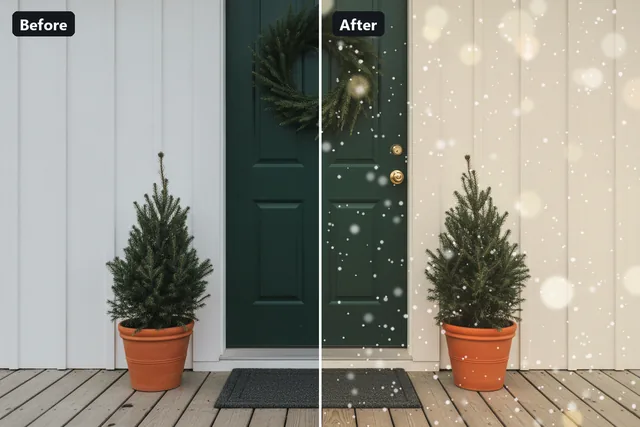
Free snow overlays to download
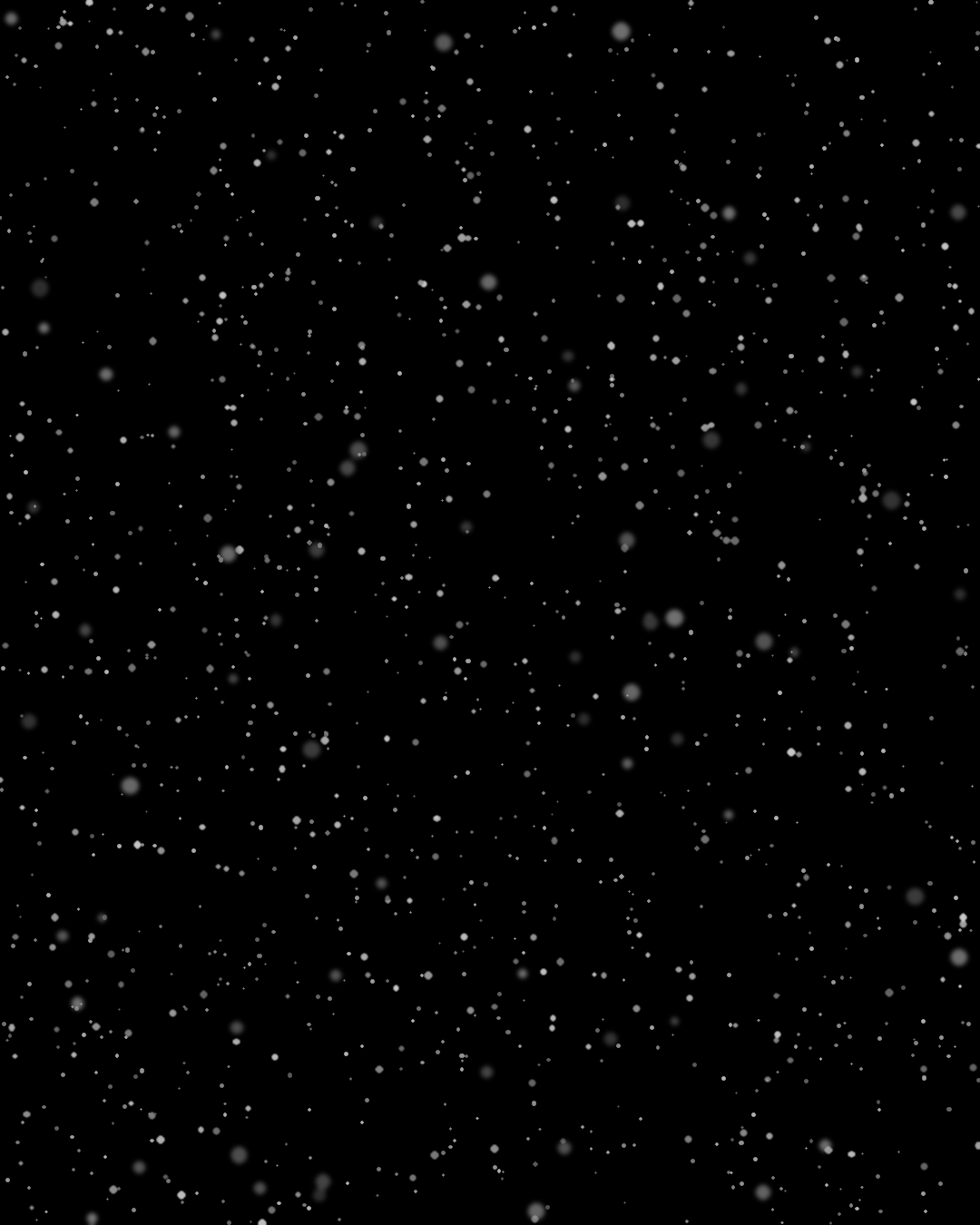
We made two snow overlays for this page, sized 1080 x 1350 pixels (the 4:5 shape Instagram uses for tall feed posts). Both are free for personal photos and cards. They're the same snowfall in two formats, because different editors blend images differently.
Create festive images with ChatGPT Christmas photo prompts, including simple steps and 15 ideas. You can also use the Christmas elf photo maker to turn any portrait into a cheerful elf.

Transparent PNG for Canva, Picsart, Photoshop or any editor with layers. Drop it on top of your photo.

White on black PNG for Snapseed's Double Exposure with the Lighten blend mode, which hides the black and keeps the flakes.
Which free editor does what
No single free app does all four edits well. This is how we would split the work, based on what each one can and can't do in November 2026.
| Editor | Phones | Good for | Not good for |
|---|---|---|---|
| Snapseed (free, by Google) | iPhone, Android | Warmth, contrast, vignette, and snow through Double Exposure with the Lighten blend | Fancy fonts and frames |
| iPhone Photos app | iPhone | Warmth, filters, cropping, simple text with Markup | Layering an overlay image |
| Google Photos | Android, iPhone | Filters, Magic Eraser (free), color tweaks; Magic Editor with a limited number of free saves on most phones | Text and frames |
| Canva (free plan) | iPhone, Android, browser | Text with hundreds of fonts, frames, stickers and snow elements; items marked with a crown are paid | Fine color grading |
| AI image editors (ChatGPT, Gemini) | Any, in the app or browser | Snow on the ground and roofs, a new background, things that need redrawing | Exact control; free use is limited |
Do the edits in this order
Order changes the result more than people expect. Text added before the color grade turns yellow. Snow added before the crop gets cut in odd places. Work like this:
- Crop and straighten.
- Fix light and color (warmth, brightness, contrast).
- Add light bokeh.
- Add snow.
- Add a frame or stickers.
- Add text, last.
How to add snow to a photo
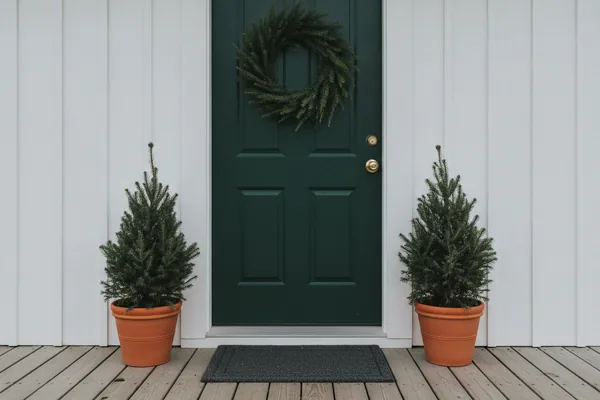
There are two kinds of snow edit, and they need different tools. Falling snow sits on top of the picture, so an overlay does the job. Snow lying on the ground, the roof or a car has to follow the shapes in the scene, and only an AI editor (or hours of painting) gets that right.
Falling snow in Snapseed
- Save the black snow PNG from this page to your phone.
- Open your photo in Snapseed and tap Tools, then Double Exposure.
- Tap the image icon at the bottom and pick the snow file.
- Choose the Lighten blend mode. The black disappears and only the flakes stay.
- Pinch to resize the snow layer so it covers the whole photo, then lower the opacity until the flakes look like they belong. Around two thirds is a good starting point.
- Tap the check mark and export.
Falling snow in Canva
Upload your photo and the transparent snow PNG, place the snow on top and stretch it to the edges. Tap Transparency and bring it down a little. Canva's own element library also has snow and sparkle graphics if you search "snow overlay"; the free ones are the ones without a crown.
Snow on the ground with AI
Upload the photo to an AI image editor and be specific about what stays:
Add light falling snow and a thin layer of fresh snow on the ground, the steps and the rooftops. Keep the people, faces, clothes and composition exactly the same. Soft overcast winter light.
Check faces and hands afterward. AI editors sometimes change small details while adding snow, and that is easier to spot right away than after you've sent the card.
Give the photo a warm Christmas color
Most indoor phone photos in December come out either orange from lamps or blue-gray from daylight. A Christmas look sits in between: warm, a bit richer than real life, with darker corners that pull the eye to the middle. In the iPhone Photos app, tap Edit, then Adjust, and try Warmth between +15 and +30, Vibrance around +15 and Vignette around +20. In Snapseed, Tune Image has Warmth and Ambiance; in Google Photos, the Adjust tab has Warmth too. Go easy on skin. If faces start looking sunburned, pull warmth back and add a little saturation instead.
Add Christmas light bokeh
Bokeh is the soft, round blur of lights that are out of focus. The real thing is easy to shoot: hold a string of fairy lights close to the phone lens, a few inches away, and take the portrait through them. Portrait mode on most phones blurs the lights into circles on its own.
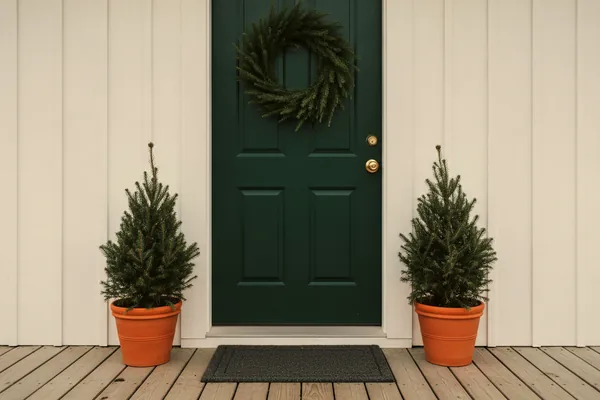
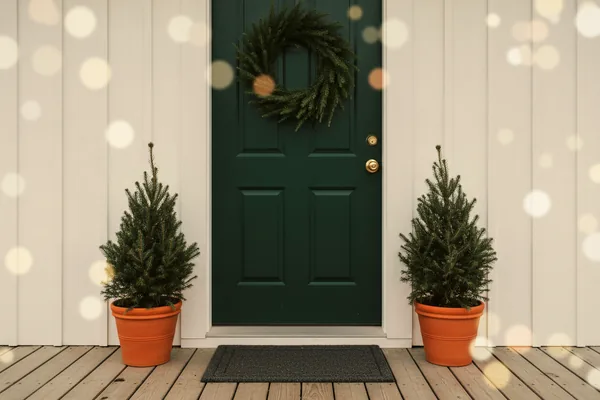
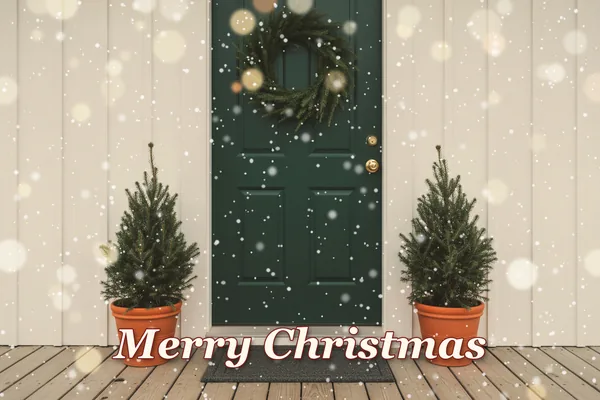
For a photo you already have, add bokeh as an overlay. Search "bokeh" or "light leaks" in Canva's elements, place it over the photo and set it to a low transparency. In editors with blend modes, Screen is the one you want, because it only brightens. Keep the circles to the edges and the top of the frame (we left the door clear in the example above). Lights over a face look like a lens problem, not decoration.
Christmas fonts for text on photos
All eight fonts below are free on Google Fonts and are under the SIL Open Font License 1.1 or the Apache License 2.0, which both allow use on photos, cards and things you sell. We checked each family's license folder in the Google Fonts repository in November 2026. Canva's font list includes many Google Fonts families, so search by name there first; on a computer, you can download any of them from fonts.google.com.
| Font | License | Look | Use it for |
|---|---|---|---|
| Mountains of Christmas | Apache 2.0 | Playful, wobbly serif made for the season | Kids photos, cookie and craft posts, short words like "Noel" |
| Great Vibes | SIL OFL 1.1 | Formal connected script | Couples, weddings at Christmas, elegant card fronts |
| Dancing Script | SIL OFL 1.1 | Casual bouncy script that stays readable | Family names and dates under a photo |
| Berkshire Swash | SIL OFL 1.1 | Bold vintage display letters with swashes | Big "Merry Christmas" headlines over a busy background |
| Lobster | SIL OFL 1.1 | Thick retro script | Instagram stories and thumbnails seen at small size |
| Playfair Display | SIL OFL 1.1 | High-contrast classic serif | Minimal, editorial photo cards |
| Cinzel Decorative | SIL OFL 1.1 | Roman capitals with flourishes | Faith-themed posts and formal greetings |
| Satisfy | Apache 2.0 | Light handwritten brush script | Captions, signatures and "love, the Smiths" lines |
Making text readable on a busy photo
- Put words over the calmest area: sky, a wall, the floor, a dark coat. Never across a face.
- Give light text a thin dark outline or a soft shadow. In the example we used cream letters with a deep red outline and a blurred shadow underneath.
- Pair one script font with one plain font. A script for "Merry Christmas", a simple sans serif for the names and the year.
- Make the main line big. At least one twelfth of the image height reads on a phone; anything smaller vanishes in a group chat preview.
- Skip all-caps script fonts. Great Vibes in capitals is close to unreadable.
On an iPhone, the quickest way to add a caption is in the Photos app: tap Edit, then the Markup icon, then the plus button and Add Text. The font choice there is short, so for anything from the table above, use Canva.
Frames, stickers and Santa hats
Frames and stickers are the fastest Christmas edit of all, and the one most likely to look cheap if overdone. One frame or two or three stickers is plenty. We have free transparent Christmas photo frames with a cut-out photo window and a set of Christmas stickers (hats, antlers, holly, lettering) that drop into Canva or any layer editor. For the classic edit, see how to add a Santa hat to a photo so it sits on the head at the right angle.
Export sizes for sharing and printing
| Where it goes | Shape | Pixels to export |
|---|---|---|
| Instagram feed post | 4:5 portrait | 1080 x 1350 |
| Instagram or Facebook story, TikTok, Reels cover | 9:16 | 1080 x 1920 |
| Profile picture | Square, shown as a circle | 1080 x 1080 (see our Christmas profile picture guide) |
| 4 x 6 print | 2:3 | 1200 x 1800 at 300 dpi |
| 5 x 7 card | 5:7 | 1500 x 2100 at 300 dpi |
Save a full-size copy before you add text, so you can reuse the edited photo without the caption. If the picture is headed to a print shop, our guide to print-ready Christmas photos covers file types and resolution.
Filters, overlays or AI?
A filter changes the colors of the photo you have. An overlay adds a layer on top of it. An AI editor redraws parts of the picture, which is why it can put snow on a roof or turn a T-shirt into a Christmas sweater, and also why it sometimes changes a smile you liked. For a family photo you care about, filters and overlays are the safer choice. For a fun post, AI is faster.
PiXmas sits in the AI group: it turns one photo into finished Christmas portraits and scenes. PiXmas for iPhone is on the App Store, and the PiXmas web tools for portraits, stickers and frames are available at picsmas.com. Everything on this page works without it.