How to add Santa to a photo of your house
By PiXmas Editorial Team · Updated November 20, 2026
To add Santa to a photo, shoot your living room at night with the tree lit and nobody in it, then drop in Santa with a free app or ask an AI editor to paint him in. The result looks real when three things match the room: his size, the direction of the light on him and a soft shadow under his boots. Free apps like Capture The Magic do it with ready-made Santa cutouts in a few minutes, and AI editors such as ChatGPT, Gemini or Photoshop Generative Fill do it from a written prompt.
Three ways to put Santa in your photo
Every method starts from the same thing, a photo of your own room. What changes is who does the cutting and blending: an app with a library of Santa cutouts, an AI model that redraws the scene, or you, with layers.
| Method | Tools | Cost | How real it looks | Best for |
|---|---|---|---|---|
| Santa photo app | Capture The Magic, Catch Santa Claus In My House (iPhone and Android), iCaughtSanta (iPhone) | Free download; extra Santa poses about $0.99 to $5.99 each (checked November 2026) | Good when you match brightness and size; the cutout is the same for every family | Parents who want a result tonight without learning anything new |
| AI image editor | ChatGPT, Google Gemini, Adobe Photoshop Generative Fill, Google Photos Magic Editor | Free tiers with limits; Photoshop is a paid subscription | Often the most convincing, because the AI relights Santa to fit the room | One-of-a-kind pictures and odd angles |
| Layers by hand | Photopea in a browser, Photoshop, Procreate | Free to paid | As good as your patience | People who already edit photos |
For most families, the app route is enough for a quick text to grandma. If the photo is going on the fridge or into a frame, the AI route is worth the extra ten minutes.
Step 1: take the before photo
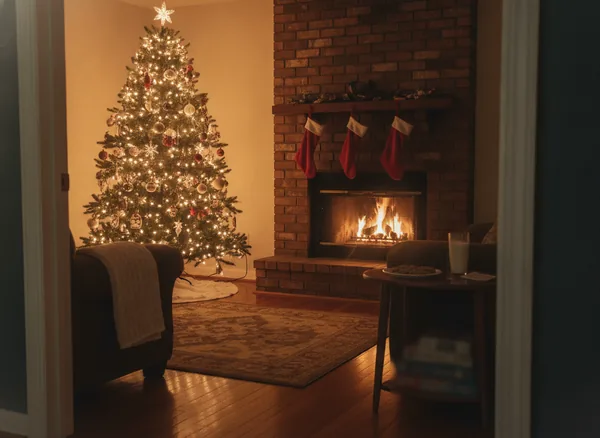
The empty room photo decides how good the final picture can be. No app can fix a shaky, overexposed shot of a tree that is half cut off.
- Wait until it is properly dark outside and switch off the ceiling light. Leave the tree lights on and, if you have one, a lamp or the fireplace.
- Stand where a child would peek in: a hallway or doorway, phone at about 3 to 4 feet off the floor. A slightly low angle makes the room feel like a kid's view.
- Rest the phone on a shelf, a stack of books or a tripod. Night mode on recent iPhones and Android phones needs a few seconds of stillness.
- Tap the tree to focus, then drag the exposure slider down a little so the bulbs show as points, not blobs.
- Leave space beside the tree or in front of the fireplace. Santa needs somewhere to stand.
- Take three or four frames. Small differences in blur show up later when you zoom.
Put the plate of cookies and the glass of milk out before you shoot. Half-eaten cookies in the after photo are a cheap, very effective detail (take one bite out of a cookie yourself before the second picture).
Step 2, option A: use a Santa photo app
Capture The Magic and Catch Santa Claus In My House work in much the same way. iCaughtSanta is an older iPhone app with Santa and reindeer cutouts. The steps below fit all three, though the menu names move around between versions.
- Open the app and choose your room photo from the camera roll, or take a new one inside the app.
- Pick a Santa pose. Poses seen from behind or from the side (Santa bending over the stockings, Santa walking away with his sack) look more natural than a Santa waving at the camera.
- Pinch to resize and drag him into place. Feet go on the floor, not floating over the rug.
- Use the brightness or exposure control in the app to darken Santa until he looks as dim as the furniture next to him. This one adjustment does more than anything else.
- Flip him if the room light comes from the other side.
- Save the picture to your camera roll at full size.
Expect a few free poses and a paywall for the rest. That is normal for this kind of app; the free poses are enough for one good photo.
Step 2, option B: ask an AI editor to add Santa
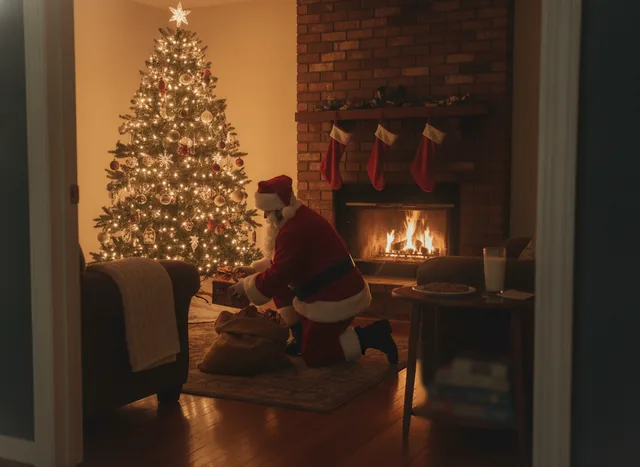
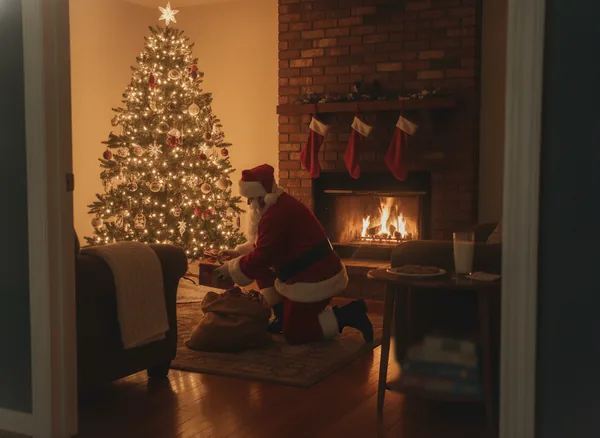
AI image editors read your photo and paint Santa into it, light and all. ChatGPT and Gemini work in the free versions with a limited number of images per day or month, Google Photos gives most phones a small monthly number of free Magic Editor saves, and Photoshop's Generative Fill is part of a paid Adobe plan. Upload the empty room photo and give the edit as one clear instruction. This is the prompt we used for the example at the top of the page:
Edit this exact photo: keep the room, camera angle, tree, fireplace and lighting exactly the same. Add a realistic Santa Claus in a classic red suit with white fur trim and black boots, kneeling beside the Christmas tree, seen from the side and slightly from behind, placing a wrapped present under the tree, with a brown sack of gifts next to him. Light him warmly from the tree and the fireplace, add a soft shadow on the floor, and match the phone camera grain.
Three habits help a lot. Say what must stay the same (AI editors love to tidy furniture). Name the light source and its side. And ask for one change per message: if the shadow is wrong, fix the shadow next, instead of starting over.
One thing to know before you try this with your kids in the frame: some AI editors restrict or refuse edits of photos that show children, and the rules are not always published. An empty room avoids the problem, and it is the more believable story anyway.
Step 2, option C: do it with layers
If you already know Photoshop, Procreate or the free browser editor Photopea, the manual route gives you full control. Put the room photo on the bottom layer and a Santa cutout (a PNG with a transparent background) above it. Then work through it in this order: scale, position, a Curves or Levels adjustment clipped to Santa so he matches the room's darkness, a warm color overlay at low opacity, a shadow painted with a soft black brush at 30 to 40 percent opacity under his feet, and finally a touch of noise over everything so both layers share the same grain. Generic Santa cutouts are easy to find, but check the license before you use one.
How to make the Santa photo look real
Fake-looking Santa photos fail in the same handful of ways. Go through this list with the image zoomed to 100 percent.
- Size: a standard US interior door is 80 inches tall. A standing Santa reaches about three quarters of that; a kneeling Santa is roughly as tall as the back of a dining chair.
- Light direction: if the tree is to his left, the left side of his suit and beard should be brighter. A Santa lit from the front in a room lit from the side is the most common giveaway.
- Color: tree lights and fire are orange-yellow. Santa's white fur should look cream, not bright blue-white.
- Shadow: a soft, dark patch under the boots and the sack. Without it he floats.
- Sharpness: night phone photos are a little soft and grainy. A crisp Santa on a soft room looks pasted on, so blur him very slightly.
- Overlap: put something in front of him, a chair arm or a branch of the tree. Real objects hide parts of each other.
- Face: a Santa seen from behind, mid-motion or half in shadow is more convincing than a smiling close-up, and gives curious kids less to inspect.
Catch Santa on camera: the security camera look
Some kids are more impressed by a grainy camera still than by a pretty photo, because that's what evidence looks like on the news. You can fake the look in any editor: black and white, a faint green tint, extra noise, a wide angle from a high corner, and Santa slightly blurred mid-step. Add a timestamp yourself in a plain monospace font (we used Consolas) after the AI step, since AI editors tend to garble numbers.
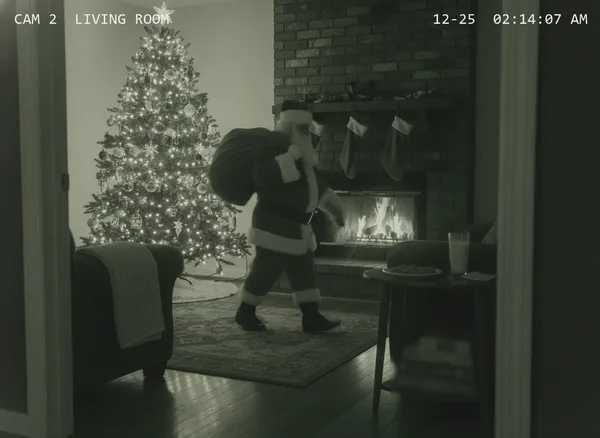
If you have a home security system, look in its app in December. Some providers that use the Alarm.com app have run a seasonal feature that places a Santa image over a live camera frame and saves a snapshot. Ring and other brands may differ, and we could not confirm a built-in Santa feature for them.
Keeping the magic for kids
A Santa photo is a small, harmless trick, and a few details keep it that way.
- Show it on Christmas morning, on a phone. A 65-inch TV makes every edge easy to study.
- On an iPhone, swiping up on a photo in the Photos app shows the date and time it was saved. If you make the picture on December 20, an older child may notice.
- Keep it off public social posts where the kids' friends, or the kids themselves, scroll. A family group chat is safer.
- Save the original empty room photo. If a sibling asks for proof next year, you can make a second one in the same room.
- Pair it with something they can hold: a short letter from Santa or a call from Santa on Christmas Eve.
And when the day comes that a child asks you straight out, the photo becomes a nice thing to look back on together, not a lie you got caught in.
What if you want your child in the picture with Santa?
That is a different picture: a portrait, not evidence. Adding Santa next to a real child is harder to get right by hand (two people means two sets of lighting and scale to match), and uploading a child's face to an AI service is a privacy decision worth five minutes of reading. Our guide to AI Christmas photo privacy lists what to check in a policy, and the comparison of the best Santa photo apps for kids covers tools built for this. For a lighter edit, a Santa hat on the photo can be done without uploading anything.
PiXmas makes Santa scenes and Christmas portraits from one family photo. PiXmas for iPhone is on the App Store, and the PiXmas web tools, including Santa scenes, are available at picsmas.com. Everything on this page works today with free tools.
Printing your Santa photo
App and AI results are often around 1000 to 1500 pixels wide. That prints well at 4 x 6 inches, which needs about 1200 x 1800 pixels for 300 dpi, and acceptably at 5 x 7. For anything larger, upscale first and check the edges of Santa at full size. Our page on print-ready Christmas photos covers resolution and file formats in more detail.