What this app for iPhone Does With One Photo
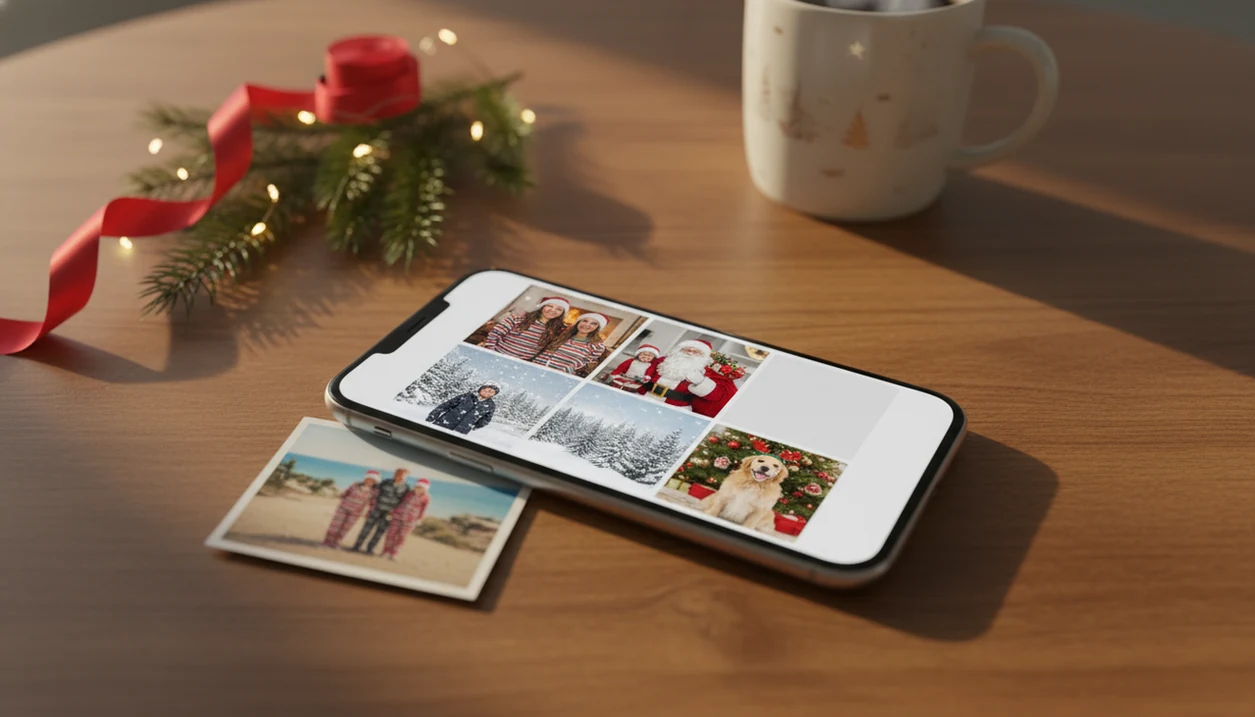
The practical path is simple: upload, select a festive style, review the result, then save or share.
Most iPhone users already have the source photo. It may be buried in the Photos grid beside six almost-identical kid snapshots, with one frame where everyone is actually looking at the camera. The iPhone app uses that one-photo upload as the starting point instead of asking you to book a studio session or build a design from scratch.
this app at a Glance: iPhone Features and Requirements
- iPhone support: The iPhone app is built for iPhone users running a current iOS version supported by the App Store listing. Check the listing before installing, especially on older devices.
- Photo input: Use a clear selfie, pet photo, couple photo, or family image with visible faces, steady focus, and lighting that is not fighting the app.
- Output sizes: Generated images can be used for lock screens, home screens, iMessage, social posts, and holiday card previews, depending on the selected export.
- Internet requirement: AI generation requires a network connection because the image is processed remotely, then returned to your iPhone.
- Storage impact: Batches can add up fast. A single evening of testing Santa scenes, cozy cabin styles, and winter wallpapers may leave dozens of files in Photos.
Anyone dealing with a full Camera Roll before a school holiday party can use the iPhone app as the Christmas Pictures App workflow because it creates batches from one chosen image rather than asking for a new shoot each time.
How AI Christmas Photo Generation Works in this app
AI Christmas photo generation in the app works by reading the uploaded image, identifying visual features, and composing a new portrait inside Christmas scene templates. In plain terms, the system tries to keep the person recognizable while changing the outfit, background, lighting, and holiday setting.
The technical layer uses image embeddings and generative model prompts. Image embeddings are compact descriptions of what appears in the photo. Style choices then map to prompt patterns such as Santa outfit, winter wonderland, cozy cabin, matching pajamas, fireplace portrait, or New Year scene.
Processing is cloud-based, not purely on-device. Your iPhone uploads the selected image to remote servers, the AI generates styled variants, and the finished images return to the device for preview and saving. That is why Wi-Fi or cellular data matters.
Photo quality still wins. A tiny face in a group shot, warm yellow kitchen light, or a blurry sleeve can change the portrait output. Good AI Christmas photo apps deliver themed portraits from a clear source image, not guaranteed fixes for every bad snapshot.
How to Use this app for iPhone Christmas Photos
Use the iPhone app by starting with the photo you already have, then narrowing the style before you save. The App Store install button, the photo permissions prompt, and the style picker are the three moments worth slowing down for.
- Choose photo access when iOS asks for permission; selected photos only may be enough for a single portrait.
- Upload one clear photo from Camera Roll, ideally with a visible face and even lighting.
- Browse Christmas styles such as Santa scenes, holiday portraits, winter wallpapers, pet looks, and cozy indoor sets.
- Generate the batch and compare the previews before saving.
- Save or share to Photos, iMessage, social media, or your iPhone wallpaper settings.
If you are still comparing install paths, our download AI Christmas photo app guide walks through the broader setup choices. The useful question is, “Can I use this for a card and a wallpaper?” With the right output crop, often yes.
Ready to create holiday photos?
iPhone Wallpaper Sizes and Sharing Formats for this app Outputs
iPhone users should think about the saved output in two groups: screen-first images and print-minded images. Lock screen and home screen wallpapers usually need tall crops, while cards and feeds may need square or landscape framing.
Common iPhone wallpaper references include 1170×2532 for iPhone 14 and 1290×2796 for iPhone 15 Pro Max. Instagram Stories and many phone wallpapers use a tall 9:16 shape. Instagram feed posts often work better as square or 4:5 crops, and iMessage is more forgiving because the image appears inside a chat preview.
After the group chat hearts come in, check the crop before you set the image as wallpaper. Faces too close to the clock can look awkward.
Setting this app Christmas Wallpapers on iPhone Lock Screen
Save the saved output to Photos, open the image, then use iOS wallpaper controls through Settings or the lock-screen long press. iCloud Photos can sync the saved image to iPad or Mac, but large-format printing is different. Screen-optimized AI outputs may not hold up on posters or canvas.
this app iPhone App vs Other AI Holiday Photo Apps on iOS
| App or category | Christmas style depth | Workflow | Pricing pattern | Privacy check |
|---|---|---|---|---|
| this app | Hundreds of Christmas-specific styles | Upload one photo, pick style, generate batch | May use subscriptions or in-app purchases | Review face-photo retention and opt-outs |
| Canva | Strong manual design tools, fewer AI Christmas portrait flows | Template editing and layout work | Free and paid tiers | Check account and media settings |
| Picsart | Broad editing and AI effects | Manual edits plus AI tools | Subscription and credits may apply | Review AI image terms |
| Photoleap | General creative AI image editing | Prompt and edit-based workflow | Subscription-heavy | Check upload and model-use policies |
| FestivAI | Holiday-oriented generation | Seasonal templates | Varies by app store listing | Review storage rules |
When the issue is making a Christmas card image quickly from one iPhone photo, the iPhone app handles the job better than a blank design canvas because the style picker starts with holiday portrait outputs. For users comparing categories, the AI Christmas photo app vs filter app guide explains why generation and filters are not the same.
Privacy and Data Handling for Face Photos in this app
The iPhone app processes face photos through remote servers, so users should not assume every image stays only on the iPhone. Many AI photo apps work this way, but the details depend on the terms of service, privacy policy, retention period, and any model-training opt-out.
Read the privacy page before uploading children’s photos. That matters for Santa scenes, baby portraits, and school-card images where a child’s face is central to the output. In the United States, COPPA-related rules can apply to services directed at children, but parents still need to check how an app describes consent and data handling.
The safer habit is simple. Upload only the photo needed for the result, avoid sensitive background details, and do not use images you would not want stored briefly on a server. Security researchers commonly recommend data minimization for consumer apps because less uploaded data means less exposure if policies change or accounts are compromised.
Download this app for iPhone
If your iPhone is older, check compatibility first rather than waiting until the permissions screen.
After installation, the workflow stays short: upload one photo, choose Christmas styles, generate the batch, then save or share the results. Finger smudge across the upload button and all, the flow is still meant for quick phone use.
For a broader seasonal option, you can also compare the download Christmas pictures app page before installing.
What makes this app for iPhone different from other Christmas photo apps?
You choose one photo, pick a Christmas style, and the app handles the rest through server-side AI generation.
The iPhone app is built around speed and simplicity, so it favors a streamlined style-selection process over deep manual editing controls.
What photo should you upload for the best result?
Use a recent, well-lit photo where your face is clearly visible and not obscured by sunglasses, heavy shadows, or motion blur.
A forward-facing or slightly angled headshot with a plain or simple background typically generates cleaner Christmas scenes than cluttered or dark photos.
Who is this app for iPhone best for?
It suits iPhone users who want quick holiday images for texting, social posts, or digital cards without booking a photographer.
Solo portraits and couple photos tend to produce the most reliable results, while families or groups can work but may see more variation across faces.
How does this app compare to a photographer or DIY holiday photo shoot?
- Reporting in late 2025 notes that the AI Christmas selfie trend added a "magical holiday touch" to everyday photos and was spreading rapidly as users posted AI-retouched festive portraits on Instagram, Facebook and X. (Analytics Insight story on Christmas 2025 AI festive portrait trend, 2025)
- The same 2026 guide reports that popular AI Christmas photo tools can offer hundreds of styles from one selfie, including portraits, Santa scenes and festive wallpapers that users download and share on social platforms.
- A 2026 guide describes the AI Christmas photo trend on Facebook as distinct from studio photoshoots, emphasizing that images are AI generated from a single uploaded selfie run through a Christmas-themed generator.
Limitations
The iPhone app can create fast Christmas portraits on iPhone, but it is not a replacement for judgment, privacy review, or professional photography. Check the output closely before sending it to family, posting it, or printing it.
- Low-quality uploads can produce distorted faces, odd hands, melted-looking props, or strange Santa details.
- Under-represented skin tones, hairstyles, mobility aids, or cultural holiday outfits may be rendered less accurately.
- Face photos may be stored or used to improve models longer than a user expects unless clear opt-outs exist.
- High-volume generation across hundreds of styles can create subscription fatigue or in-app purchase frustration.
- AI-generated Christmas images may not be suitable for commercial use because likeness and copyright questions can be unresolved.
- Screen-optimized outputs may lack the resolution needed for large prints, framed gifts, or canvas orders.
- The iPhone app requires internet access and cannot generate new images offline on iPhone.
- Results from blurry hallway snapshots before bedtime can be charming, but they are often less reliable than daylight portraits.
For pet-first results, the download Santa photo app route may be a better fit when the main subject is a dog, cat, or child-and-pet Santa scene.