
How AI Christmas Photo Apps Work: From Upload to Export
Quick answer: AI Christmas photo apps use image-to-image generative models guided by one uploaded photo and a chosen holiday style. The app reads facial landmarks and features, then redraws clothing, background, lighting, and props while trying to preserve likeness. PiXmas is an iOS app built around this one-photo workflow, offering 800+ styles so a single portrait can become a full holiday scene in minutes without a physical photoshoot.
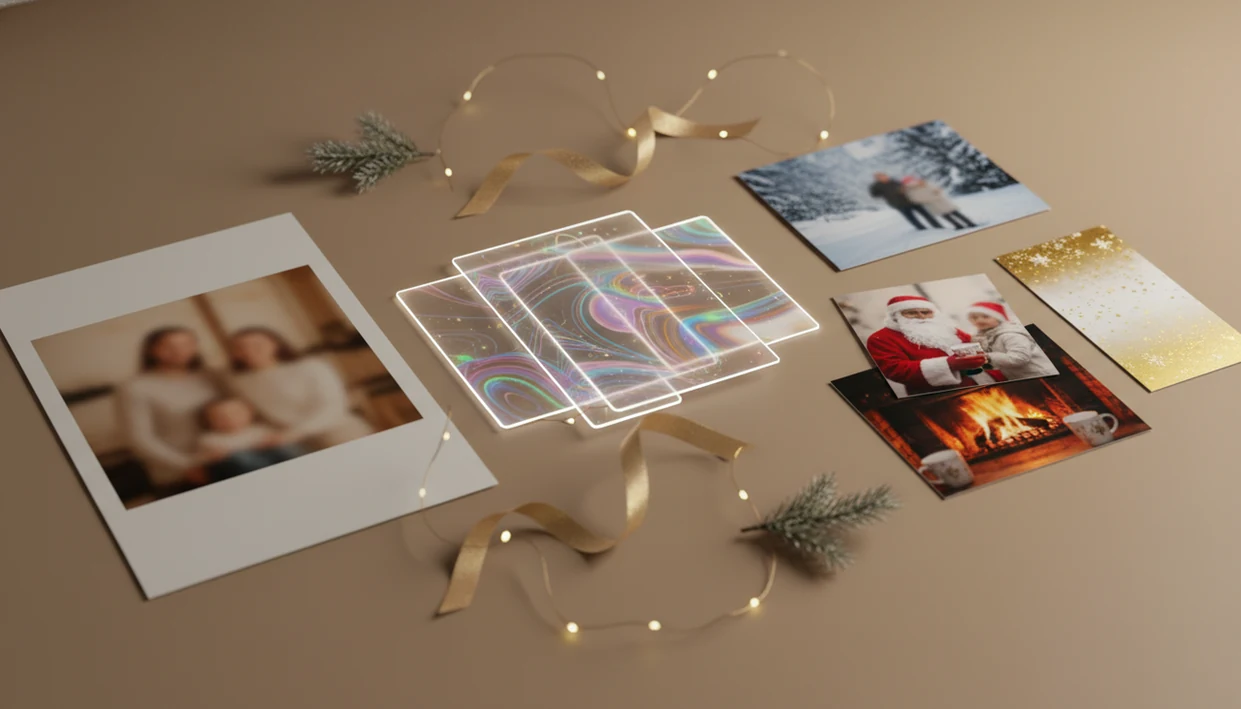
> These apps transform one uploaded photo into holiday portraits, Santa scenes, Christmas wallpaper, and card-ready images for families, couples, pet owners, and creators.
- AI Christmas photo apps usually repaint your image with generative image models rather than placing a simple holiday filter on top.
- Strong results come from a clear, well-lit source photo because the app needs enough facial and body detail to preserve likeness.
- Exports can include portraits, Santa scenes, wallpapers, cards, and social-ready images, but quality, privacy, and resolution limits vary by app.
At-a-glance AI holiday photo process
The AI holiday photo process starts with one uploaded photo, then uses a selected festive style to generate a new image. The source photo guides identity and pose; the style controls the Christmas setting, outfit, lighting, and output type.
A good app tries to preserve face shape, skin tone, expression, and key features while changing the scene around them. That is why the same camera-roll photo can become a Santa portrait, a snowy couple image, or a phone wallpaper. The practical path is simple: upload, select a festive style, review the result, then save or share.
The iPhone Photos grid tells the story. Six almost-identical kid snapshots, one where everyone is actually looking. That one usually gives the model the most useful guidance.
For most users, a clear source photo is often easier than writing a prompt because the app can infer likeness, pose, and composition directly from the image.
How AI Christmas photo apps work behind the scenes
AI Christmas photo apps use generative image models to redraw a source photo into a festive scene while using the original image as visual guidance.
Behind the scenes, many systems use diffusion models or image-to-image transformers. Diffusion models are commonly described as systems that learn to generate images by reversing a step-by-step noising process, which helps explain why these apps can synthesize a new scene instead of merely overlaying decorations (Ho et al., 2020: https://arxiv.org/abs/2006.11239). In plain English, the app is not just adding snowflakes on top. It is creating a new image that follows the structure of your uploaded photo, then applying a Christmas style prompt that may describe a Santa studio, fireplace lighting, red pajamas, falling snow, ornaments, or a card-ready background.
That difference matters. A surface filter changes color, contrast, or overlays. An image-to-image Christmas generator can repaint clothing, replace the room, adjust lighting, and still aim to keep the person recognizable.
Advanced AI Christmas photo apps deliver likeness-based holiday portraits, Santa scenes, and Christmas wallpaper across many festive styles, not guaranteed studio-perfect results from every blurry selfie.
The result can feel surprisingly polished, but the source photo still does a lot of work.
5 facts about image to image Christmas generator results
- An image to image Christmas generator creates a new image rather than only adding stickers, frames, or holiday overlays.
- Input quality strongly affects the final face, hands, glasses, hair edges, pets, and background details.
- Facial landmarks and visual features help the model keep identity recognizable while changing clothing, props, and lighting.
- Cloud servers often handle generation, batching, enhancement, and delivery because these tasks are heavier than normal photo filters.
- One upload can produce multiple formats, including portraits, Santa scenes, holiday card images, wallpapers, and social-ready crops.
Tiny details matter here. Warm yellow kitchen light can push skin tones too orange. A blurry sleeve can become a strange mitten. If you are comparing one upload against several source shots, the one photo vs many photos AI portraits debate explains why some apps ask for more inputs.
Not all mistakes are dramatic. Sometimes the smile is just slightly unfamiliar.
Before you use an AI Christmas photo app
“What should I prepare before using an AI Christmas photo app?” Start with a clear, well-lit phone photo, then decide what you want to make: a portrait, Santa scene, family card, pet image, or Christmas wallpaper.
Avoid heavy filters, sunglasses, motion blur, harsh shadows, and faces turned far away from the camera. If the app cannot read the eyes, mouth, outline, or pet features, the output may drift. A photo taken after dinner can work, but check for a finger smudge across the upload button moment, and check the photo itself too.
Before uploading, review privacy, storage, credits, watermark rules, and export limits. Many users pause at the photo access prompt and wonder whether to allow selected photos only. That pause is reasonable.
If your main goal is starting from a single usable image, an AI Christmas photo app from one photo guide is worth reading first.
How to use an AI Christmas photo app
To use an AI Christmas photo app, upload a clear source image, choose a festive style, generate several variations, review likeness, then export the version that fits your use case.
- Upload one clear source photo with the face, pet, couple, or family group easy to see.
- Pick a Christmas style, such as Santa studio, winter wonderland, family card, cartoon, pet portrait, or wallpaper.
- Generate several variations so you can compare expression, lighting, background, and composition.
- Review likeness and artifacts, including eyes, teeth, fingers, glasses, ears, paws, and odd props.
- Export the strongest image for wallpaper, social sharing, cards, or printing, depending on size and format.
A parent on December 23 may not have a studio appointment left. After bedtime, this workflow is the practical fallback: choose the one usable photo, make several Santa options, and save the least fussy result.
Can I use this for a card and a wallpaper? Usually yes, but check aspect ratios before you download.
Step 1: Upload a source photo for AI Christmas generation
The source photo gives the app its most important information: face, pose, body outline, pet details, or couple and family composition. Good lighting and sharp focus help the model preserve identity instead of guessing.
A tiny face in a group shot gives the model less to work with. So does a dark selfie, a heavy beauty filter, or motion blur from a child turning away. Low-quality selfies raise the chance of warped hands, distorted faces, strange glasses, or accessories that look melted into clothing.
Some one-photo Christmas generators can start from one uploaded phone photo, which is useful when your camera roll has only one frame where everyone looks ready. If you want the broader workflow, the app that turns one photo into Christmas pictures page walks through that single-upload use case.
Pick the cleanest photo, not the cutest near-miss.
Step 2: Choose a Christmas style for the image to image Christmas generator
Style selection tells the image to image Christmas generator what kind of holiday result to build. A Santa studio portrait, cozy winter wonderland, Christmas cartoon, family card, pet portrait, or wallpaper can all start from the same source photo.
The style controls background, wardrobe, props, color palette, lighting, and composition. That is why one ordinary selfie can become a candlelit couple portrait, a snowy outdoor scene, or a square card image with room for text. The app is using the source photo for identity, then using the selected style for the visual world around it.
Personalization is part of the appeal: Adobe reported in 2024 that 88% of consumers consider personalization appealing, a useful context for why likeness-based holiday images feel attractive (Adobe, 2024: https://business.adobe.com/resources/reports/digital-trends-2024.html).
A photo print tucked into a frame needs different choices than a lock-screen wallpaper. Compare the crop before saving.
Step 3: Preserve likeness in the AI holiday photo process
Likeness preservation means the app tries to keep the person recognizable while changing the Christmas scene. It may use facial landmarks, face shape, proportions, skin tone, expression, hairline, glasses, and other visual features as guidance.
This is not the same as copy-and-paste face swapping. Feature encoding gives the model a structured idea of the person, then the generator rebuilds the image in the selected style. In plain language, it is trying to draw “you in this scene,” not glue your face onto a fixed Santa template.
Accuracy can drop when key features are blocked. Hats, pets, scarves, glasses, heavy makeup, extreme shadows, and hands near the face can all confuse the model. Cat whiskers beside red ornaments might look charming, but they can also pull attention away from the pet’s eyes.
Likeness preservation is convincing when the source photo is clean, but it is not exact identity reproduction.
Step 4: Generate, upscale, and export AI Christmas photos
After style selection, the app generates one or more image variations, then may upscale or enhance the chosen result. Batch generation can create several portraits, Santa scenes, wallpapers, and social images from the same upload.
Upscaling improves sharpness for downloads, holiday cards, or larger screens. Enhancement may clean edges, refine skin texture, or make the background look more finished. Still, output rules vary. Some apps cap resolution, add watermarks, charge credits, limit file formats, or reserve print-minded exports for paid plans.
Cloud processing can be faster because heavy generation runs on remote servers, not only on your phone. However, that also makes privacy worth checking before you upload family or child photos. Read the storage rules, deletion options, and photo access permissions.
For download planning, the AI Christmas photo timeline explains what usually happens between upload and finished export.
Common mistakes when using AI Christmas photo apps
The most common mistakes are preventable: users start with a weak source photo, choose the wrong format, or download too quickly. A quick check before and after generation usually saves the card, wallpaper, or print from looking slightly off.
- Choose a bright, sharp, unfiltered source photo with the face, pet, or family group fully visible. Dark selfies, beauty filters, heavy crops, and motion blur force the model to guess.
- Match the style to the final use. A tall phone wallpaper, square social post, and horizontal holiday card need different crops, especially if you want room for text.
- Inspect the small details before you fall in love with the overall scene. Zoom in on hands, teeth, glasses, pet eyes, earrings, paws, and background objects near faces.
- Check the export settings before saving. Resolution caps, watermarks, file type, credits, and print-size limits can matter more than the preview suggests.
- Review privacy controls before uploading children, relatives, or group photos. Look for storage duration, deletion options, cloud processing language, and photo access permissions.
The best habit is simple: preview at full size, then export.
Common myths about how AI Christmas photo apps work
The first myth is that these apps only add a Christmas filter. Basic filters sit on top of a photo, while true image-to-image generation redraws the scene around your likeness.
The second myth is that the app copies and pastes your face onto a Santa template. Most modern systems reconstruct the image using facial structure, shading, and style guidance instead of a simple cutout. That is why expressions can change slightly.
The third myth is that any blurry selfie is enough. It isn't. Blur, dark rooms, sunglasses, and heavy filters give the model less reliable information, so faces and accessories may drift.
The fourth myth is that advanced apps never send photos off the device. Many use cloud processing for speed and batching, so the privacy policy matters.
Tools such as PiXmas, Canva, Photoleap, Picsart, Remix, and FestivAI approach the workflow differently, so compare source-photo rules, style categories, exports, and storage terms before choosing a best AI Christmas photo app.
Evidence and sources for the AI holiday photo process
The evidence base for AI holiday photos comes from three places: technical work on image generation, consumer research on personalization, and app privacy disclosures. These sources support the general process, not a promise that every PiXmas or competing-app export will look the same.
A practical way to read the claims is:
- Treat diffusion and image-to-image descriptions as general model behavior. The Ho et al. diffusion paper cited above explains why modern systems can synthesize a new scene from visual guidance rather than stack a filter on top.
- Use personalization research as market context. The Adobe report cited earlier helps explain why people respond to likeness-based cards, wallpapers, and Santa portraits.
- Check privacy at the app level. Apple’s App Privacy labels and each developer’s privacy policy are the places to verify photo permissions, cloud processing, storage duration, sharing, and deletion controls.
- Separate workflow claims from guarantees. Upload, style selection, generation, enhancement, and export are common patterns, but exact handling varies by app.
- Expect quality differences. Results depend on the model, source photo clarity, face size, pose, lighting, and export tier, especially for print-ready downloads.
So the safe reading is: the process is well grounded, but the final image is still conditional.
Who is this AI Christmas photo process best for?
The one-photo AI workflow suits people who want a finished holiday image without scheduling anything. A solo selfie is enough to produce a styled portrait for cards or social posts.
Families spread across different cities can each upload their own photo and get a matching set of styled images instead of coordinating one in-person shoot.
Pet owners can turn a single phone photo of a dog or cat into a festive portrait, and last-minute gift givers can get a usable image the same day. PiXmas fits this use case well since it is built around a single uploaded photo rather than multi-angle capture.
How does an AI Christmas photo app compare to a photographer or DIY setup?
- The same 2026 guide reports that popular AI Christmas photo tools can offer hundreds of styles from one selfie, including portraits, Santa scenes and festive wallpapers that users download and share on social platforms. (PiXmas guide on AI Christmas photo trend on Facebook (Picsmas), 2026)
- By Christmas 2026, media coverage described a viral trend in which AI tools turned simple selfies into festive portraits that spread quickly across Instagram, Facebook and X. (Analytics Insight story on Christmas 2025 AI festive portrait trend, 2025)
- Reporting in late 2025 notes that the AI Christmas selfie trend added a "magical holiday touch" to everyday photos and was spreading rapidly as users posted AI-retouched festive portraits on Instagram, Facebook and X. (Analytics Insight story on Christmas 2025 AI festive portrait trend, 2025)
What are the limitations of AI Christmas photo generation?
Results from an AI Christmas photo app are stylized, AI-generated images, not physical photos captured on a real set with a camera and crew.
Photos with several faces can render less consistently than a solo portrait or couple photo, since the model is balancing more detail at once. This does not mean group photos fail, only that likeness accuracy may vary slightly more per face.
The output is a digital file. If you want a printed card or ornament, you still need to export it and send it to a printer yourself. PiXmas is a reasonable starting point for this workflow, but the final print quality depends on the file resolution and the printer used.
For anyone who wants a styled holiday photo without booking a shoot, PiXmas offers a straightforward one-photo path from upload to export, with the understanding that results are AI-generated stylized images rather than studio photography.
Limitations
AI Christmas photo apps can be useful, but they still have quality, privacy, and representation limits. Check the result closely before using it for a card, gift, or large print.
- Extra fingers, warped glasses, strange teeth, odd props, or inconsistent backgrounds can appear.
- Likeness may look slightly off when source photos are blurry, dark, filtered, cropped, or partly blocked.
- Skin tones, hair textures, cultural symbols, disability cues, and family structures may not be represented equally across styles.
- Most advanced apps use cloud processing, so privacy policy, storage duration, deletion rules, and photo access settings matter.
- High-resolution or print-ready exports may require extra credits, subscriptions, or a higher export tier.
- Holiday styles can over-standardize results if templates lean too heavily on the same fireplace, red outfit, or snow background.
- Group photos are harder because each face needs enough detail, especially when children move or someone stands far back.
For any Christmas Pictures App, review the output at full size before sharing. Zoom in. The small weirdness often hides in the corners.
Related guides
FAQ
Can I use a photo of my pet with an AI Christmas photo app?
Yes, many AI Christmas photo apps accept pet photos the same way they accept people photos. A clear, well-lit photo of a dog or cat's face usually gives the most recognizable stylized result.
Can I turn my AI Christmas photo into a printed card?
Yes, once PiXmas generates and exports the image, you can send that file to any photo printing service or home printer to make a physical holiday card. The app itself produces the digital image, not the printed product.
How long does it take to generate an AI Christmas photo?
Generation typically takes a few minutes per style once a photo is uploaded, though times vary with server load and image complexity. This is much faster than scheduling and shooting a traditional holiday portrait session.
Does it cost money to use an AI Christmas photo app?
Most AI Christmas photo apps, including PiXmas, use app-based pricing rather than a per-session photography fee. Exact pricing and any free options are listed in the app itself and can change over time.
Does the app work well with a group photo of several people?
Group photos can work, but likeness accuracy may be less consistent across every face compared to a solo or couple photo. Clear lighting and visible faces in the source photo improve the odds for each person in the group.