
AI Christmas Photo Timeline: From One Upload To Sharing
Quick answer: An AI Christmas photo timeline is the sequence from uploading a photo to receiving a finished holiday-style image: upload, pick a style, generate, review, then export or share. With PiXmas, the process starts from one uploaded photo and produces several stylized results in-app, usually completed in minutes rather than requiring a scheduled shoot or physical setup.
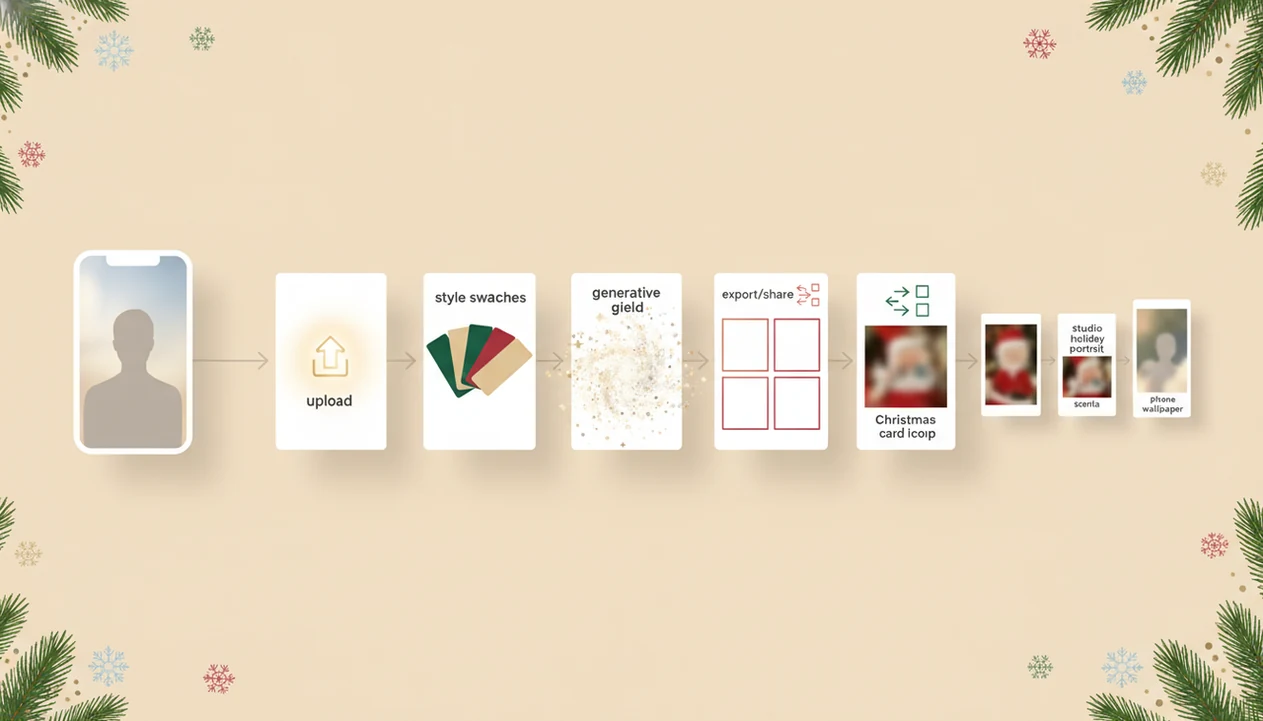
An AI Christmas photo timeline is the full path from uploading one clear phone photo to choosing festive styles, reviewing generated portraits, exporting images, and sharing them as cards, posts, wallpapers, or profile photos. The process is usually “one photo in, many holiday looks out,” not a simple filter.
> PiXmas is a Christmas photo app that transforms one uploaded photo into holiday portraits, Santa scenes, and Christmas wallpaper for families, couples, pet owners, and creators.
- Start with one clear photo where the face or subject is visible, well lit, and not heavily cropped.
- Choose a Christmas style such as a studio portrait, Santa scene, family card image, pet holiday look, or phone wallpaper.
- Review several AI-generated outputs before exporting because quality can vary by pose, lighting, style, and realism.
AI Christmas Photo Timeline At A Glance
An AI Christmas photo timeline is the sequence of upload, style selection, AI generation, review, export, and sharing. It explains how one ordinary phone image becomes several seasonal outputs, including portraits, Santa scenes, Christmas cards, wallpapers, and social images.
The practical path is simple: upload a clear source photo, pick a festive look, generate options, compare them, then save the winners. Many Christmas Pictures App workflows focus on one uploaded photo becoming several festive outputs, which is useful when the iPhone Photos grid has six almost-identical kid snapshots and one where everyone is actually looking at the camera.
This is generation, not just a red-and-green frame. Good AI Christmas photo apps deliver studio-style holiday portraits, Santa scenes, and Christmas wallpaper from one upload, not guaranteed studio-perfect photography or unlimited control over every detail.
How The AI Christmas Photo App Process Works
An AI Christmas photo app uses the uploaded image as the identity and composition reference, then combines it with a chosen holiday style to generate a new festive portrait.
The source photo gives the system face structure, pose, subject placement, and basic visual cues. Style presets guide the scene around it: snowy background, velvet outfit, fireplace light, Santa workshop props, digital garland, or phone wallpaper framing. In technical terms, the app reads image embeddings and style conditioning. In plain language, it learns what should stay recognizable and what should become Christmas-themed.
Most apps generate composite images rather than placing a sticker over the original. Several candidates may appear so you can compare realism, eye quality, clothing, and background fit.
Mobile-first image tools are growing because people already edit and share on phones; if you cite market size, link the specific mobile-app and photo-editing market reports directly, or remove the dollar figures. For more mechanics, the deeper how AI Christmas photo apps work guide breaks down the process.
Before You Start The AI Holiday Portrait Steps
Five facts matter before you upload. The starting photo sets the ceiling for the final holiday portrait, especially when the face is small, shadowed, or partly blocked.
- A sharp front-facing or three-quarter photo usually gives the AI more usable face detail.
- Blurry sleeves, harsh shadows, sunglasses, and heavy crops can weaken likeness and realism.
- Family, couple, pet, and creator images need different framing; a tiny face in a group shot is harder to preserve.
- One upload can create many looks, but not every style will be equally strong.
- Privacy, storage, export resolution, and commercial-use rights are app-specific, so check the policy before uploading.
Small checks matter. If the only usable photo was taken after dinner under warm yellow kitchen light, try it, but expect to compare outputs carefully.
Step 1: Upload One Photo In The Christmas Photo App Process
Upload one photo from your phone, gallery, or camera roll. That image anchors identity, pose, face structure, subject clarity, and the basic direction of the portrait output.
You do not need a staged studio Christmas photo before starting. A regular school-day grin on a phone screen can work if the face is clear and the crop is not too tight. The app is reading the person or subject first, then building the holiday look around it.
One-photo workflows are designed for fast holiday image creation. If you are comparing workflows, the AI Christmas photo app from one photo page explains when one upload is enough and when extra images may help.
Step 2: Choose AI Christmas Styles And Holiday Portrait Looks
“Which Christmas style should I choose?” Choose based on where the finished image will go: card, profile photo, social post, lock screen, framed gift, or creator thumbnail.
Style categories usually include studio portraits, Santa scenes, Christmas wallpaper, card images, family looks, pet looks, couple portraits, and creator images. A preset can influence background, wardrobe, lighting, props, and composition. Dog ears peeking from a Santa hat may suit a pet card, but that same style will not help a formal family greeting.
Adobe Firefly positions holiday AI creation around cards, family portraits, profile pictures, and social posts, which reflects the common uses in this category source. For most users, choosing the final use case before the style is easier than generating first and cropping later.
Step 3: Generate Several AI Holiday Portrait Outputs
After you start generation, the app creates several festive candidates from the same upload and selected style. Those versions may vary in expression, background, clothing, lighting, and how closely they preserve the original face.
That variation is the point. AI-generated holiday portraits are new composite images, not simple filters, stickers, or frames placed on top of the photo. One output may look like a polished card image. Another may feel too glossy for a family message.
App-store listings often emphasize speed because users want quick results during December. Apple’s App Store example for Christmas AI - Photo Maker says it can create Christmas photos and portraits instantly. Treat that as category positioning, not a universal processing-time promise.
December 23 is real. A parent making a Santa portrait after bedtime is not waiting for a studio slot.
Step 4: Review AI Christmas Photo Results Before Exporting
Review is the step many people skip, but it decides whether the final image feels usable. Compare the generated portraits before you export, especially if the image will be printed or sent as a holiday card.
- Check facial likeness first; the best background does not fix an unfamiliar face.
- Inspect eyes, hands, pets, accessories, clothing edges, and background details.
- Rerun generation or switch styles if the first set looks synthetic or mismatched.
- Pick different winners for different uses, such as a card, wallpaper, avatar, or story post.
- Look for text errors on signs, sweaters, ornaments, or card-like scenes.
A milk glass beside a portrait preview can make a Santa image feel charming, but the child’s face still needs to look like the child. For card planning, an app that turns one photo into Christmas pictures is most useful when it gives you options to compare, not only one finished result.
Step 5: Export And Share AI Christmas Photos
Export the images you want to keep to the camera roll or download them as files. From there, common uses include Christmas cards, profile photos, social posts, wallpapers, family messages, and creator content.
Ask the practical question before saving: “Can I use this for a card and a wallpaper?” Often, you need different crops. A vertical lock screen, square profile photo, and landscape card image do not frame faces the same way. Check resolution, edges, and crop before printing or setting the image as wallpaper.
Demand for share-ready images also tracks social behavior. Pew Research Center reported that 84% of U.S. adults ages 18 to 29 use social media, the highest adult age group source. Export rights and commercial-use permissions still vary by app, so read the terms if you plan to use an image for paid creator work.
How To Use An AI Christmas Photo Timeline
Use the timeline as a checklist, not a mystery flow. In a Christmas Pictures App, the beginner path is short enough to run from camera roll to Christmas portrait in a few minutes.
- Upload one clear photo where the face, pet, couple, or family subject is easy to see.
- Choose a festive style, such as a Santa scene, studio portrait, card image, or Christmas wallpaper.
- Generate several portrait outputs from the selected look.
- Review likeness, eyes, clothing, pets, background details, crop, and realism.
- Export the strongest images to your camera roll or download folder.
- Share the right version as a card, post, wallpaper, message, or profile photo.
On iPhone, pay attention to the photo access prompt. Selected Photos Only can be the right choice if you want to upload one image without opening the whole library.
Evidence Behind The AI Christmas Photo Timeline
The evidence behind this timeline comes from two places: how image-generation tools typically build composite portraits, and how people use holiday images after export. PiXmas supplies the workflow framing; broader app examples show category behavior.
- Separate workflow claims from category claims. The one-photo upload, style choice, generation, review, export, and sharing path describes the PiXmas-style user flow on this page.
- Treat Adobe Firefly as a category reference for common holiday outputs, including cards, family portraits, profile pictures, and social posts, not as proof that every app offers the same controls.
- Treat Apple App Store examples, such as Christmas AI - Photo Maker, as marketplace positioning around fast Christmas portrait creation, not a promise that every generation finishes instantly.
- Connect the mechanics to the result. AI holiday images are usually generated composites, meaning the app uses the uploaded subject as a reference while creating new clothing, lighting, props, and backgrounds.
- Judge each export in context. Quality varies by the upload, selected style, model behavior, face detail, crop, and whether the final use is a message, wallpaper, card, print, or creator post.
Common AI Holiday Portrait Step Mistakes
The most common mistakes are a blurry upload, hidden face, mismatched style, accepting the first output, and ignoring crop or resolution. Each one can make the final holiday portrait less useful, even when the app offers many styles.
One photo does not guarantee a flawless result because the AI still depends on what the image shows. If the subject is half cropped, wearing sunglasses, or turned away, the model has less identity detail to preserve. Hundreds of presets also do not mean every style is equally realistic, unique, or right for your photo.
Generate alternatives. Then match the winner to the job. A soft studio portrait may work for a gift tag tied to a portrait frame, while a taller wallpaper version may need more empty space above the head. If you are choosing between app types, the best AI Christmas photo app guide compares practical workflows.
What makes this AI Christmas photo timeline different from other approaches?
A traditional holiday portrait timeline involves booking a photographer, choosing wardrobe, traveling to a location or studio, and waiting days for edited photos. An AI Christmas photo timeline compresses this into an app-based loop: upload, select a style, generate, review, export. There is no shoot to schedule and no physical set to build.
PiXmas follows this shorter loop by starting from one uploaded photo rather than requiring a multi-image likeness set, which keeps the early steps of the timeline simple for first-time users.
What photo should you upload for the best result?
A clear, well-lit photo where the face is fully visible works best. Straight-on or slightly angled shots tend to generate more consistent results than photos with heavy shadows, sunglasses, or extreme angles.
Higher resolution source photos generally hold up better once a style is applied, since the AI model has more detail to work from during generation.
Who is this AI Christmas photo timeline best for?
This process suits people who want a finished holiday-style photo without arranging a shoot, including individuals updating a profile photo, couples making a shareable card image, and families who want a quick festive photo without coordinating outfits or a location visit.
Pet owners can sometimes run a pet photo through the same upload-and-generate steps, though results depend on how clearly the pet's face is visible in the source image.
How does PiXmas compare to a photographer or DIY setup?
- The same 2026 guide reports that popular AI Christmas photo tools can offer hundreds of styles from one selfie, including portraits, Santa scenes and festive wallpapers that users download and share on social platforms. (PiXmas guide on AI Christmas photo trend on Facebook (Picsmas), 2026)
- By Christmas 2026, media coverage described a viral trend in which AI tools turned simple selfies into festive portraits that spread quickly across Instagram, Facebook and X. (Analytics Insight story on Christmas 2025 AI festive portrait trend, 2025)
- A 2026 guide describes the AI Christmas photo trend on Facebook as distinct from studio photoshoots, emphasizing that images are AI generated from a single uploaded selfie run through a Christmas-themed generator. (PiXmas guide on AI Christmas photo trend on Facebook (Picsmas), 2026)
For anyone who wants a holiday-style photo without booking a shoot, PiXmas offers a short, repeatable timeline that starts from one uploaded photo and ends with a shareable result in minutes.
Limitations
AI Christmas photo apps are useful, but they have clear limits. Treat the output as generated holiday imagery, not documentary photography.
- Faces may not be perfectly accurate, especially with low light, blur, heavy crops, or obstructed features.
- Hands, pet paws, jewelry, glasses, accessories, and small props can render incorrectly.
- Text on sweaters, signs, cards, ornaments, or backgrounds may look garbled.
- Some Santa scenes and studio portraits can look overly synthetic.
- A dark upload, tiny group face, or covered subject reduces output quality before generation starts.
- These tools are not a substitute for professional photography when exact identity fidelity, controlled lighting, or directed posing is required.
- Privacy rules, upload storage, export resolution, and commercial-use rights vary by app.
- Style variety claims do not prove every preset is unique, realistic, or print-ready.
Check before you print. A portrait that looks fine in a message thread may show strange edges on a larger card.
Related guides
FAQ
How long does the full AI Christmas photo timeline take?
Most users move from upload to finished, exportable images in a matter of minutes, since generation happens in-app without a scheduled session. Time can vary slightly depending on how many styles or regenerations someone tries before settling on a result.
Can I use a pet photo in this timeline?
Some users upload pet photos through the same steps used for people. Results depend on how clearly the pet's face is visible, since the model works best with a well-lit, front-facing image.
Do I need professional lighting for the uploaded photo?
No professional lighting is required. A clear, evenly lit photo taken on a phone is typically enough for PiXmas to generate a usable holiday-style result.
Can I turn the exported photo into a printed Christmas card?
Yes. Exported images from PiXmas can be saved and sent to a printing service or card platform the same way any digital photo would be, since no in-app printing step is required.
What are the limitations of turning one photo into a Christmas portrait?
A generator must infer hidden angles, body shape, clothing, and scene details that are not visible in the uploaded image. This can produce inconsistent facial features, unrealistic hands, incorrect proportions, or invented accessories. It may also struggle with side profiles, group arrangements, specific poses, readable text, and exact reproductions of real decorations or locations.
Can I make Christmas pictures with couples, families, or pets?
Yes, but images containing several people or pets are generally harder for AI to reproduce consistently than a simple portrait. Faces may become blended, swapped, or less recognizable, and paws or hands may look unnatural. Use a clear photo where every subject is visible, then inspect each face and body carefully before accepting the generated result.