
App That Turns One Photo Into Christmas Pictures
Quick answer: PiXmas (also written Pixmas) is an iOS app that turns one uploaded photo into finished Christmas pictures by generating holiday backgrounds, wardrobe, and lighting around the subject instead of requiring manual editing. Users pick a template from 800+ holiday styles, upload a single clear photo, and get several stylized Christmas images back in minutes, without a photographer, props, or costume.
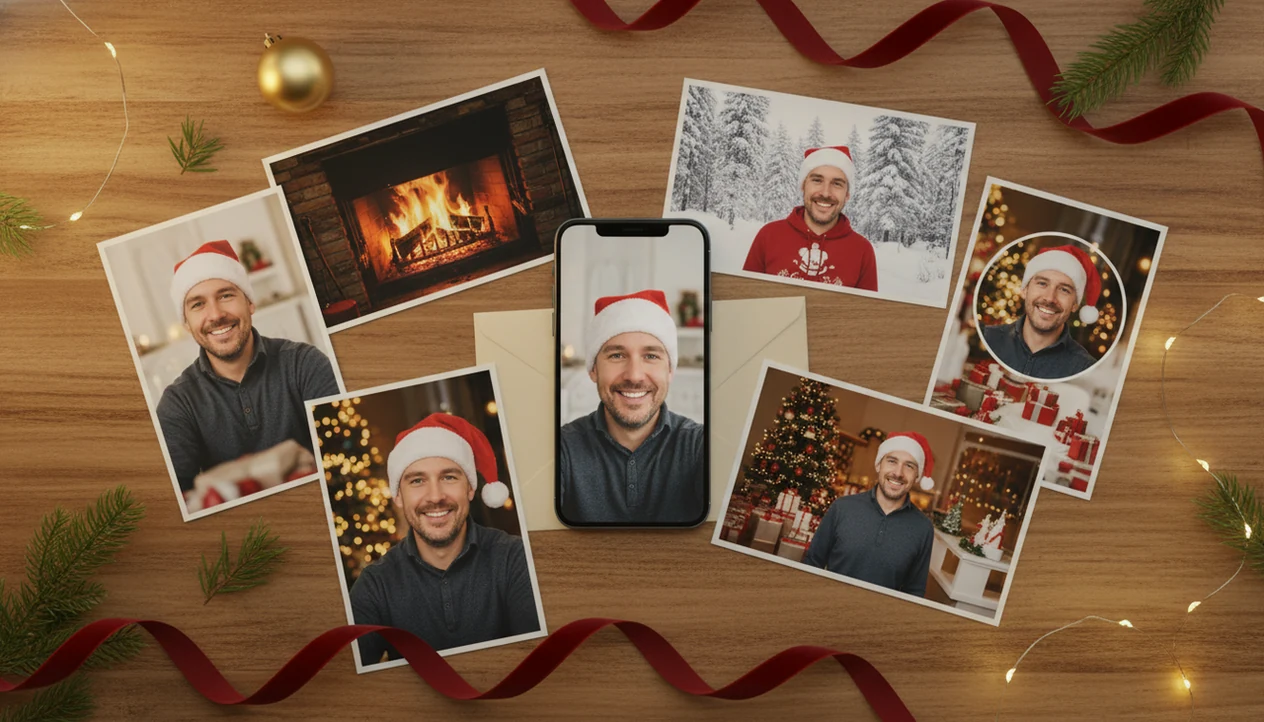
Yes, an app that turns one photo into Christmas pictures can transform a single selfie or camera-roll photo into holiday portraits, Santa scenes, cards, wallpapers, and social posts without a photoshoot. This one-photo Christmas workflow uses AI to reuse one uploaded image across many festive styles.
Definition: The best tools keep the job narrow: turning one clear uploaded photo into holiday portraits, Santa scenes, and Christmas wallpaper for families, couples, pet owners, and creators.
- Upload one clear selfie or phone photo, then generate multiple Christmas picture formats from it.
- Best results come from bright lighting, an uncropped face, and enough shoulder or body framing for the chosen template.
- AI Christmas pictures are fast and flexible, but users should still check privacy terms and watch for small artifacts.
How these apps look
Side-by-side captures of the compared products. Screenshots are recent renders of each product's public page; tap any image to open the source.
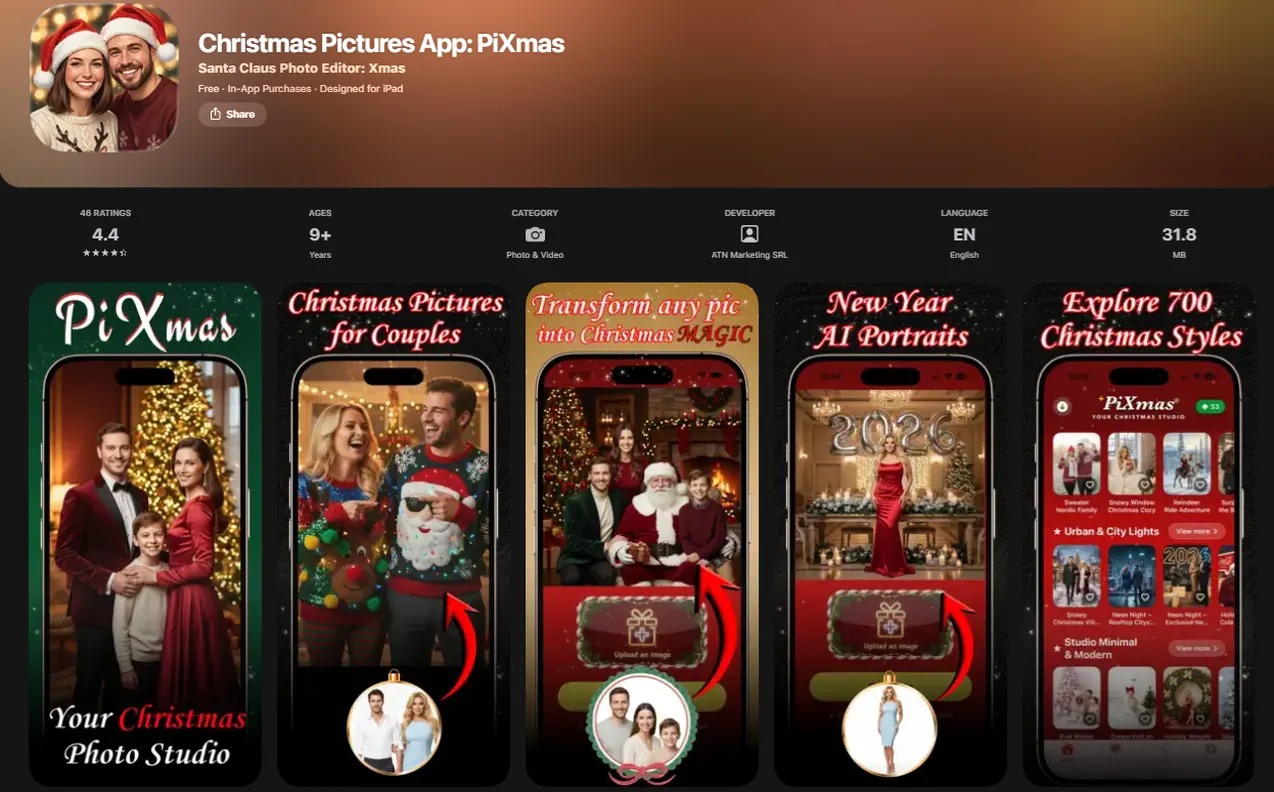
One-photo Christmas app answer with 6 holiday outputs
Yes. A focused Christmas Pictures App can create holiday images from one uploaded photo, including portraits, Santa scenes, wallpapers, cards, profile photos, and social posts.
A one photo Christmas app fits how people already take pictures. In the iPhone Photos grid, you might have six almost-identical kid snapshots and one where everyone is actually looking at the camera. That one usable photo can become the starting point.
Pew Research Center’s Mobile Fact Sheet reports that 90% of U.S. adults owned a smartphone in 2023 (https://www.pewresearch.org/internet/fact-sheet/mobile/), so phone-first editing is not a niche workflow. It is where holiday images usually begin. For many families, one clear camera-roll photo is faster than scheduling a studio session, especially when the card stack is already waiting on the counter.
What a one-photo Christmas picture app does
A one-photo Christmas picture app is a phone or web tool that takes one selfie or regular photo and creates multiple Christmas looks from it.
It differs from manual editors such as Canva, Picsart, or layered design tools because you usually do not cut masks, paint backgrounds, write prompts, or arrange every element yourself. The app handles the visual transformation after you choose a style.
The same base photo can be reused for studio portraits, cozy indoor scenes, outdoor snow looks, and Santa images. A good AI Christmas photo app that transforms one uploaded photo into studio-quality holiday portraits, Santa scenes, and Christmas wallpaper across hundreds of festive styles should deliver fast festive variations, not guaranteed studio-perfect results.
The best tools keep the job narrow: turning one clear uploaded photo into holiday portraits, Santa scenes, and Christmas wallpaper for families, couples, pet owners, and creators.
How an AI Christmas photo app works from one uploaded photo
An AI Christmas photo app works by reading the uploaded image, detecting the face and body, separating the subject from the background, then generating a new holiday scene around that subject.
The technical layer often uses face detection, segmentation, and image embeddings. In plain terms, the system tries to understand “who is in the photo,” “where they are,” and “which festive style should replace the original setting.” Many cloud AI systems process images on servers rather than only on your phone, so privacy terms matter.
Consistency is the hard part. The app tries to preserve facial identity while changing clothing, lighting, background, and composition. A kiss framed by frosted windowpanes may look natural in one output, but a close-up with glasses can show warped reflections. Hands, hair, earrings, jewelry, and fine fabric textures are common trouble spots. For a deeper mechanism view, read how AI Christmas photo apps work.
Best original photo requirements for a Christmas selfie result
The best source photo is bright, sharp, high-resolution, and shows the face clearly. Most users can start with a normal phone photo, but the image still needs enough detail for the AI to work with.
- A clear, uncovered face gives the app the strongest identity reference.
- Half-body photos usually work well for portraits, cards, and Santa chair scenes.
- Full-body photos fit outfit-heavy templates, snow scenes, and walking poses.
- Close-ups can work for profile images, but they limit wallpaper and card crops.
- Dark lighting, motion blur, sunglasses, heavy filters, face crops, and busy obstructions reduce result quality.
Face clarity
Warm yellow kitchen light can look cozy to you, but it may flatten facial detail. Use the sharpest version available.
Pose and framing
A tiny face in a group shot gives the app less to preserve. One person, clear shoulders, no blurry sleeve. Better odds.
5-step workflow for turning a selfie into Christmas pictures
Use this practical path: upload, select a festive style, review the result, then save or share. It is built for people who want to turn selfie into Christmas picture formats without learning a design tool.
- Choose one clear selfie or camera-roll photo where the face is visible.
- Upload the photo and allow selected photo access if your phone asks.
- Pick Christmas styles such as Santa, snow, fireplace, couple, pet, or New Year.
- Generate several images so you can compare expressions, crops, and artifacts.
- Save the strongest versions as a card image, square post, story, or phone wallpaper.
On December 23, this is the parent-after-bedtime workflow. No studio appointment left. Just one good photo, the App Store install button, and a few minutes to preview.
8 Christmas picture formats one uploaded photo can create
One uploaded photo can create many Christmas formats, but aspect ratio controls what fits. A square post, vertical story, horizontal card, and phone wallpaper all crop the subject differently.
| Format | Good for | What to check |
|---|---|---|
| Christmas portrait | Sharing and printing | Face detail and skin texture |
| Santa scene | Kids and family images | Hands, chair edges, tiny sneakers |
| Family or couple look | Cards and profile updates | Group spacing and eye direction |
| Pet style | Festive pet posts | Fur edges and accessories |
| Card image | Holiday cards | Resolution and safe margins |
| Square post | Instagram-style feeds | Centered face and shoulders |
| Story | Vertical social sharing | Top and bottom crop |
| Phone wallpaper | Lock screens | Space around the face |
Pew Research Center’s Social Media Fact Sheet reports that 68% of U.S. adults used Facebook and 47% used Instagram in 2024 (https://www.pewresearch.org/internet/fact-sheet/social-media/), which helps explain why share-ready crops matter. One upload can produce many images, but not every template fits every pose. The AI Christmas photo app from one photo workflow is often easier than manual resizing because the style choice happens before export.
5 best uses for a one-photo Christmas app
A one-photo Christmas app is most useful when the photo already exists and the deadline is close. Start with the photo you already have, then choose the format you need.
- Families: Turn one clear family picture into a holiday card image or mantel-style portrait.
- Couples: Create cozy indoor portraits, snowy looks, or romantic Christmas profile photos.
- Pet owners: Make festive pet images when the bow is slipping off one ear but the face is still sharp.
- Creators: Produce square posts, reels covers, story graphics, and seasonal profile updates.
- Last-minute card makers: Generate several card-ready options without booking a photographer.
For phone-first users, this is often easier than rebuilding a scene in a general design editor because the app starts from the person, pet, or couple in the photo. Dedicated Christmas Pictures App tools keep the job focused on Christmas picture creation rather than broad graphic design.
Privacy and quality checks for an AI Christmas photo app
Before uploading a face photo, check the app’s privacy page for data retention, deletion options, model-training language, and whether processing happens in the cloud. That quick read matters more than the preset name.
Pew reported in 2023 that 52% of Americans felt more concerned than excited about AI in daily life (https://www.pewresearch.org/short-reads/2023/08/28/growing-public-concern-about-the-role-of-artificial-intelligence-in-daily-life/), so clear disclosure is not a small detail. It is part of trust. When the permissions prompt appears, many users pause at “selected photos only.” That pause is reasonable.
Also check quality limits. Free apps may add watermarks, restrict resolution, cap image counts, or push subscriptions after a few generations. Review every output before printing, posting, or using it on cards. Teeth, eyes, glasses, pets, and jewelry deserve a close zoom. If you are comparing tools, the best AI Christmas photo app guide can help frame the tradeoffs.
Common mistakes when turning one photo into Christmas pictures
Most bad Christmas outputs come from a mismatch between the original photo and the template. Fix the source photo first, then judge the app.
- Avoid starting with a face that is cropped at the forehead, chin, or shoulders when the scene needs a seated pose, Santa chair, card layout, or full holiday setting. The app cannot invent reliable body framing from a tight crop.
- Match the template to the photo you have. A close-up selfie may work for a profile portrait, but it is a weak fit for outfit-heavy looks with coats, boots, gowns, or walking-in-snow poses.
- Zoom before you print or send cards. Phone previews hide small errors in hands, teeth, glasses, eyelashes, pet fur, and fur-trimmed hats.
- Read privacy terms before uploading children’s faces, family group photos, or images you would not want stored for long. Selected photo access is still an upload decision.
- Test another original photo if the first generation fails. A brighter angle, more shoulder room, or cleaner background can change the result more than changing apps.
What makes this style different from other Christmas photo styles?
Most Christmas photo styles online still expect a photographer, printed backdrop, or manual photo-editing software to layer in holiday elements. An app built around one uploaded photo removes those steps by generating the background, wardrobe, and lighting automatically around the subject already in the picture.
Instead of choosing individual props or filters, the person selects a finished template and the app fits the uploaded photo into that scene. This makes the process faster than compositing images by hand, though the final look still depends heavily on how well the original photo fits the chosen template.
Who is this Christmas photo style best for?
This type of app suits people who want a holiday photo without scheduling a shoot, such as someone sending a quick card image or a festive profile picture. It also works well for couples or family members in different locations who each want a matching style from their own separate photo.
People short on time before the holidays, or those who do not own festive outfits or props, tend to get the most value, since the app fills in those elements. Pet owners can sometimes use a clear pet photo the same way, though results depend on how well the animal is framed.
How does PiXmas compare to a photographer or DIY setup?
- A 2026 guide describes the AI Christmas photo trend on Facebook as distinct from studio photoshoots, emphasizing that images are AI generated from a single uploaded selfie run through a Christmas-themed generator. (PiXmas guide on AI Christmas photo trend on Facebook (Picsmas), 2026)
- Reporting in late 2025 notes that the AI Christmas selfie trend added a "magical holiday touch" to everyday photos and was spreading rapidly as users posted AI-retouched festive portraits on Instagram, Facebook and X. (Analytics Insight story on Christmas 2025 AI festive portrait trend, 2025)
- AI Christmas photo generators on Facebook typically work by users uploading a single selfie and choosing a Christmas style such as Santa scenes, cozy sweater portraits, snow globes, or festive wallpapers before posting results to their feed. (PiXmas guide on AI Christmas photo trend on Facebook (Picsmas), 2026)
For anyone who wants finished Christmas pictures from a single phone photo without booking a shoot or editing manually, PiXmas offers a fast, template-based path, with the understanding that outputs are AI-generated stylizations rather than traditional photographs.
Limitations
AI Christmas photo apps are fast, but they still depend on the original image and the provider’s rules. Check the output on a larger screen before you trust it for prints.
- AI cannot fully rescue heavily blurred, low-resolution, underexposed, or cropped photos.
- Hands, glasses, earrings, hair, pets, jewelry, and fabric details may distort.
- Not every Christmas template works with every pose, crop, or body angle.
- Cloud processing and photo retention policies vary by provider.
- Free versions may include watermarks, low-resolution downloads, subscriptions, or credit limits.
- Printed enlargements may reveal artifacts that look fine on a phone screen.
- Group photos can fail when faces are too small or unevenly lit.
- A baby blanket against twinkle lights may look sweet, but tiny fabric patterns can confuse the generated texture.
If results look off, try a different original photo before blaming the whole category. The one photo vs many photos AI portraits debate is mostly about consistency, not convenience.
Related guides
FAQ
What does an app that turns one photo into Christmas pictures actually do?
It takes a single uploaded photo and places the subject into a finished holiday scene, generating the background, outfit, and lighting automatically. This replaces manual photo editing with a template-based process, so the person does not need to design or compose the Christmas scene themselves.
How many photos do I need to upload?
Typically just one clear photo. The one-photo workflow is designed so a single sharp, well-lit image of the face is enough for the app to generate multiple Christmas picture styles.
How much does it cost to turn a photo into Christmas pictures?
PiXmas uses app-based pricing rather than a per-session photography fee. Exact costs can change over time, so check the current in-app pricing before purchasing rather than relying on outside estimates.
How long does it take to get Christmas pictures back?
Most results are generated in minutes after the photo is uploaded and a style is selected. This is significantly faster than scheduling and waiting on a traditional photography session.
Can I use a photo with my pet or my whole family in it?
A clear pet photo can often be used the same way as a portrait. Group photos with several faces can still work, but results may be less consistent per person than a solo or couple photo.
Is my uploaded photo stored or shared by the app?
That depends on the provider's data and retention policy. Before uploading a face photo to PiXmas or any similar app, review its privacy terms to understand storage, processing, and deletion practices.