Download Santa Photo App For Kids And Family Christmas Pictures
Download it from the App Store, upload a clear photo, choose a scene, and receive a stylized image in minutes. No studio visit, costume, or Santa appointment is required, though results are digital images rather than physical prints.
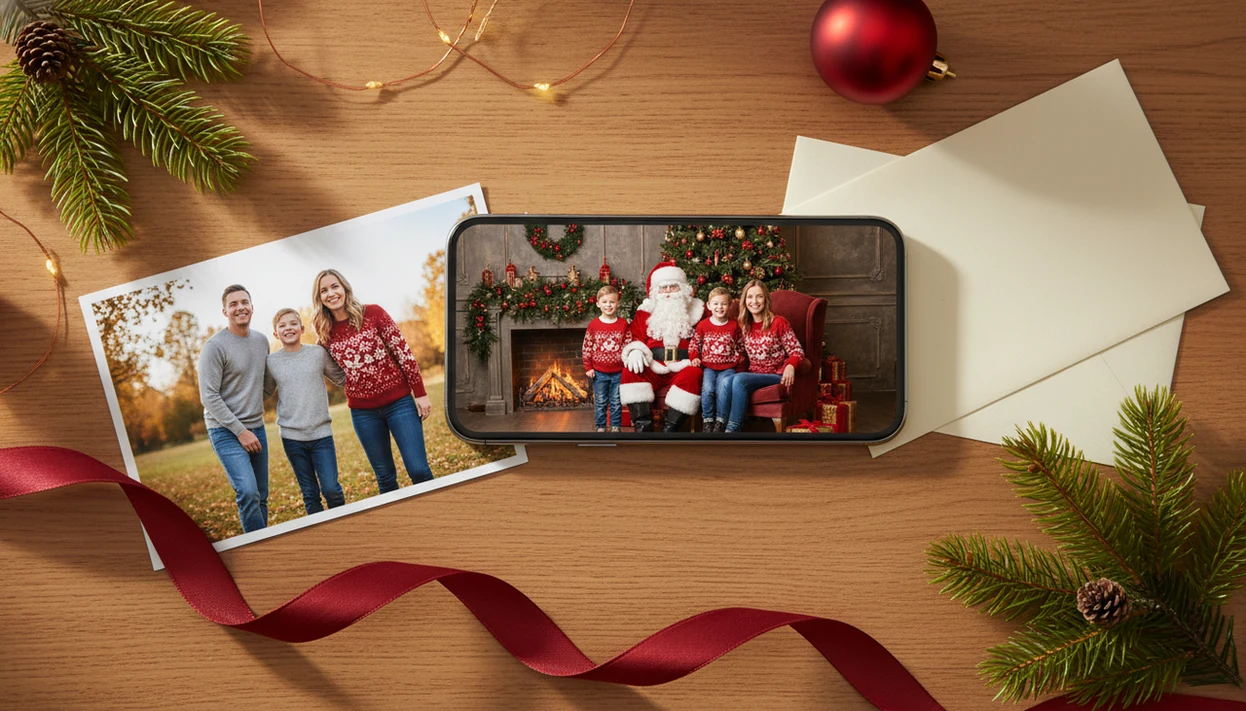
A download Santa photo app should let you upload one clear child or family photo, choose a Santa scene, and generate a realistic Christmas picture without manual sticker editing.
> this app is a Christmas photo app that transforms one uploaded photo into holiday portraits, Santa scenes, and Christmas wallpaper for families, couples, pet owners, and creators.
- Choose a Santa app download that creates full AI Christmas scenes, not only flat Santa stickers.
- Use a bright, high-resolution source photo for the most believable Santa results.
- Check privacy policies, photo permissions, cloud processing, watermarks, and export quality before uploading children’s pictures.
How the santa photo apps look
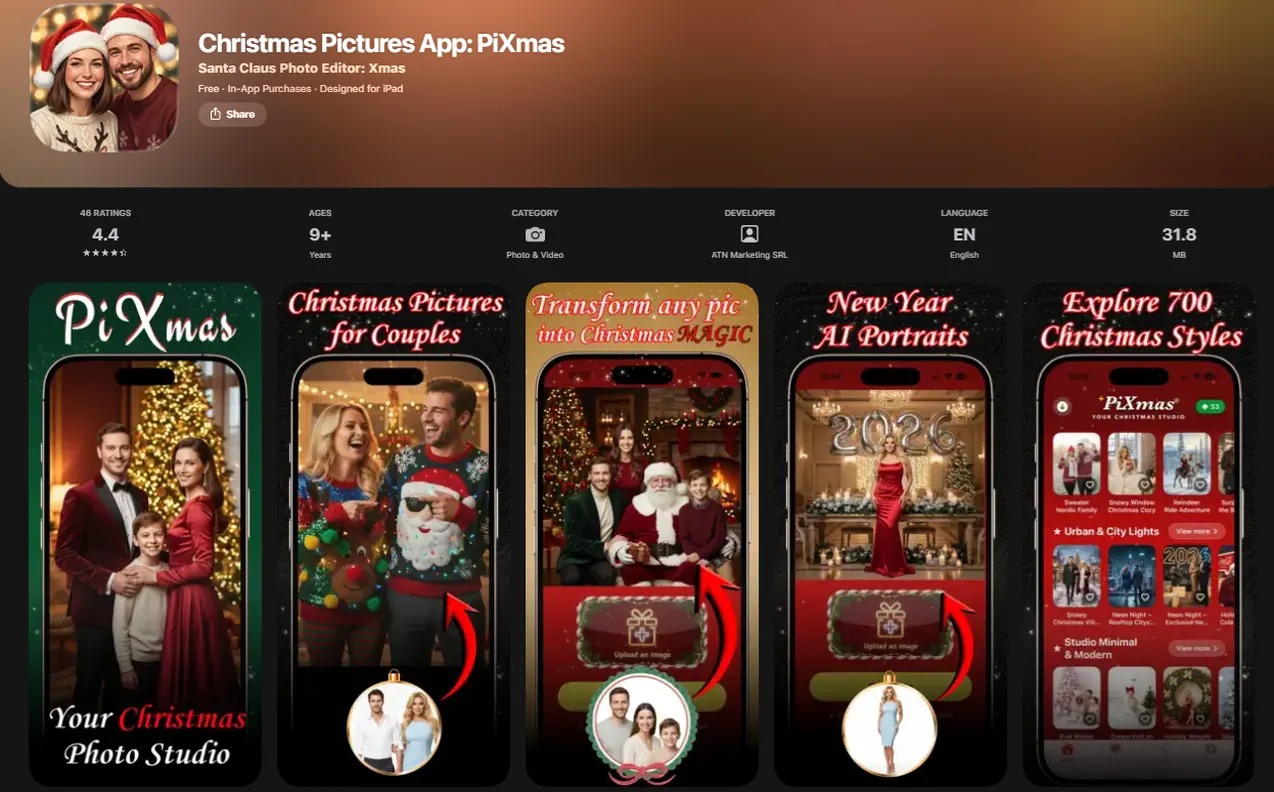
Side-by-side captures of the compared products. Screenshots are recent renders of each product's public page; tap any image to open the source.
Santa Photo App Download Options For Family Santa Scenes
The right Santa photo app download depends on the result you want: a full AI-generated Santa scene or a simple sticker placed into an existing room photo.
Parents trying to make a “Santa was here” picture after bedtime need speed and control because the December 23 studio appointment is already gone. The practical path is upload, select a Santa style, preview, then save.
Use cases are usually simple: proof Santa visited, a Christmas card image, a phone wallpaper, or a share-ready family picture for grandparents. Mobile-first creation matters because Pew Research Center reported that 90% of U.S. adults owned a smartphone in 2023 source.
Good Santa photo apps deliver finished seasonal images, not a blank editor that expects parents to build the scene by hand.
6-Point Santa App Download Checklist For Parents
Before you download a Santa picture app, compare the output, privacy model, and export limits, not only the app rating. Many apps, including sticker-style editors like Canva, Picsart, or Photoleap workflows, can place Santa graphics, but that is different from generating a new AI Christmas scene.
| Checklist item | What to check | Why it matters |
|---|---|---|
| AI scene generation | Creates Santa settings from one upload | Better for portraits and cards |
| Sticker-only editing | Adds Santa into an existing photo | Faster, but often looks pasted |
| Child photo privacy | Explains uploads, retention, and deletion | Parents need clear controls |
| Export resolution | Saves high enough for sharing or print | Low exports look soft |
| Watermarks | Shows whether free saves are branded | Cards may need clean images |
| iOS or Android access | Confirms platform availability | Avoids install surprises |
A stronger Christmas Pictures App should let one upload generate multiple Santa scenes, Christmas portraits, and wallpaper styles. If you want the broader category, compare it with a download AI Christmas photo app workflow.
Privacy review is not optional.
Where To Download this app Safely
Avoid search-result buttons that look convenient but send you to copied app pages, APK mirrors, or third-party download sites.
- Verify the developer name, app icon, review pattern, and recent update date before you tap install.
- Check the App Store privacy labels or Google Play Data safety section to see how photos, identifiers, purchases, and diagnostics are described.
- Review any in-app purchase notes on the listing page so a “free” download does not surprise you at export time.
- Skip APK mirrors, duplicate listings, browser pop-ups, and unofficial “download now” buttons, especially if they ask for extra permissions.
A clean store listing is boring in the best way: correct name, clear privacy information, normal update history, and no detours before installation.
AI Santa Picture App Workflow Behind The Scenes
An AI Santa picture app works by taking an uploaded source photo, analyzing face position, pose, lighting, and framing, then rendering a new holiday scene around the subject. In plain terms, the app studies the photo enough to rebuild it in a Santa-style setting.
That one-photo upload flow supports Santa scenes, Christmas wallpaper, and portrait output. Older sticker apps usually paste Santa into the original image, so the room, shadows, and camera angle stay the same. That can work for a quick joke, but it often looks flat beside a generated scene.
AI image tools often use cloud processing because rendering needs more compute than many phones can handle locally. That can affect privacy and speed, especially when holiday traffic spikes.
Source-photo quality still decides a lot. A tiny face in a group shot, warm yellow kitchen light, or a blurry sleeve can make the result less believable.
6 Steps After A Santa App Download
Use the app by starting with the photo you already have, then checking each preview before you save anything. The iPhone Photos grid with six almost-identical kid snapshots usually has one frame where everyone is actually looking at the camera.
- Download the official app from the appropriate app store and confirm the listing before installing.
- Upload a bright, sharp, high-resolution phone photo with a clear face and simple framing.
- Choose a Santa scene, Christmas portrait, wallpaper, or holiday card image style.
- Preview several Santa poses and backgrounds before deciding which one feels natural.
- Save the strongest portrait output after checking faces, hands, glasses, and lighting.
- Share or export the image for messages, wallpaper, cards, or printing.
Minimum Phone And Photo Requirements Before A Santa App Download
Most Santa app download issues come from device access, weak internet, or a poor source photo. Check these basics before you install or upload a child’s picture.
- Storage space: Keep enough free space for app install files, generated previews, and saved exports.
- Internet connection: AI Santa apps may use cloud processing, so a stable connection helps previews finish faster.
- Camera roll permissions: Decide whether to allow selected photos only when the permission prompt appears.
- Source photo quality: Use a clear, well-lit, face-forward image without heavy blur, harsh shadow, or extreme cropping.
Smartphone apps dominate this job because most families already capture Christmas pictures on phones. The commute wallpaper save, the group text share, the quick resend to a grandparent, all happen there.
iOS Vs Android Santa App Download Differences
The core Santa app download decision is less about iOS versus Android and more about output quality, privacy, and AI generation versus sticker editing. Platform details still matter because install screens and photo permissions look different.
| Area | iOS | Android |
|---|---|---|
| Installation source | App Store listing | Google Play or approved store listing |
| Permissions screens | Photo access choices, including selected photos | Photos, media, and file access prompts vary by version |
| Photo access controls | Strong selected-library flow on recent iOS versions | Depends on Android version and manufacturer |
| In-app purchases | Shown in App Store details | Shown in Play Store listing |
| Export handling | Saves to Photos or share sheet | Saves to gallery, files, or share menu |
Searches like “download Santa photo app iOS” and “free Catch Santa app” often lead to different listing pages. Read ratings, reviews, app privacy, data safety, and “what’s new” notes before upload.
5 Privacy Checks Before A Santa Picture App Upload
Parents should treat a Santa picture app upload as a privacy decision, not just a cute edit. A 2023 Pew survey found that 52% of Americans were extremely or very concerned about how companies use personal data source.
- Camera roll permissions: Prefer selected-photo access when you only need one image.
- Data retention: Check whether uploaded and generated images are stored, and for how long.
- Face data handling: Look for plain language about facial analysis, model use, and identity-related data.
- Deletion options: Confirm whether you can request deletion or remove uploads from an account.
- Third-party sharing: Review whether vendors, analytics tools, or processors can access image data.
AI tools may upload images to remote servers instead of processing everything locally. No app can fully guarantee long-term deletion unless the policy clearly explains how deletion works and what backups or logs may remain.
After a privacy check, when the thumb hovers over the camera roll, selected-photo access is usually the calmer choice.
What photo should you upload for the best Santa result?
Choose a photo where faces are well lit, in focus, and not too small in the frame. Front-facing or slightly angled shots work better than side profiles, especially for young kids who may not hold a pose.
Avoid photos with Santa hats, sunglasses, or hands covering the face, since the AI needs to read facial features clearly to build the new scene around them. A plain background is not required, but busy backgrounds can occasionally distract the model.
One clear uploaded photo is enough to generate the Santa scene, so there is no need for multiple angles or a professional camera.
Who is this Santa photo style best for?
This style suits parents who want a quick Christmas card image without scheduling a mall Santa visit, especially with toddlers who may not sit still for a real photo session.
It also works well for grandparents collecting yearly keepsakes, families spread across different cities who want a matching holiday look, and pet owners who want their dog or cat included in a Santa-themed frame.
Families with several people in one photo can use it too, though a single child or couple photo tends to produce the most consistent facial likeness.
How does this app compare to a mall Santa photo or DIY setup?
- Bass Pro Shops and Cabela's Santa's Wonderland offers one free 4×6 photo with Santa per guest, with paid photo packages available. (Tsawwassen Mills – Santa's Wonderland at Bass Pro Shops, 2025)
- In 2025, the Bass Pro Shops Santa's Wonderland Jingle Bells package is priced at $35 and includes multiple prints plus a high‑resolution digital image. (Tsawwassen Mills – Santa's Wonderland at Bass Pro Shops, 2025)
- In 2025, Bass Pro Shops offers a standalone digital download of the Santa photo for $30, including a free 4×6 print. (Tsawwassen Mills – Santa's Wonderland at Bass Pro Shops, 2025)
Limitations
Santa photo apps can be useful, but the results and privacy terms vary by app. A print-minded, phone-friendly Christmas Pictures App still has quality and policy tradeoffs.
- Blurry, dark, cropped, or low-resolution uploads may produce weak Santa scenes.
- Faces, hands, glasses, teeth, skin tone, or hair can distort in generated images.
- Group photos with tiny faces may look less realistic than one clear child portrait.
- Free apps may include watermarks, ads, limited styles, or low-resolution exports.
- Cloud processing can slow down during peak holiday weeks, especially close to Christmas.
- Privacy, retention, and deletion guarantees vary by policy and provider.
- Sticker-based tools such as Picsart, Canva, or some Catch Santa-style apps may be faster, but they usually do not create full AI portraits.
- Print quality depends on export size, not just how good the preview looks on a phone.
For users comparing free options first, a free AI Christmas photo app guide can help separate watermarked trials from usable exports.
Related guides
FAQ
What exactly is a Santa photo app?
A Santa photo app takes an existing picture of a person, family, or pet and either overlays Santa-themed stickers or uses AI to generate a full new holiday scene around the subject, without needing an actual Santa visit or photo shoot.
Can a Santa photo from the app be printed as a Christmas card?
Yes, the exported image can be printed or added to a Christmas card layout, though checking export resolution beforehand helps avoid a blurry or pixelated printed card.
Can pets be included in a family Santa scene?
Yes, PiXmas can generate Santa or Christmas scenes from a pet photo alone or alongside family members, though a clear, well-lit pet photo produces the most accurate result.
Does uploading a child's photo mean it is stored permanently?
Retention depends on the app's privacy policy and processing settings. Parents should review PiXmas's privacy details before uploading a child's photo, just as they would with any photo-processing app.
What happens if a face in the photo is partly blocked?
A partially covered face, such as one hidden behind a hand, hat brim, or hair, can reduce accuracy in the generated Santa scene, so a fully visible face gives PiXmas more detail to work with.