How To Make Santa Pictures On iPhone With One Photo
To make Santa pictures on iPhone, upload a clear, well-lit family photo to an AI Christmas photo app, choose a Santa scene, review the generated image, and export it. Use an original camera photo with visible faces and minimal blur, and remember that the result is a generated holiday portrait rather than a real photo with Santa.
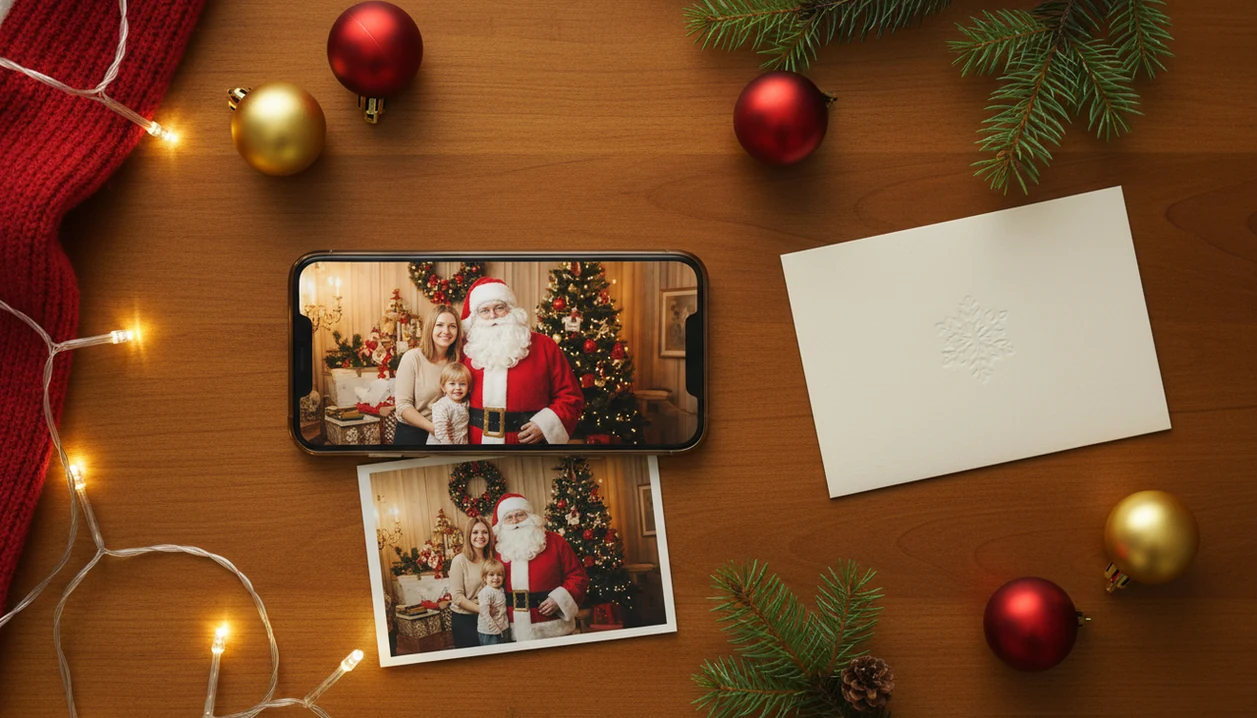
If you want to know how to make Santa pictures on iPhone, upload one clear child, family, pet, or couple photo into a Santa picture app, choose a festive Santa scene, generate the image, then export it for messages, cards, wallpaper, or social posts.
> A Christmas Pictures App is best for this task when it can turn one uploaded iPhone photo into holiday portraits, Santa scenes, or Christmas wallpaper without requiring manual masks and layers.
- Start with a bright, sharp iPhone photo where faces are visible and not cropped.
- Use a Santa picture app iPhone workflow: upload, choose a Santa or Christmas style, generate, review, and export.
- Check export size before sharing if you want the image for cards, prints, or wallpaper instead of only social media.
At-a-Glance iPhone Santa Picture Setup
- Best input photo: Use a clear, well-lit, front-facing iPhone photo with visible eyes, a full face, and enough resolution for the app to read detail.
- Best tool type: Choose an AI Christmas photo app or Santa picture app iPhone tool that generates a new holiday scene, not only a sticker overlay.
- Best output uses: Santa pictures work for texts, Christmas cards, social posts, lock screens, small prints, and quick family sharing.
- Best first check: Open the Photos grid and pick the one shot where everyone is actually looking at the camera, not the six almost-identical near misses.
- Why phone-first matters: Pew reported that 91% of U.S. adults owned a smartphone in 2024, which explains why Santa photo workflows now start on the camera roll source.
Start with the photo you already have.
What a Santa Picture App iPhone Tool Actually Does
A Santa picture app iPhone tool uses an uploaded photo as a reference, then creates a festive Santa image through compositing, AI generation, or preset holiday styles. It is different from simply dragging a Santa sticker onto a room photo.
Some apps place Santa into an existing living room image, which works well for a “Santa visited” scene. Others generate a full Christmas portrait, with new lighting, background, clothing, and props. The result may look realistic, stylized, or somewhere in between.
A one-photo holiday portrait workflow is simple: upload, select a Santa or Christmas style, preview, then save. The output should be treated as a festive generated image, not guaranteed documentary proof that Santa was in the room.
Photo Requirements Before You Make a Santa Photo on Phone
What photo should you use before you make a Santa photo on phone? Use a bright original iPhone photo where the face is close enough, the eyes are visible, and the subject is not hidden by hats, sunglasses, motion blur, or a messy crop.
Natural window light is usually easier than warm yellow kitchen light, but even indoor light can work if it does not bury one side of the face. Avoid tiny faces in group shots. A child standing across the room may look cute to you, but the app may not have enough face detail to preserve likeness.
Original Photos app files usually work better than screenshots or saved social media images because they keep more image data. If you are working with a child photo, ask the parent or guardian before uploading. For more child-specific framing help, the make Santa photo with child guide goes deeper.
How Santa Picture Apps on iPhone Work
Santa picture apps usually follow the same process: upload, subject detection, style selection, generative rendering, and export. The model uses the uploaded image as an identity and composition reference, then renders the person, pet, or couple inside a Santa scene.
Two technical pieces matter here: face detection and image embeddings. In plain terms, the app reads visual patterns from the photo, then tries to carry the recognizable parts into the new Christmas setting. Lighting, face angle, and resolution affect how well that transfer works.
That is why a blurry sleeve across a cheek or a strong side profile can produce odd results. Broad AI familiarity also helps users understand the process; McKinsey reported that 79% of survey respondents had some exposure to generative AI in 2024 source.
How To Use PiXmas To Make Santa Pictures On iPhone
For most families, a one-photo Santa app workflow is easier than manual editing because it avoids masks, layers, and background cleanup. The practical path is upload, select a festive style, review the result, then save or share.
1. Open the Santa picture app
Open your chosen Santa picture app on your iPhone. If you just installed it, pause at the App Store install button and photo access prompt.
2. Upload one clear iPhone photo
Choose one original camera roll photo. Selected Photos access is often enough if you only want to upload one picture.
3. Choose a Santa or Christmas style
Pick a Santa scene, Christmas portrait, wallpaper, or card-ready style. A Santa workshop photo generator style fits kids especially well.
4. Generate and compare results
Generate several versions and compare face detail, hands, background, and mood. The first preview is not always the keeper.
5. Download or share the final image
Save the strongest image to Photos, then share it by Messages, card upload, wallpaper setting, or social post.
Santa-in-the-Room Photos vs Full AI Christmas Portraits
Santa-in-the-room photos and full AI Christmas portraits solve different problems. Choose the first when you want “Santa was here,” and choose the second when you want a polished holiday keepsake.
| Output type | What it changes | Best for | Main dependency |
|---|---|---|---|
| Santa-in-the-room photo | Adds Santa to an existing room or family image | Proof Santa visited, playful kid reactions, bedtime surprises | The original room photo, lighting, and angle |
| Full AI Christmas portrait | Rebuilds the scene around the uploaded subject | Cards, wallpaper, family portraits, social posts | The style preset and source face quality |
| Manual sticker edit | Places a graphic or cutout over the photo | Quick jokes or casual sharing | Your editing time and sticker match |
On December 23, after bedtime, a parent may not have a studio appointment left. A generated Santa portrait can still produce a usable card image, especially if the source photo is clean. For broader family framing, the best family Christmas photo app guide compares group-friendly options.
Export Settings for Santa Pictures on iPhone
Save the highest-resolution version the app offers, especially if you plan to print. JPEG is usually fine for sharing and cards; PNG can help when an app offers it and you want fewer compression artifacts.
| Use case | What to check before saving |
|---|---|
| Messages | File size should be easy to send, but still clear on a phone screen. |
| Instagram or social posts | Use a crop that fits the feed, story, or square preview. |
| Christmas cards | Export at the highest available resolution before uploading to a card service. |
| Phone wallpaper | Choose a vertical image and check where the clock covers faces. |
| Prints | Avoid forwarding the image through multiple apps before ordering. |
Someone will ask, “Can I use this for a card and a wallpaper?” Yes, but compare aspect ratios before saving. Data.ai reported about 3.8 trillion hours spent in mobile apps in 2023, so mobile sharing is normal, but printing still needs cleaner files source.
Common iPhone Santa Photo Mistakes
- The Blurry Source Photo: A dark, low-resolution, or side-profile image often creates weak likeness and strange face detail.
- The Documentary Expectation: AI Santa images can look realistic, but many are semi-realistic portraits rather than true camera records.
- The Wrong Export Choice: A social-only download may look fine in Messages but soft on printed cards.
- The Consent Skip: Uploading a partner, child, or relative without permission can turn a fun image into a family problem.
- The One-Try Decision: Generate multiple versions before choosing. Small changes in eyes, hands, or background can decide the final pick.
Treat crumbs near the phone, a moving dog, or a child turning away can all reduce usable detail. For parent-focused examples, the Santa photo app for parents page covers the last-minute workflow more directly.
Who is this Santa photo style best for?
This style works well for parents who want a Santa picture of their kids without waiting in a mall line or booking a seasonal photo session.
It also suits families who want one coordinated holiday image with everyone included, even if a group photo session was never scheduled or everyone could not be in the same room at the same time.
People who missed the chance to visit an in-person Santa this year, live far from holiday events, or simply want a quick, low-effort alternative also tend to get good use out of an iPhone Santa photo app.
It is a reasonable fit for solo portraits, couples, and kids, though large groups may need extra attention to source photo quality since more faces in one frame can be harder to render consistently.
How does PiXmas compare to a photographer or DIY Santa photo setup?
- In 2025, Bass Pro Shops offers a standalone digital download of the Santa photo for $30, including a free 4×6 print. (Tsawwassen Mills – Santa's Wonderland at Bass Pro Shops, 2025)
- The 2025 Bass Pro Shops Christmas Card package for Santa photos costs $35 and includes eight 4×6 Christmas cards plus a high‑resolution digital download. (Tsawwassen Mills – Santa's Wonderland at Bass Pro Shops, 2025)
- Bass Pro Shops and Cabela's Santa's Wonderland offers one free 4×6 photo with Santa per guest, with paid photo packages available. (Tsawwassen Mills – Santa's Wonderland at Bass Pro Shops, 2025)
For most families, PiXmas offers a faster and lower-effort way to get a Santa-themed photo on iPhone than scheduling a photographer or building a DIY setup, as long as expectations match its AI-generated, stylized output.
Limitations
AI Santa photo tools are useful, but they do not guarantee perfect realism or print-ready results. Review the output closely before sending it to grandparents, a card printer, or a classroom group chat.
- Poor source photos can create uncanny faces, mismatched lighting, or distorted fingers.
- Some apps are template-limited, so you may not control every pose, prop, or background.
- Not every Santa picture app supports high-resolution export for cards or prints.
- Generated images may not preserve every face detail exactly.
- A professional photoshoot is still better for precise poses, brand-grade polish, or guaranteed print fidelity.
- Child and family photos deserve extra care, so read the app privacy policy before uploading.
- If you need a specific Santa pose, a real staged photo or careful manual edit may be more predictable.
Tiny details matter. A teddy bear tucked under one arm may survive beautifully, or it may come back looking like part of the coat.