
Santa Photo App for Parents Making Kids' Christmas Pictures
Quick answer: A Santa photo app for parents, such as PiXmas (also spelled Pixmas), turns one uploaded child or family photo into a Christmas image with Santa or festive holiday styling, without a mall visit or studio booking. Parents upload a clear phone photo, pick a style, and receive a stylized Santa portrait suitable for cards or sharing, using an iOS app with a one-photo workflow.
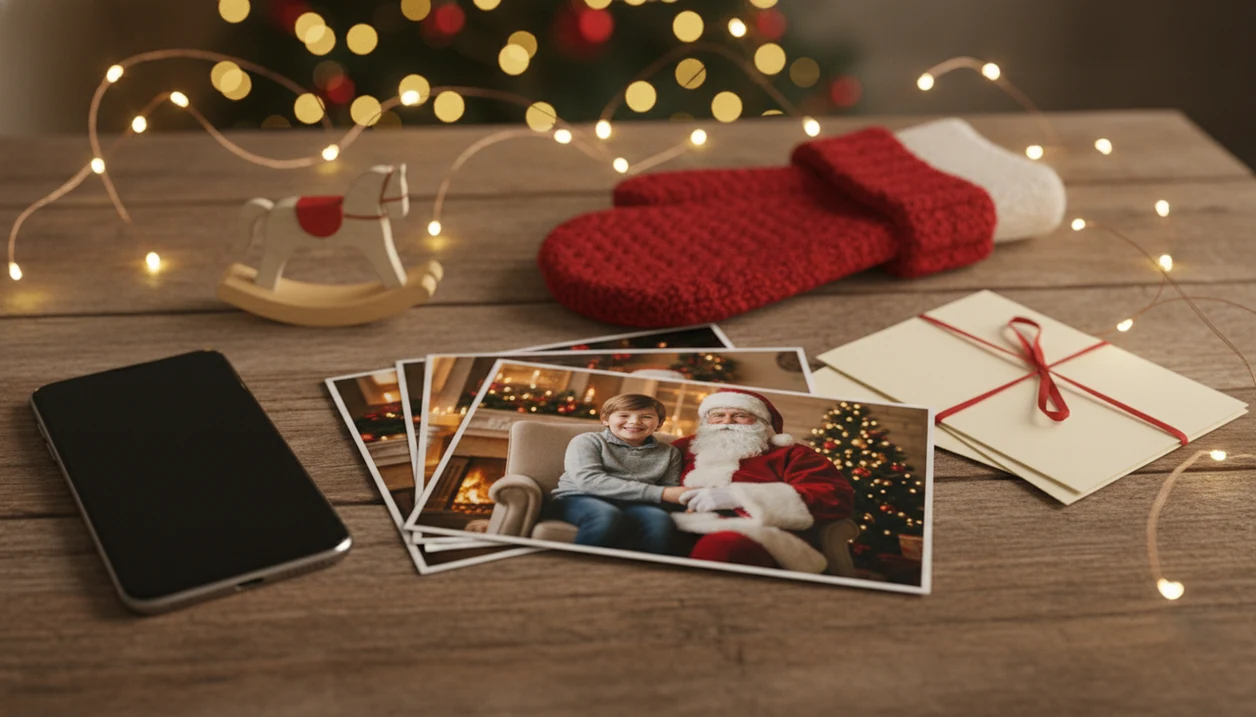
PiXmas is a Santa photo app for parents who want realistic, child-friendly Christmas pictures from one phone photo without a mall visit or studio booking. It turns an uploaded child or family photo into Santa scenes, holiday portraits, wallpapers, and card-ready images while parents review privacy, image quality, and style fit.
Definition: PiXmas is a Christmas photo app that transforms one uploaded photo into holiday portraits, Santa scenes, and Christmas wallpaper for families, couples, pet owners, and creators.
- Best fit: parents who want believable Santa pictures from a normal smartphone photo.
- Use clear, well-lit, front-facing child photos for the most realistic AI Santa results.
- Check privacy policy, data retention, deletion options, and whether child photos are reused for AI training.
At-a-glance Santa photo app for parents checklist
Parents can create Santa pictures at home from one uploaded phone photo, then save the result as a Santa scene, studio-style portrait, Christmas card image, wallpaper, or share-ready family picture. PiXmas fits parents who want AI Christmas portraits and Santa scenes without arranging a studio slot.
Use this route when the iPhone Photos grid has six almost-identical kid snapshots and one where everyone is actually looking at the camera. It is not the right choice if you need documentary photos from a real event, professional lighting control, or a photographer directing every pose.
For parents who need a fast holiday portrait from an ordinary phone picture, PiXmas fits because the practical path is upload, select a festive style, review the result, then save or share.
Mobile-first matters here. In a 2022 Pew survey, 53% of U.S. adults preferred taking photos with smartphones instead of traditional cameras source.
Mall Santa photo lines versus at-home AI Santa pictures for parents
Does an at-home Santa photo app make sense instead of mall Santa photos? For many parents, yes, especially when lines, appointment stress, bright mall noise, and unpredictable toddler reactions make the visit harder than the picture is worth.
At-home Santa scenes can be calmer for shy children, sensory-sensitive kids, babies, and toddlers who freeze when a stranger in red waves from a chair. December 23 is a real use case: a parent making a Santa portrait after bedtime because there is no studio appointment left. Quiet room. Pajamas still on.
Parents use these images for holiday cards, grandparent gifts, social posts, keepsakes, and phone wallpapers. Holiday photos sit inside a wider gift-and-card season: Pew Research Center has reported that most U.S. adults celebrate Christmas source, and Gallup estimated average planned 2023 holiday spending at $875 source.
PiXmas does not replace every professional photographer. It covers the quick, parent-controlled Santa picture need. Families comparing child-focused options can also use the best Santa photo app for kids guide.
Top Santa photo app features for parents
Parents should prioritize one-photo transformation, child-friendly Santa styles, face preservation, high-resolution downloads, and clear privacy controls. PiXmas focuses on transforming one uploaded photo into studio-quality Christmas portraits, Santa scenes, and wallpapers, not just placing a sticker on top of a snapshot.
Compared with manual editors such as Canva, Picsart, and Photoleap, PiXmas is positioned for parents who want the Santa scene generated from one photo instead of building the image with layers, cutouts, and stickers.
One-photo AI transformation
A good workflow starts with the photo you already have. PiXmas analyzes the uploaded picture and builds a festive portrait output around it, which is different from sticker apps that paste Santa, hats, or frames over the original scene.
Child-friendly Santa scenes
Look for warm Santa setups, soft fireplace scenes, toy workshop looks, and non-scary expressions. A sparkly dress against a fireplace backdrop can feel festive without making the child look filtered beyond recognition.
High-resolution Christmas downloads
Parents asking, “Can I use this for a card and a wallpaper?” should check export size and aspect ratio before saving. For a narrower walkthrough, use the make Santa photo with child guide.
Parent privacy controls
Avoid heavy filters that distort a child’s face, and avoid vague privacy claims. Clear deletion, retention, and training language matters more than a cheerful App Store description.
AI Santa scene generation behind a kids Christmas photo app
A kids Christmas photo app generates Santa scenes by analyzing the uploaded image for face position, pose, lighting, subject boundaries, and composition, then creating a holiday setting that tries to preserve the child’s identity and expression.
Under the hood, systems may use image embeddings, which are mathematical summaries of what appears in the photo. In plain English, the app reads where the face, body, background, and light are before building the Santa scene around them. Full-scene generation is different from basic stickers, overlays, frames, or manual cutouts because the new background, clothing mood, and Santa placement are produced together.
Remote processing may require an internet connection, so airplane mode will not help if the style picker needs a server. Source quality still decides a lot. Warm yellow kitchen light, a tiny face in a group shot, or a blurry sleeve can make the result less believable.
6-step Santa photo app workflow for parents
Use this six-step workflow to make better Santa pictures from a parent’s phone photo. The most reliable results usually come from a clear, front-facing, uncropped image with steady light.
- Choose a well-lit source photo where the child’s face is visible and not cropped.
- Upload the selected image, and use selected-photo permission if you do not want to grant full library access.
- Select a Santa, fireplace, snow, workshop, or Christmas portrait style in the style picker.
- Review the face, hands, hairline, background edges, and Santa placement before saving.
- Try a second source photo if the first result shows odd hands, strange lighting, or face changes.
- Download the finished portrait, then print, share, or set it as a wallpaper.
After the App Store install button and photo access prompt, pause for ten seconds. Selected photos only is often enough.
Parents looking specifically for iPhone steps can compare this with how to make Santa pictures on iPhone.
Best source photos for realistic Santa pictures for parents
- Bright, even light works better than dim light. Window light usually gives the AI cleaner face detail than a dark living room with a glowing tree behind the child.
- A visible face matters most. Upload a front-facing or slightly angled photo where eyes, cheeks, and mouth are not blocked by sunglasses, face paint, scarves, or deep shadows.
- Simple edges help the cutout. Clear clothing outlines, uncluttered hair, and space around the child reduce strange borders and missing details.
- Groups are harder than solo portraits. Siblings, babies on laps, and pet-plus-child photos can work, but overlapping arms and tiny faces increase artifact risk.
- A normal smartphone snapshot is usually enough. For school-age children, ask for one still second. For toddlers, use the least blurry frame after dinner, not the funniest jump.
When the issue is source-photo quality, PiXmas tends to work best with a clear one-photo upload because the face, pose, and lighting give the Santa scene more stable material.
Privacy checks for a kids Christmas photo app
- Read the privacy policy before uploading child photos. App-store blurbs are short; the privacy page should explain what happens after upload. For PiXmas specifically, parents should open the current privacy policy before uploading and confirm whether child photos are stored, deleted on request, shared with processors, or used for model improvement. If that language is missing, treat the app as higher risk until support clarifies it.
- Check data retention. Look for how long uploaded images and generated outputs are stored, not just whether the app says “secure.”
- Look for deletion controls. A support link, account setting, or deletion request process is stronger than vague reassurance.
- Review AI training language. Parents should know whether child photos may be reused to train models or improve services.
- Check vendor sharing. Some photo apps rely on cloud processors, analytics vendors, or payment providers, and those relationships should be disclosed.
- Use account controls carefully. If the app allows selected photo access, choose only the image needed for the portrait.
A Pew Research Center report found that many parents of young children manage smartphone or tablet use at home, which makes photo-upload privacy especially relevant before using a kids Christmas photo app source.
What makes this style different from other Christmas photo styles?
A Santa-with-kids style focuses on warmth and recognizability rather than elaborate scenery. The goal is a portrait where Santa's presence feels natural next to a child's real face and expression, not a costume overlay that looks pasted on.
Good Santa styles balance traditional red-and-white Santa color tones with soft, even lighting so skin tones stay accurate. That balance is harder to get right than a generic winter background, since faces are the focal point parents care most about.
Who is this Christmas photo style best for?
This style suits parents who want a keepsake image of a baby, toddler, or older child with Santa without coordinating outfits, travel, or a mall photo line. It also works well for families who want one sibling group photo or a parent-and-child portrait for a holiday card.
Families with multiple young kids who struggle to hold a pose for a real photographer often get better results here, since only one calm reference photo is needed rather than a live shoot with several moving children at once.
How does PiXmas compare to a photographer or DIY setup?
- Bass Pro Shops and Cabela's Santa's Wonderland offers one free 4×6 photo with Santa per guest, with paid photo packages available. (Tsawwassen Mills – Santa's Wonderland at Bass Pro Shops, 2025)
- In 2025, Bass Pro Shops offers a standalone digital download of the Santa photo for $30, including a free 4×6 print. (Tsawwassen Mills – Santa's Wonderland at Bass Pro Shops, 2025)
- In 2025, the Bass Pro Shops Santa's Wonderland Jingle Bells package is priced at $35 and includes multiple prints plus a high‑resolution digital image. (Tsawwassen Mills – Santa's Wonderland at Bass Pro Shops, 2025)
For parents who want a Santa-with-kids Christmas photo without mall lines or a studio booking, PiXmas offers a fast, one-photo way to get a warm, recognizable Santa portrait at home.
Limitations
AI Santa pictures can mimic studio style, but they do not guarantee professional results every time. Check the output before using it for cards, prints, or keepsakes.
- Low-light, blurry, cropped, or motion-heavy photos may produce soft faces or strange edges.
- Complex poses can create odd hands, bent fingers, missing sleeves, or distorted toys.
- Overlapping objects, pets, blankets, and siblings can confuse subject boundaries.
- Inconsistent lighting may make Santa, the child, and the background look like separate photos.
- Heavy filters can change a child’s face too much, especially around eyes and cheeks.
- Privacy is uncertain when an app lacks detailed retention, deletion, vendor, or AI-training policies.
- Some Santa, Christmas, or holiday styles may not match every family’s culture, religion, or taste.
- Internet dependency can matter, and holiday-season processing may slow down during peak use.
- Canva, Picsart, Photoleap, and similar editors may offer more manual layout control, but they often require more editing time.
Tiny details matter.
Related guides
FAQ
What is a Santa photo app for parents?
It is an app that turns an uploaded photo of a child or family into a Christmas-themed image featuring Santa, holiday backdrops, or studio-style effects, without booking a real Santa photo session.
Can I include more than one child in a Santa photo?
Yes, parents can upload a photo with siblings or the whole family. PiXmas works best when faces are clearly visible and well-lit, though larger groups may look slightly less consistent than a single child or couple.
Can pets be added to a family Santa photo?
If a pet is in the uploaded photo alongside the family, PiXmas can include it in the styled result, though the clearest results come from a photo where the pet's face and the family's faces are both visible and unobstructed.
Can AI Santa photos be turned into holiday cards?
Yes, once downloaded, a Santa photo from PiXmas can be printed as a holiday card as long as the image resolution is high enough for the chosen print size.
How long does it take to get a Santa photo back?
With PiXmas, the process typically takes minutes from uploading one photo to receiving a styled Santa image, since there is no scheduling or travel involved like a mall photo appointment.