
Make a Santa Photo With Your Child From One Phone Picture
Quick answer: To make a Santa photo with your child, upload one clear, front-facing phone photo showing the child's full face and shoulders into an AI photo app like PiXmas. The app places the child into a Santa-themed scene while aiming to keep facial features recognizable. Results work well for prints, cards, and wallpaper, and take minutes rather than a studio visit.
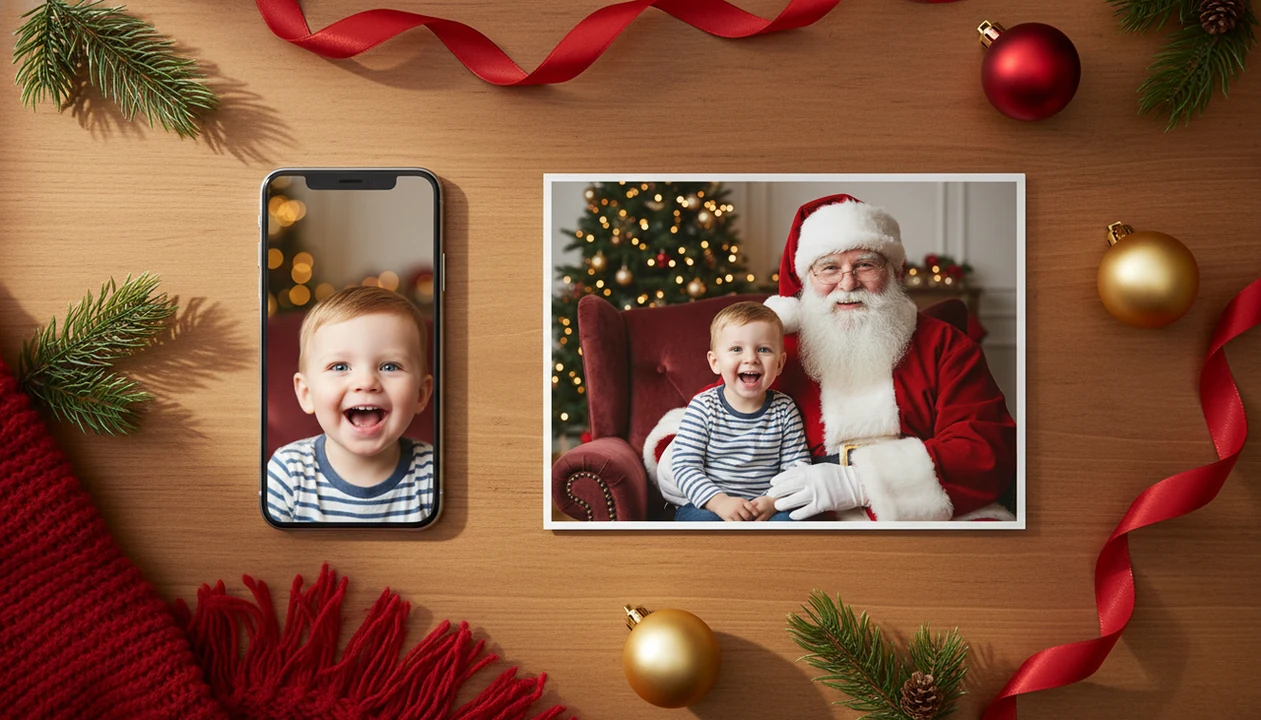
You can make Santa photo with child by uploading one clear, well-lit phone picture, choosing a Santa scene, generating several versions, and checking the final image closely before sharing or printing. Cleaner results usually come from a front-facing photo where your child’s face, hair, shoulders, and expression are easy to see.
Definition: A Santa photo from phone is an AI-generated holiday image that uses one regular child photo to create a realistic Santa scene, holiday portrait, card image, or Christmas wallpaper.
TL;DR
- Use one sharp, bright, front-facing phone photo with the child’s full head and shoulders visible.
- Choose the Santa style first: classic mall Santa, cozy living room, North Pole, Christmas tree, card portrait, or wallpaper.
- Generate multiple versions, inspect faces and hands at full size, then save the best image for sharing, printing, or holiday cards.
What It Means to Make Santa Photo With Child
Making a Santa photo with a child means turning one regular child picture into a festive image where Santa appears naturally in the scene. Parents use it when there is no mall visit, no studio slot, or no clean holiday backdrop at home.
The output can look like a child sitting with Santa, standing beside Santa, smiling in a cozy Christmas room, or appearing in a North Pole scene. The same starting photo can also become a holiday card image or Christmas wallpaper.
A phone photo is enough when the face is clear, the lighting is steady, and the child looks like themselves. The practical path is simple: upload, select a festive style, review the result, then save or share.
Tools like PiXmas fit this workflow as a Christmas photo app that transforms one uploaded photo into holiday portraits, Santa scenes, and Christmas wallpaper for families, couples, pet owners, and creators.
At-a-Glance Santa Photo From Phone Checklist
Before you create a Santa picture with child, check the source photo and the final use. A card crop, phone wallpaper, and portrait print do not need the same framing.
| Checklist item | What to choose | What to avoid |
|---|---|---|
| Input photo | Sharp phone photo with full head and shoulders | Blurry hallway snapshot before bedtime |
| Best pose | Front-facing, eyes open, natural smile | Turned head, covered face, cropped chin |
| Lighting | Window light or soft indoor light | Heavy shadows, flash glare, backlighting |
| Clothing | Pajamas, sweaters, red, green, cream, simple tops | Busy filters or face-covering hats |
| Style choice | Santa portrait, card crop, landscape scene, wallpaper | Choosing format after saving |
| Output format | Vertical, square, 4:5, landscape, or 16:9 | One crop for every use |
| Privacy check | Review app policy and final image details | Posting without checking background clues |
Phone photos are central to family image-making now. In the iPhone Photos grid, it often comes down to six almost-identical kid snapshots and one where everyone is actually looking at the camera.
Small choices matter.
Phone Picture Requirements for a Child Santa Photo
The best input photo for an AI Santa photo shows the child’s face clearly, with the full head, shoulders, and eyes visible. The model needs enough reliable detail to preserve likeness and build a believable Santa setting.
- Face visibility: Choose a photo where the child looks toward the camera with both eyes open and no hair, hand, candy cane, or sleeve blocking the face.
- Clean framing: Keep the full forehead, chin, hairline, neck, and shoulders in the image; cropped edges often create awkward portrait output.
- Gentle lighting: Bright window light or soft room light works better than dim corners, flash shine, or warm yellow kitchen light fighting the app.
- Low motion: Avoid running, jumping, heavy blur, and screenshots of videos; soft edges can turn into distorted hands or fuzzy clothing seams.
- Simple styling: Pajamas, sweaters, holiday colors, and plain tops all work. Everyday clothes can still become festive after the Santa scene is generated.
For parents comparing child-specific options, a best Santa photo app for kids guide can help frame the same photo-quality checks.
How AI Santa Photo Apps Work From One Child Picture
AI Santa photo apps read the uploaded image for facial features, pose, lighting cues, clothing edges, and body framing. In technical terms, the system builds image embeddings, which are compact visual signals that help it understand the child’s appearance.
This is the same broad family of image-generation technology described in latent diffusion research, where compressed visual representations help guide image creation: https://arxiv.org/abs/2112.10752 .
The app then preserves the recognizable face and expression while generating or compositing a Santa setting around the child. That setting may be a classic mall Santa portrait, a fireplace room, a Christmas tree studio, a snowy backdrop, a North Pole scene, or a wallpaper layout.
A good AI Christmas photo app that transforms one uploaded photo into studio-quality holiday portraits, Santa scenes, and Christmas wallpaper across hundreds of festive styles should deliver fast scene options, not guaranteed studio-perfect results.
Poor input photos give the model less to work with. A tiny face in a group shot, a blurry sleeve, or a cropped forehead can lead to strange edges, mismatched hands, or a Santa arm that needs regeneration.
How to Create a Santa Picture With Child From One Photo
To create a Santa picture with child, start with the photo you already have and work through one-photo upload, style selection, preview, and export. In PiXmas, that flow turns a phone picture into holiday portraits, Santa scenes, Christmas wallpaper, cards, and shareable images.
- Select the clearest child photo from your phone camera roll, preferably front-facing with the full head and shoulders visible.
- Upload the picture, then review the photo access prompt if your phone asks whether to allow selected photos only.
- Choose a Santa scene or festive style, such as classic Santa, cozy room, North Pole, or Christmas tree portrait.
- Generate several versions from the same photo so you can compare expression, Santa placement, and background.
- Review the strongest result at full size, save it, and choose the right crop for sharing, cards, or wallpaper.
For iPhone-specific steps, the how to make Santa pictures on iPhone walkthrough covers the camera roll and export flow in more detail.
Santa Photo Styles for Prints, Cards, and Wallpaper
Choose the Santa style based on where the final image will live: print, card, social post, or wallpaper. “Can I use this for a card and a wallpaper?” is the right question to ask before generating.
| Santa style | Best use | Suggested crop |
|---|---|---|
| Classic mall Santa portrait | Keepsake print or family text | Vertical portrait |
| Cozy living room | Warm card image | Square or 4:5 |
| North Pole | Playful child scene | Vertical or landscape |
| Christmas tree studio | Printed greeting card | 4:5 or landscape |
| Snowy outdoor scene | Share-ready holiday post | Square or 4:5 |
| Christmas wallpaper | Lock screen or desktop | 16:9 or phone vertical |
For last-minute cards, generate more than one style from the same child photo. On December 23, after bedtime, that gives parents a real choice when no studio appointment is left.
Printed cards can reveal small artifacts that look fine on a phone screen. Check the highest-resolution version before ordering, especially around hands, props, and Santa’s lap.
Common Mistakes When Making a Santa Photo With a Child
Most failed Santa portraits come from a weak starting photo or the wrong crop for the final use. The fix is usually simple: choose a cleaner picture, regenerate once or twice, then crop only if the child’s face still looks right.
Cropped foreheads and chins are especially unforgiving. If the original picture cuts off the hairline or lower face, the Santa version can look cramped, with hats, beards, or shoulders landing in odd places. Dim kitchen light causes a different problem: the app has less facial detail to preserve, so skin can look muddy and the likeness may feel softer than the real child.
- Start with one child facing the camera, not a group photo where faces are small or heads are turned.
- Replace any source photo with heavy shadows, yellow overhead light, blur, or missing head-and-shoulder framing.
- Regenerate when hands, Santa’s arms, eyes, or the mouth look wrong in the main portrait area.
- Crop around tiny edge artifacts only when the face, Santa placement, and overall pose already look natural.
- Export separate versions for cards, wallpaper, and social posts so important faces are not squeezed by one all-purpose crop.
Privacy Checks Before Sharing a Santa Photo From Phone
Is it safe to upload and share a Santa photo from phone? It can be, but parents should use reputable apps, read storage or deletion policies, and avoid uploading unusually sensitive images.
Check the final image before posting. Look for school names on shirts, house numbers, street signs, license plates, location clues, or anything else that should not travel with a holiday photo. Treat crumbs near the phone are harmless. A visible address on a delivery box is not.
Most U.S. adults who take smartphone photos or videos share them with other people, according to Pew Research Center’s 2015 privacy research: https://www.pewresearch.org/internet/2015/01/14/privacy-and-information-sharing/ . For children’s images, also check whether an app explains collection, deletion, and parental controls in plain language; the FTC’s children’s privacy guidance is a useful reference: https://www.ftc.gov/business-guidance/privacy-security/childrens-privacy .
Private sharing is often the safer default for children’s images. If you are still deciding what kind of tool fits your comfort level, a Santa photo app for parents guide can help you compare the workflow and checks.
What makes this style different from other Christmas photo styles?
A Santa photo with a child focuses on warmth and recognition rather than costume realism alone. The goal is a scene where the child still looks like themselves, just placed beside Santa in a cozy, seasonal setting.
This differs from generic holiday filters because the framing, lighting, and Santa styling are built around keeping a child's expression and features clear, not just adding a red hat over the original photo.
Who is this Christmas photo style best for?
This style suits parents who want a Santa photo without scheduling a mall visit or studio session, especially with young children who get restless during real photo shoots.
It also works for families who want a matching Santa photo for each child from separate photos, or grandparents who want a keepsake image without an in-person sitting.
How does PiXmas compare to a photographer or DIY setup?
- In 2025, the Bass Pro Shops Santa's Wonderland Jingle Bells package is priced at $35 and includes multiple prints plus a high‑resolution digital image. (Tsawwassen Mills – Santa's Wonderland at Bass Pro Shops, 2025)
- In 2025, Bass Pro Shops offers a standalone digital download of the Santa photo for $30, including a free 4×6 print. (Tsawwassen Mills – Santa's Wonderland at Bass Pro Shops, 2025)
- Bass Pro Shops and Cabela's Santa's Wonderland offers one free 4×6 photo with Santa per guest, with paid photo packages available. (Tsawwassen Mills – Santa's Wonderland at Bass Pro Shops, 2025)
For families wanting a quick, low-effort Santa photo with a child, PiXmas turns one clear phone photo into a Santa-themed image suited for cards, prints, or wallpaper, without a studio visit.
Limitations
AI Santa photos are useful, but they still need a parent’s review before saving, posting, or printing. The phone preview can hide problems until the image is enlarged.
- Blurry, dim, low-resolution, or heavily filtered phone photos can produce distorted faces or weak likeness.
- Complex poses, cropped heads, multiple children, unusual angles, or covered faces can confuse the model.
- Hands, props, clothing seams, Santa’s lap, and Santa’s arms may need regeneration or careful cropping.
- Artifacts are easier to miss on a phone screen and easier to see in prints, cards, canvases, or framed gifts.
- App privacy policies differ, so parents should check image storage, deletion, and sharing practices before uploading children’s photos.
- A generated Santa scene does not replace the live experience of meeting Santa for families who value that tradition.
- Some styles may look more illustrated than realistic, especially when the original photo has harsh lighting.
If you are asking is there an app that puts my child with Santa, the answer is yes, but the source photo still decides a lot.
Related guides
FAQ
Can I include siblings or multiple children in one Santa photo?
Yes, but results are usually more consistent when each child's face is clearly visible and unobstructed in the source photo. Group photos with overlapping faces or motion blur may render less precisely than a solo or two-child photo.
Can I add our family pet to the Santa photo with my child?
Some AI Santa tools, including PiXmas, support adding a pet alongside a child if the pet is visible in the uploaded photo or a separate clear pet photo is available. Check the app's specific options before uploading.
How long does it take to get the finished Santa photo?
Most AI Santa photo generations complete within a few minutes after upload, much faster than booking and attending a photographer session. Exact processing time can vary by app and current demand.
Can I download the Santa photo in high resolution for printing?
PiXmas offers output sizing suited to prints, cards, and digital sharing. For best print quality, start with a sharp, well-lit source photo since upscaling cannot fully fix a blurry original.
What if my child's photo has a sibling or toy in the background?
Minor background elements usually do not prevent generation, but a cleaner background with the child's face clearly visible tends to produce a more polished Santa photo. Cropping tight around the face and shoulders before uploading can help.