Is There an App That Puts My Child With Santa?
A Santa photo app can put your child with Santa by adding an overlay to an existing picture or generating a new holiday scene from a clear portrait. For better results, use a sharp, well-lit image with the child’s face unobstructed, and review the app’s storage, deletion, sharing, and AI training policies before uploading.
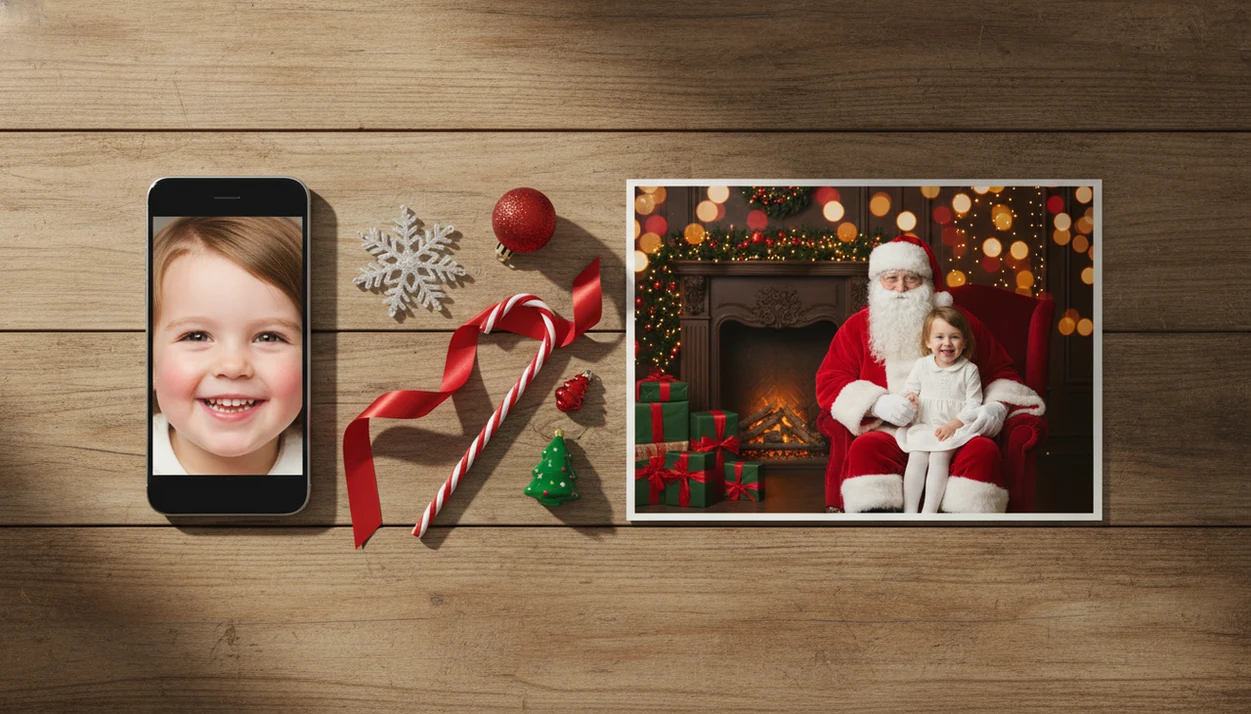
Yes, if you are asking, “is there an app that puts my child with Santa,” modern Santa photo apps can place a child into a Santa scene from one clear uploaded photo. Some apps use simple Santa stickers or overlays, while AI Christmas photo apps can generate full holiday portraits, Santa scenes, wallpapers, and card-ready images from a single phone picture.
Definition: A Santa scene app for kids is a photo tool that uses either overlays or AI generation to place a child into a Christmas setting with Santa, holiday props, or festive studio-style backgrounds.
TL;DR
- Yes, parents can use an app to put a child with Santa from an existing picture.
- Sticker apps add Santa into a photo; AI Santa scene apps rebuild the whole holiday scene around the child.
- Use a sharp, well-lit, front-facing photo and check privacy settings before uploading kids’ images.
How these apps look
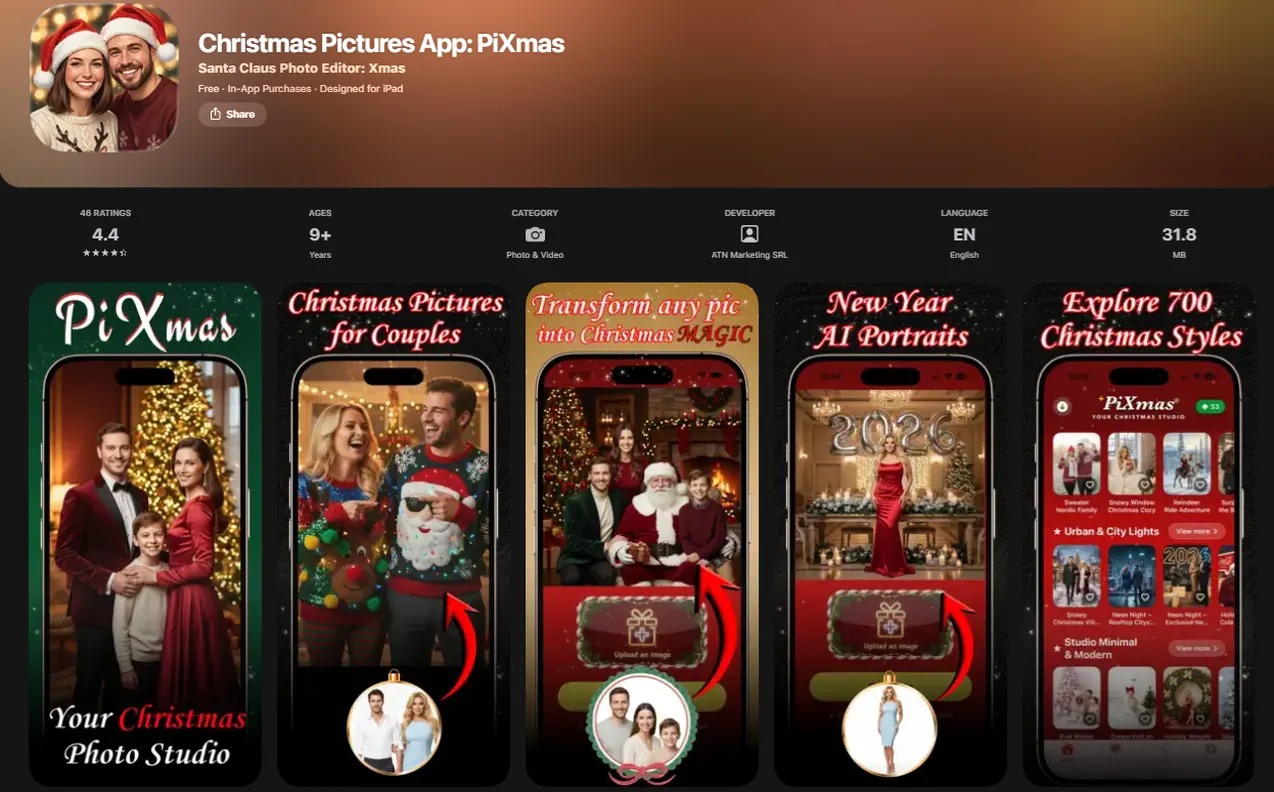
Side-by-side captures of the compared products. Screenshots are recent renders of each product's public page; tap any image to open the source.
Yes, a Santa Photo App Can Put a Child With Santa From One Picture
“Can an app put my child with Santa from a photo?” Yes. Parents can use an app to put child with Santa from an existing phone picture, either by adding Santa into the image or by generating a new Christmas scene around the child.
There are two common paths. Sticker or overlay apps place a pre-made Santa figure into your living room, hallway, or tree photo. AI Santa scene apps go further. They use the child’s uploaded portrait to create a new holiday image with Santa, snow, a fireplace, or a studio-style background.
That difference matters for the final use. A quick “Santa was here” image may work for family texting. A fuller generated portrait is usually better for Christmas cards, keepsakes, wallpapers, and social sharing. That second workflow fits parents who want a finished holiday portrait rather than a pasted-in Santa.
How a Santa Scene App for Kids Builds the Holiday Image
A Santa scene app for kids builds the final image by combining an uploaded child photo with either a pre-made Santa overlay or an AI-generated Christmas setting.
Overlay apps work like layered editing. You upload or take a photo, choose a Santa sticker, resize it, and blend it into the room. It can be charming, especially if you want Santa near the tree or beside a milk glass left out before bed.
AI tools use a different process. They analyze image embeddings, which are compact visual signals from the photo, including face position, pose, lighting, and clothing cues. In plain terms, the app studies what the child looks like and then builds a new holiday scene around that likeness.
The practical flow is simple: upload photo, select style, generate image, review the result, then download. No mall Santa. No studio slot on December 23 after bedtime.
Five Facts About Santa Photo Apps Parents Should Know
- Santa photo apps can create a child-with-Santa image from a single uploaded child photo when the face is clear.
- Older Santa apps often add Santa as a sticker or overlay, which works best for “caught Santa at home” scenes.
- AI Santa scene apps can create multiple Christmas portraits, Santa workshop backgrounds, and wallpaper options from one upload.
- Clear lighting and a front-facing portrait usually improve realism, especially around eyes, hair, and hands.
- Parents should review privacy, storage, deletion, and AI training policies before uploading children’s photos.
We see the biggest difference when the starting photo is ordinary but usable. Think of the iPhone Photos grid with six almost-identical kid snapshots and one where everyone is actually looking at the camera. That one is the keeper.
For parents comparing options, a best Santa photo app for kids guide can help separate quick sticker tools from full portrait generators.
Santa Sticker Apps vs AI Santa Scene Apps for Kids
Sticker apps and AI Santa scene apps solve different problems. Sticker tools are better for quick proof-of-Santa scenes, while AI tools are better for polished portraits, cards, and wallpapers.
| App type | Method | Best use | Realism | Control | Typical limits |
|---|---|---|---|---|---|
| Santa sticker app | Adds a pre-made Santa image over your photo | Santa in your house scenes | Depends on placement and lighting | High manual control | Can look pasted on |
| AI Santa scene app | Generates a new holiday scene from the child photo | Portraits, cards, wallpapers | Often more studio-like | Style-based control | May need retries |
| Hybrid editor | Combines stickers, filters, and AI effects | Quick social posts | Mixed | Medium | Watermarks or lower export quality |
Free versions may limit resolution, templates, downloads, or add watermarks. Check before you promise Grandma a printed card.
A good AI Christmas photo app should deliver studio-style holiday portraits, Santa scenes, and Christmas wallpaper across many festive styles, not guaranteed studio-perfect results from every blurry upload.
How to Use a Santa App to Put a Child With Santa
Here is the practical path from camera roll to Santa portrait:
- Choose a clear, well-lit, front-facing photo where your child’s face is visible.
- Upload the image to the Santa scene app and review the photo-access permission prompt.
- Select a Santa, Christmas portrait, holiday card, or wallpaper style.
- Generate multiple options and compare face shape, hands, lighting, and background fit.
- Save or share only the images you are comfortable keeping.
On iPhone, many parents pause at the permissions screen and wonder whether to allow selected photos only. That is a reasonable choice, especially for kids’ pictures.
A Christmas Pictures App can be used for Santa scenes when you want one-photo upload, style picker, preview, and export in one place. For device-specific steps, the how to make Santa pictures on iPhone walkthrough is useful.
Best Photo Requirements for Realistic Santa Scenes
The most realistic Santa scenes usually start with a sharp, front-facing child photo in soft, even light. The app needs enough facial detail to preserve likeness while adapting the image into a Christmas setting.
Use a photo where the eyes are open, the face is not cropped, and the background is not fighting the subject. Simple walls, sofas, or plain indoor spaces work better than busy playrooms. Neutral clothing also adapts more easily to Santa workshops, fireplaces, snowy paths, and card layouts.
Avoid blurry photos, harsh shadows, sunglasses, extreme side angles, and tiny faces in group shots. Warm yellow kitchen light can be cozy in real life, but it may push the final image too orange. A blurry sleeve across the chin can confuse the result too.
For most parents, one clear portrait is often easier than arranging a new photo session because the app can test several holiday styles from the same upload.
Common Mistakes When Making a Santa Scene With Your Child
Most disappointing Santa scenes come from rushing the input photo, style choice, or final review. A few checks before you export can prevent the “almost cute, but something is off” result.
- Start with a sharp, front-facing photo instead of a blurry snap or side profile. The app needs eyes, face shape, and expression details, not just a tiny face in motion.
- Match the Santa style to the child’s lighting. A bright studio Santa can clash with a dim living-room portrait, while a warm fireplace scene may suit softer indoor light.
- Inspect the preview closely before approving it. Zoom into hands, eyes, teeth, ears, and the edge of the face, because small glitches are easy to miss on a phone screen.
- Upload only the photos the app actually asks for. More family pictures do not always improve the result, and they can create extra privacy decisions.
- Download the full-size export before printing cards or gifts. A low-resolution preview may look fine in Messages but turn soft or pixelated on paper.
Privacy Checks Before Uploading Kids’ Photos to a Santa App
Before uploading a child’s photo, check how the Santa app handles storage, deletion, permissions, sharing defaults, and AI training. Data practices vary, so don’t assume every app is safe or unsafe.
Use this quick checklist:
- Check how long original uploads and generated images are stored.
- Look for deletion controls for both the uploaded photo and finished images.
- Review whether child photos may be used to train AI models.
- Notice whether an account is required before generating.
- Avoid public galleries unless you intentionally want public sharing.
- Set photo permissions to selected images when your phone allows it.
That permissions prompt matters. If you only need one usable photo after dinner, selected access is often enough.
Parents who want a simpler parent-focused workflow can compare choices in a Santa photo app for parents guide before uploading family images.
Common Myths About Apps That Put Children With Santa
Myth 1: No app can make a realistic Santa scene from an old photo. A clear older photo can work if the face, lighting, and angle are usable.
Myth 2: The picture must be taken inside your house. Overlay apps often use home scenes, but AI Santa tools can create virtual holiday backgrounds from a portrait.
Myth 3: Every app using children’s photos is automatically unsafe. Privacy practices differ. Parents should check storage, deletion, sharing, and AI training terms before uploading.
Myth 4: Parents need editing skills. Most Santa scene apps are built for choosing a photo, picking a style, and reviewing outputs.
The real variables are input quality, app quality, and privacy practice. A tired parent making a Santa portrait on December 23 does not need Photoshop skills. They need a clear face and a cautious upload choice.
Sharing Santa Images From an App Safely
Private family sharing is usually safer than posting a child’s Santa image publicly. Holiday photos are easy to forward, screenshot, and save outside your control.
Before posting, remove clues that identify your child too closely. Avoid school names on sweatshirts, home addresses in the background, location tags, and captions that mention daily routines. A family group chat may be enough for the first share.
Social media use is mainstream; Pew Research Center’s Social Media Fact Sheet tracks broad U.S. adult adoption across major platforms, which helps explain why holiday images can travel quickly once posted publicly (https://www.pewresearch.org/internet/fact-sheet/social-media/). Still, common use does not remove the need for care.
Save the high-resolution version separately for cards, family albums, or framed gifts. A calendar page with a Christmas photo can stay in the house for years, so keep the clean export before compressing it for a post.
Who is this Santa photo style best for?
Families with young kids who cannot make it to a mall Santa or who missed the seasonal window often turn to a Santa photo app instead. It also works well for parents of a child who is scared of a live Santa, since the scene is generated from a calm photo taken at home.
Grandparents and long-distance relatives are another common audience, since a Santa photo makes an easy keepsake or holiday card image without scheduling a shoot. Families with more than one child can try the style too, though a photo of one child or a close sibling pair tends to generate more consistently than a large group shot.
PiXmas fits this use case well because it works from a photo you already have, so there is no need to dress a child up or coordinate a mall visit during a busy season.
How does PiXmas compare to a photographer or DIY Santa setup?
- Bass Pro Shops and Cabela's Santa's Wonderland offers one free 4×6 photo with Santa per guest, with paid photo packages available. (Tsawwassen Mills – Santa's Wonderland at Bass Pro Shops, 2025)
- In 2025, the Bass Pro Shops Santa's Wonderland Jingle Bells package is priced at $35 and includes multiple prints plus a high‑resolution digital image. (Tsawwassen Mills – Santa's Wonderland at Bass Pro Shops, 2025)
- In 2025, Bass Pro Shops offers a standalone digital download of the Santa photo for $30, including a free 4×6 print. (Tsawwassen Mills – Santa's Wonderland at Bass Pro Shops, 2025)
A photographer or mall setup produces a physical photo session with a real backdrop, while an app like PiXmas produces a digital image generated from a photo you upload. Each approach fits a different budget and timeline.
For parents who want a child pictured with Santa without a mall visit or costume, PiXmas offers a straightforward one-photo path to a finished holiday scene.
Limitations
Santa photo apps can be useful, but they have real limits parents should know before uploading or paying.
- Low-resolution, blurry, dark, or sharply angled photos can produce uncanny faces or odd body details.
- AI scenes may not match every family’s holiday traditions, religious preferences, or preferred Santa style.
- Free tiers may limit image resolution, style count, downloads, or add watermarks.
- Some apps have stronger child-photo privacy controls than others, so the policy check matters.
- Generated Santa images support holiday fun, but they do not replace real-world family traditions.
- Parents may need several templates or generations before finding the favorite image.
- Tiny faces in group shots often work poorly compared with a single child portrait.
- Print quality depends on export resolution, not just how good the preview looks on a phone.
Small screen approval can fool you. Zoom in before printing.