
Christmas backgrounds 2027: 24 free wallpapers for iPhone, desktop and Zoom
Updated November 20, 2026
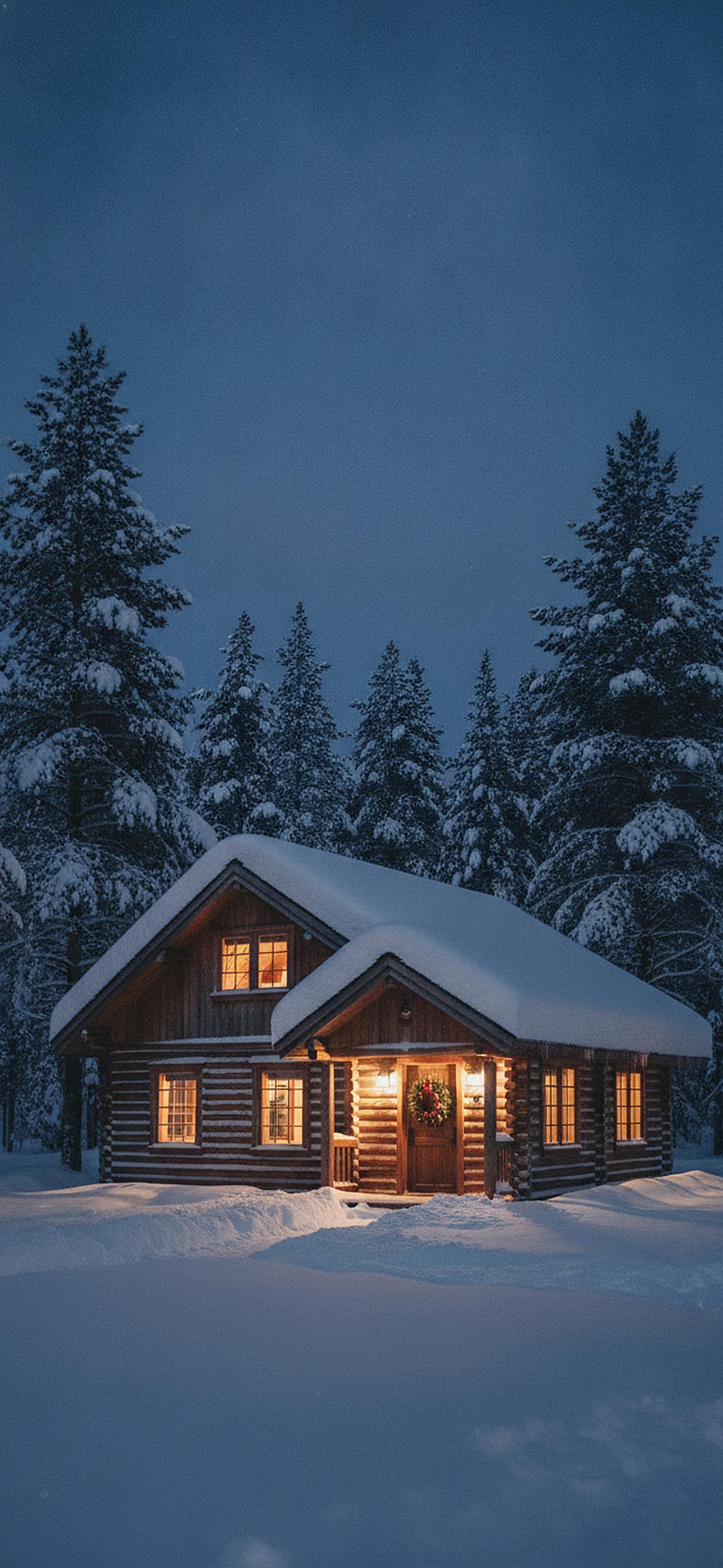
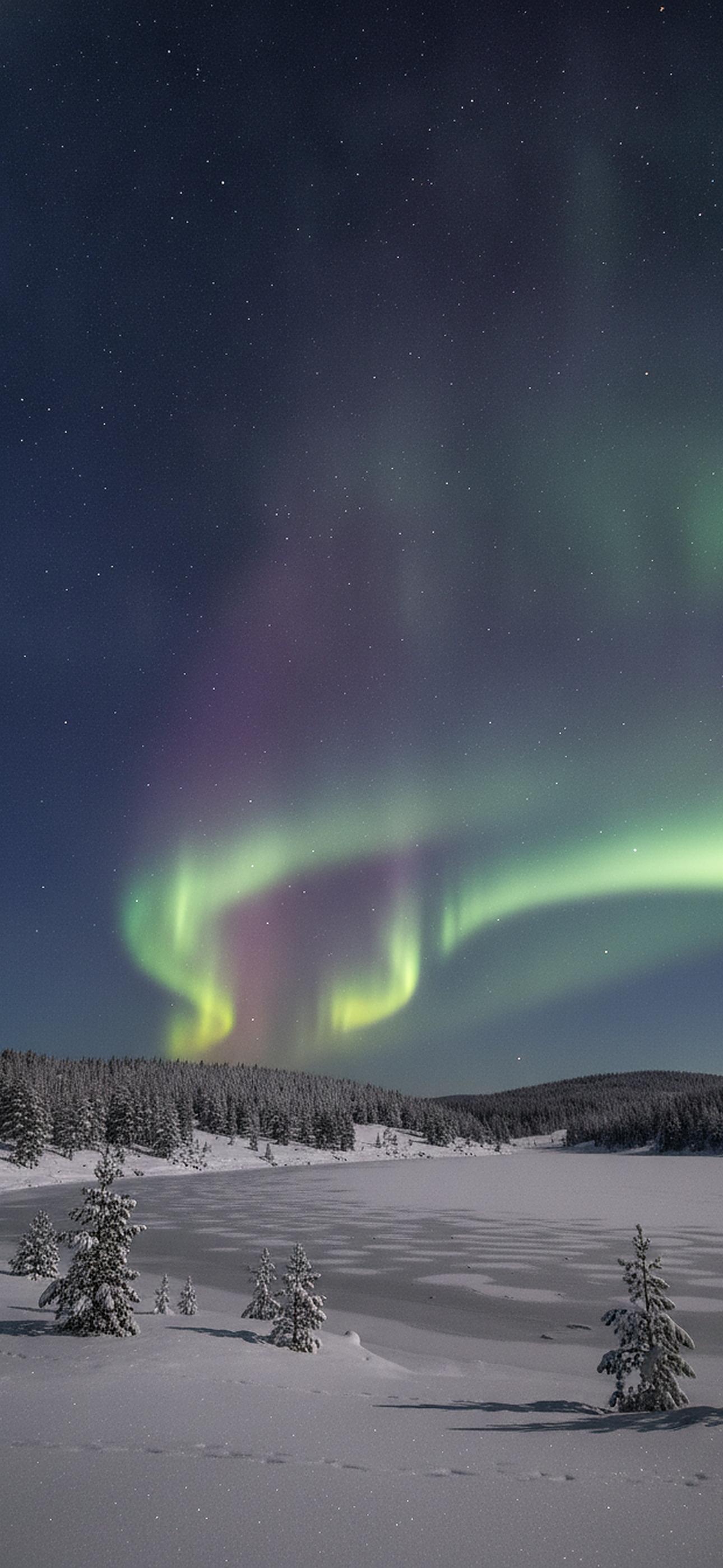
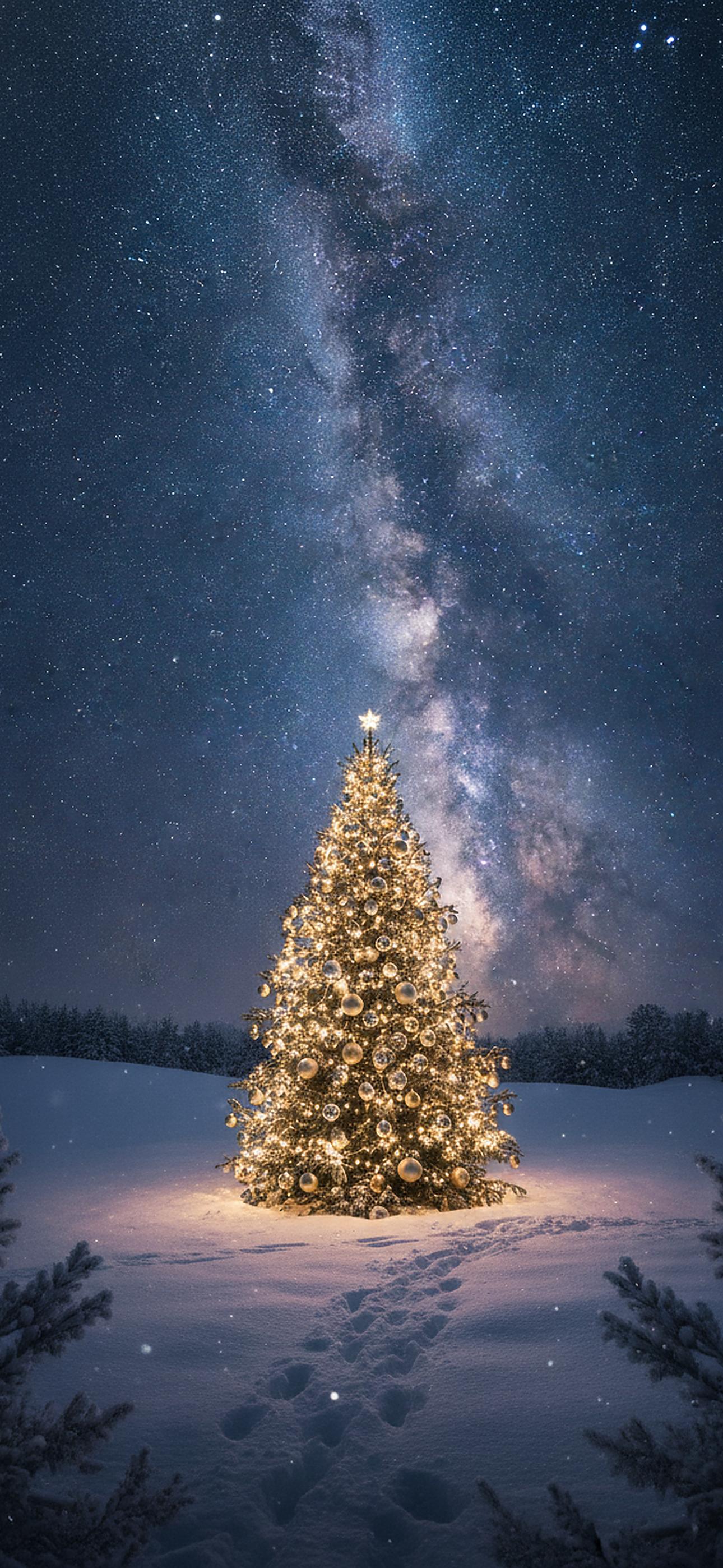
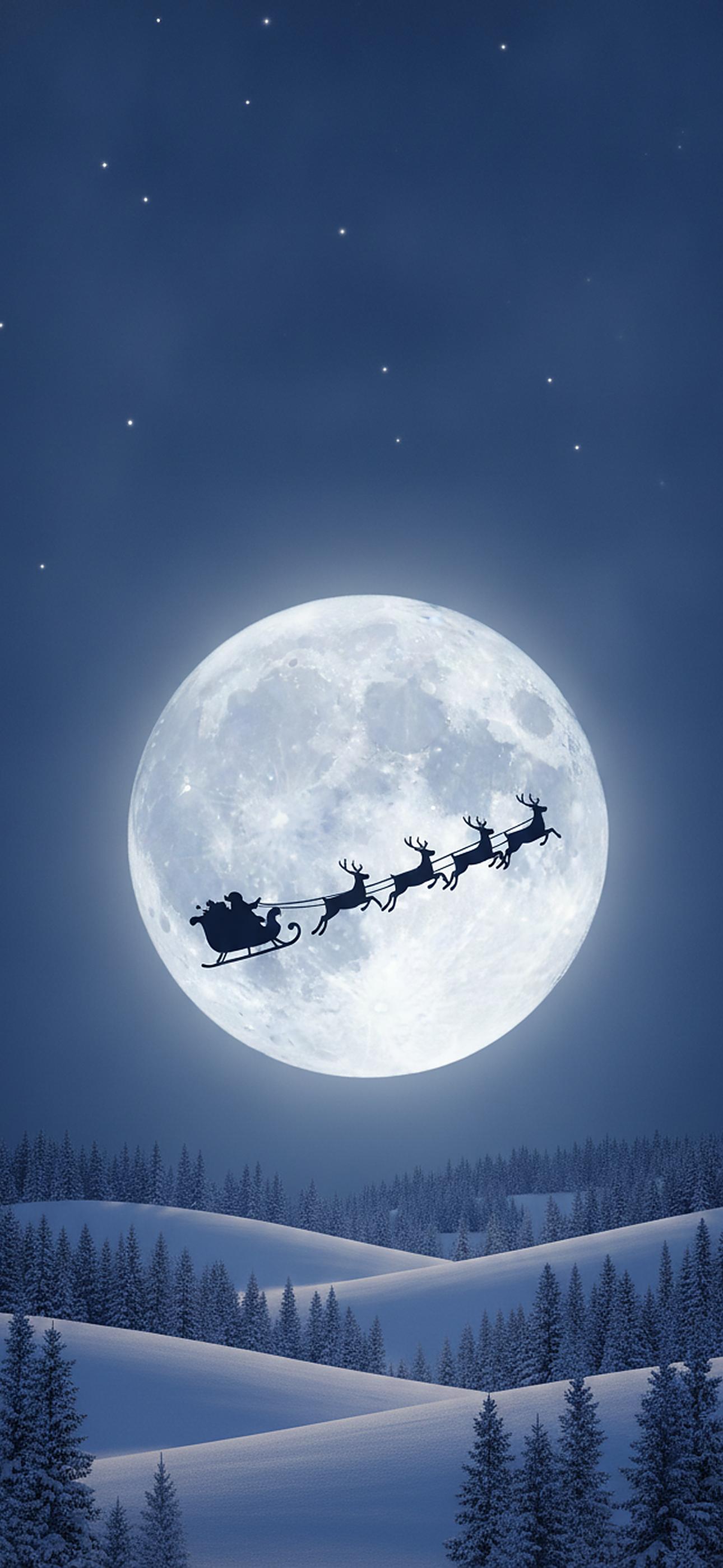
Pick any of the 24 free Christmas backgrounds below and save it in the size you need: 1290 x 2796 pixels for an iPhone wallpaper or lock screen, or 1920 x 1080 for a laptop, Zoom or Teams background. Every image is an original with no text, people or logos, and all of them are free for personal use.
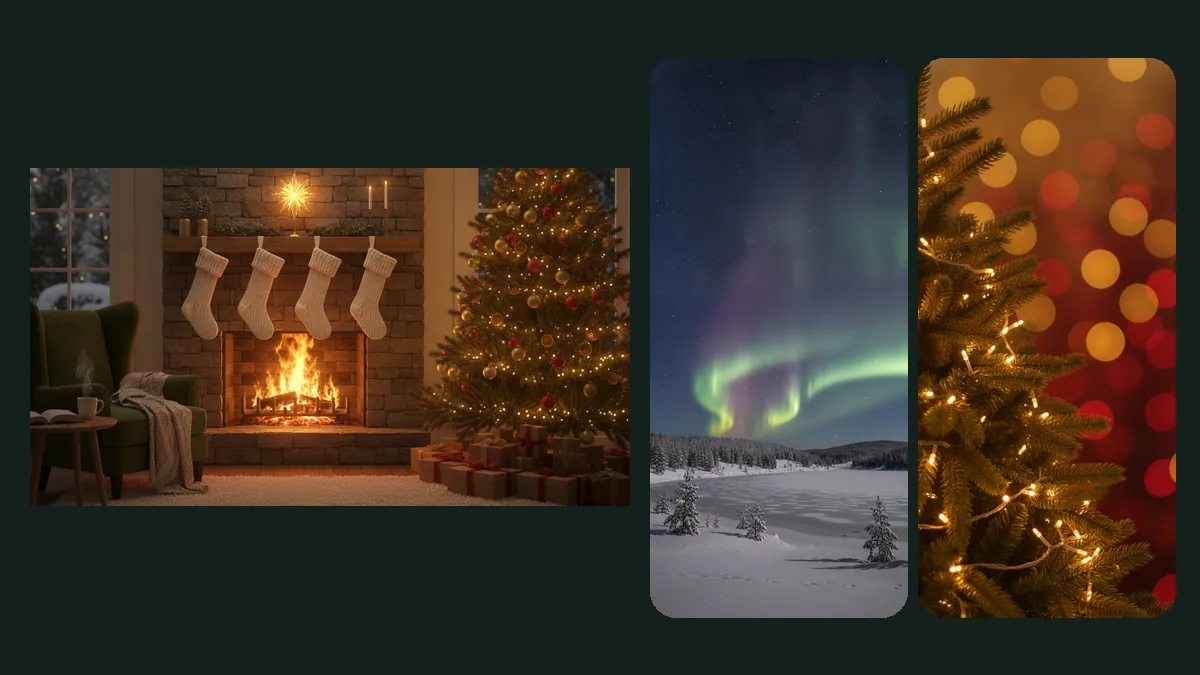
On an iPhone, tap a picture to open the full-size phone version, then press and hold it and choose Save to Photos. The "Download" links save the file to the Files app (Downloads folder) instead.
For more cheerful options, browse our cute Christmas wallpaper picks, featuring 16 free designs sized for iPhone and desktop screens in 2027.
Cozy and indoors

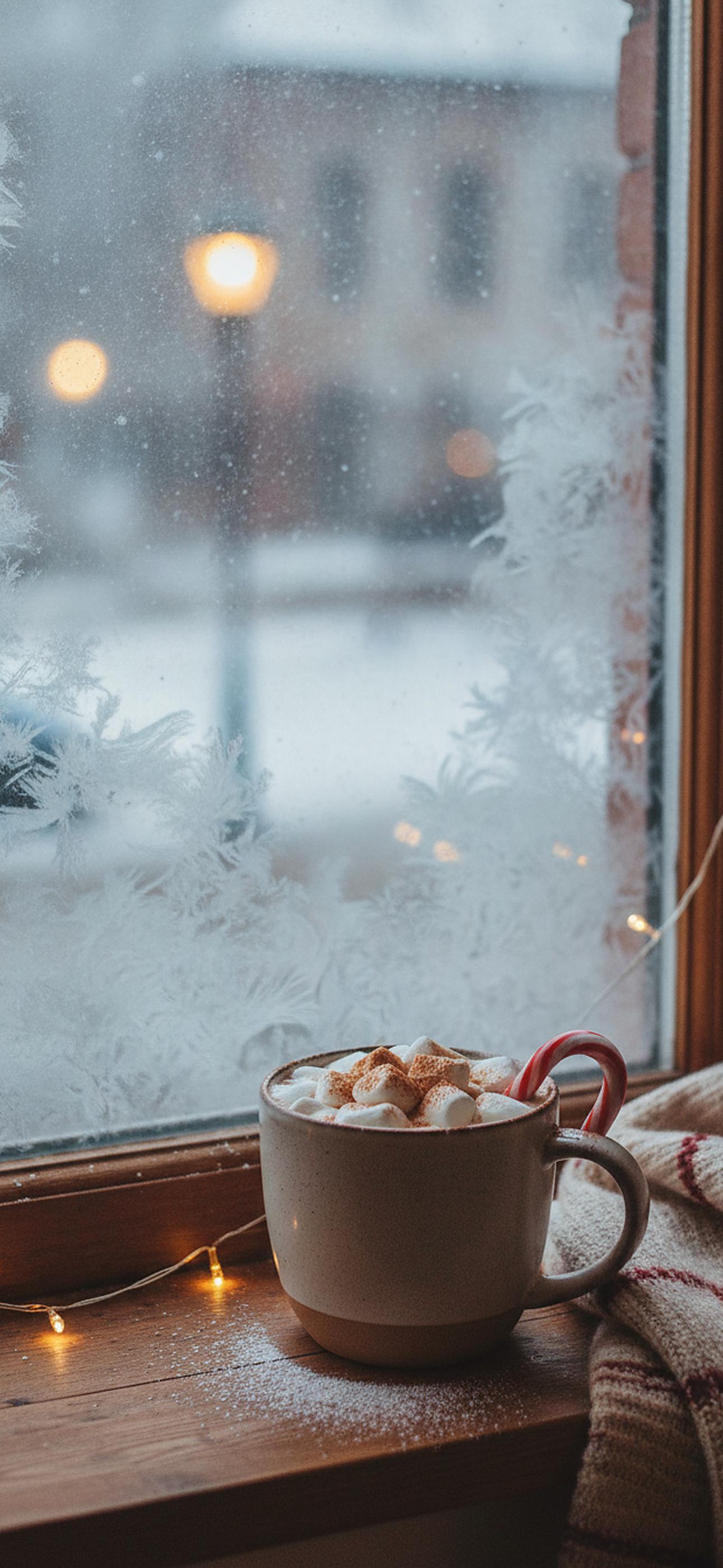



Snowy and outdoors
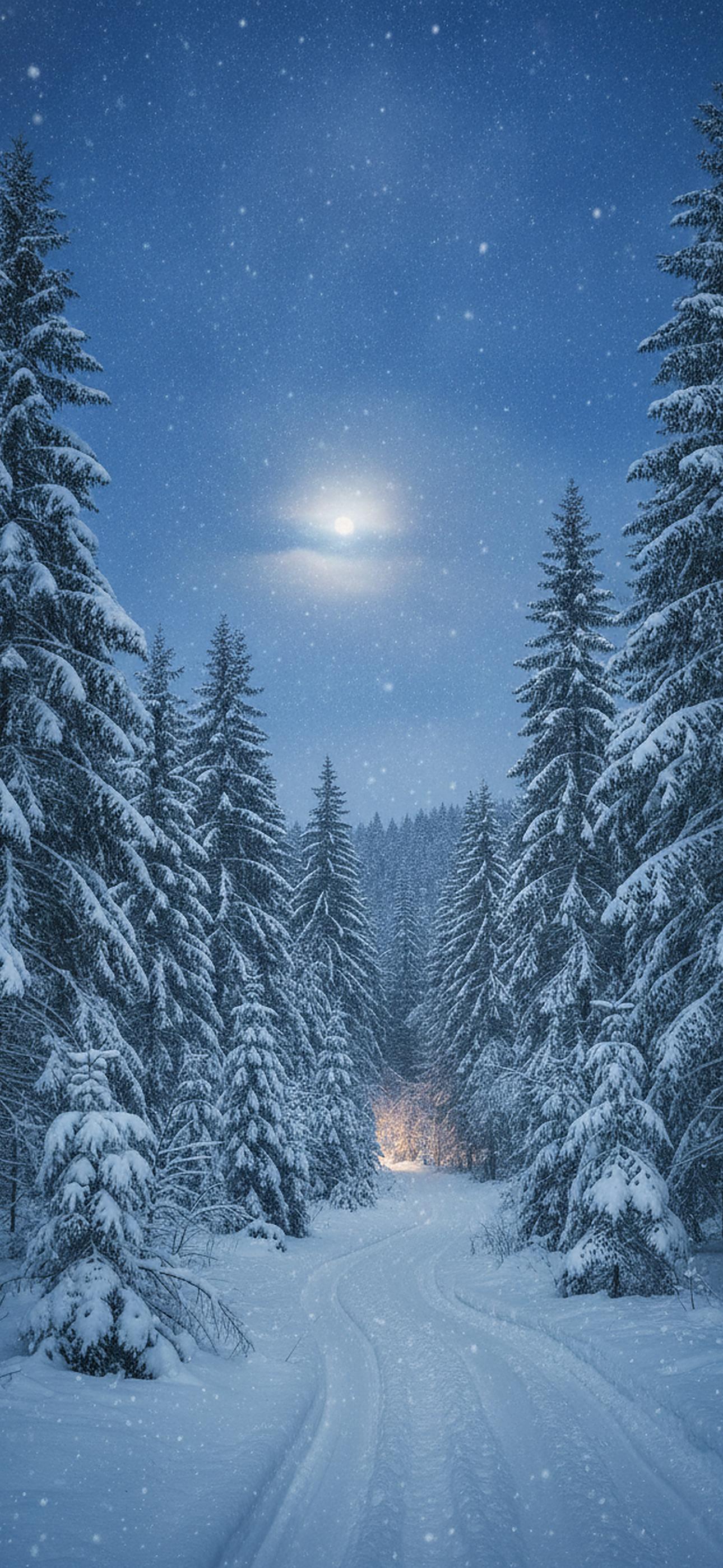

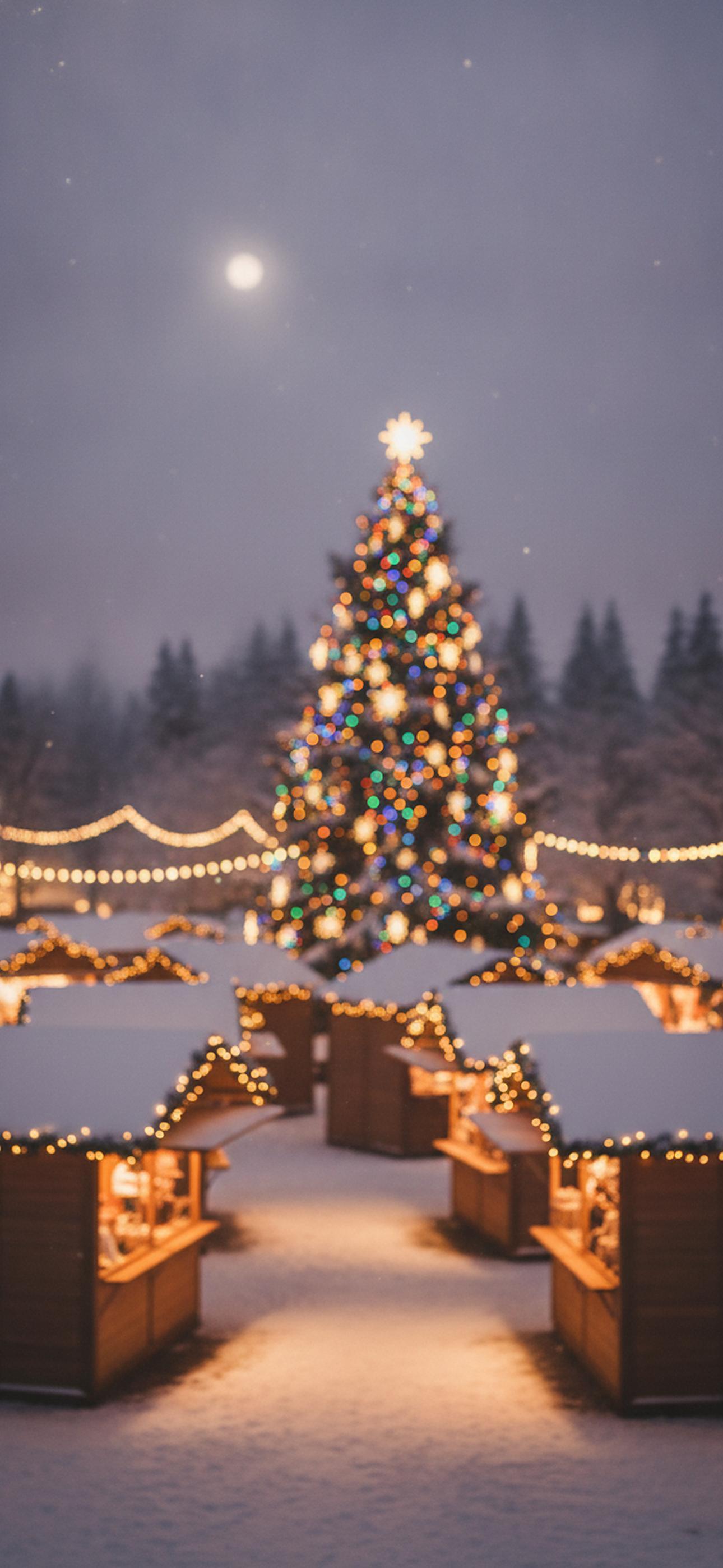
Aesthetic and minimal





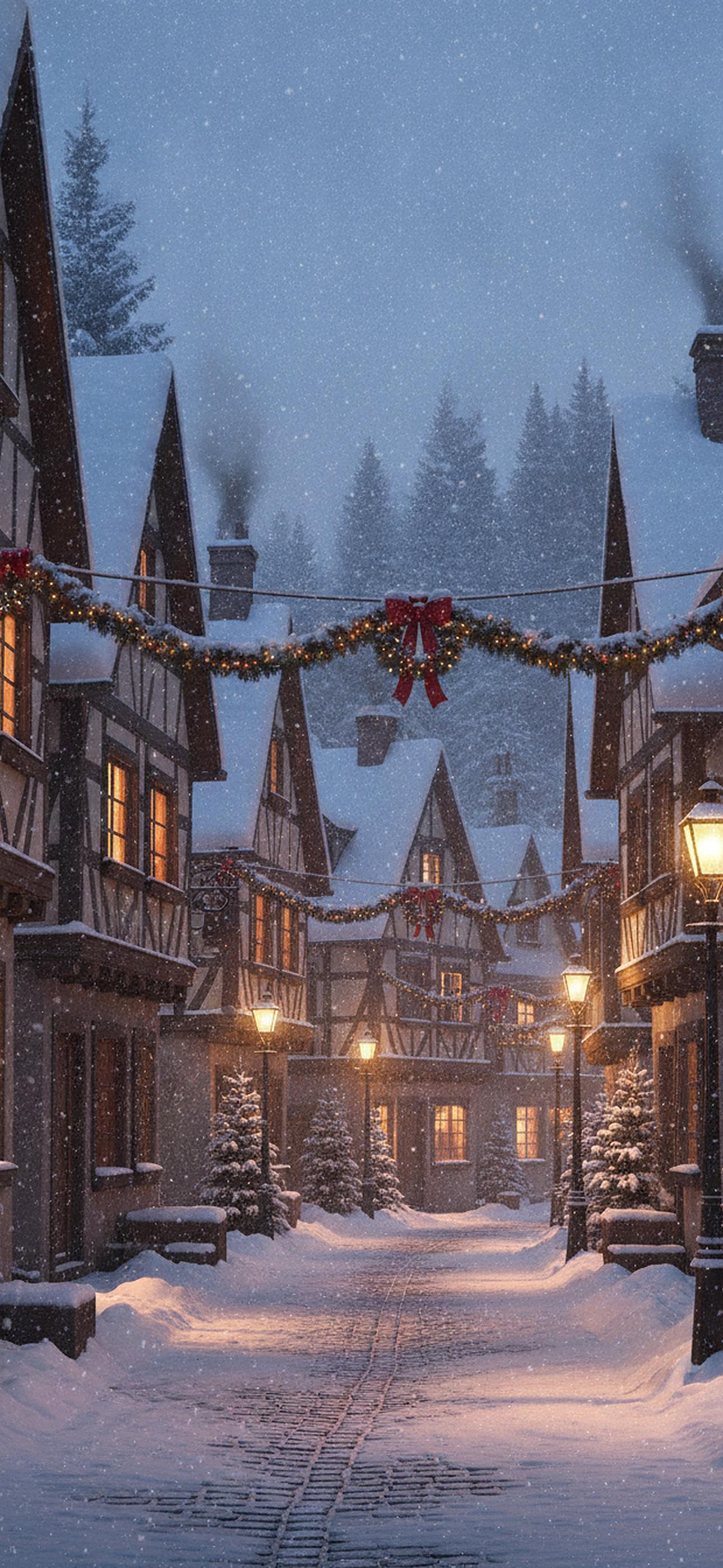
Patterns and textures



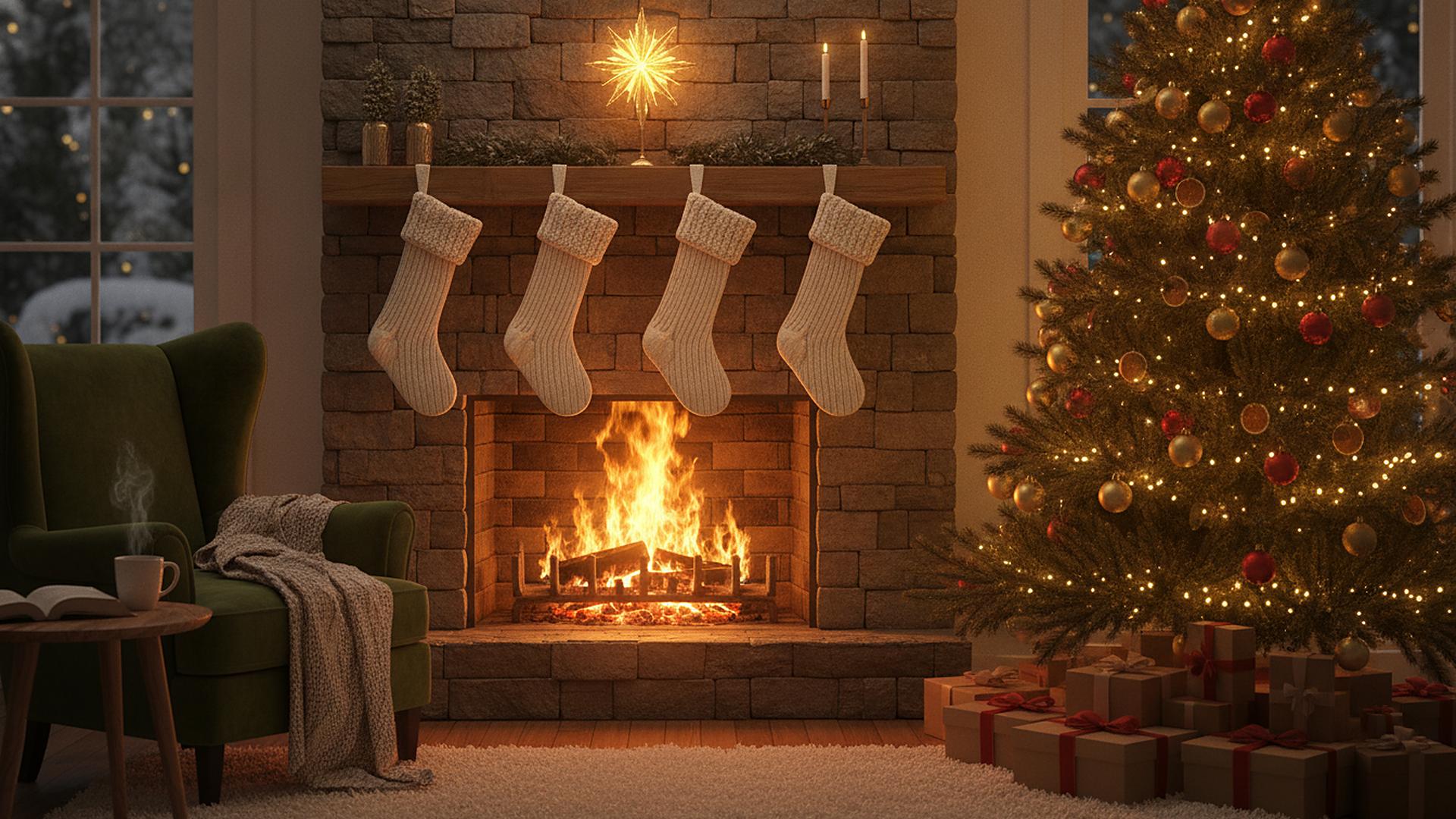

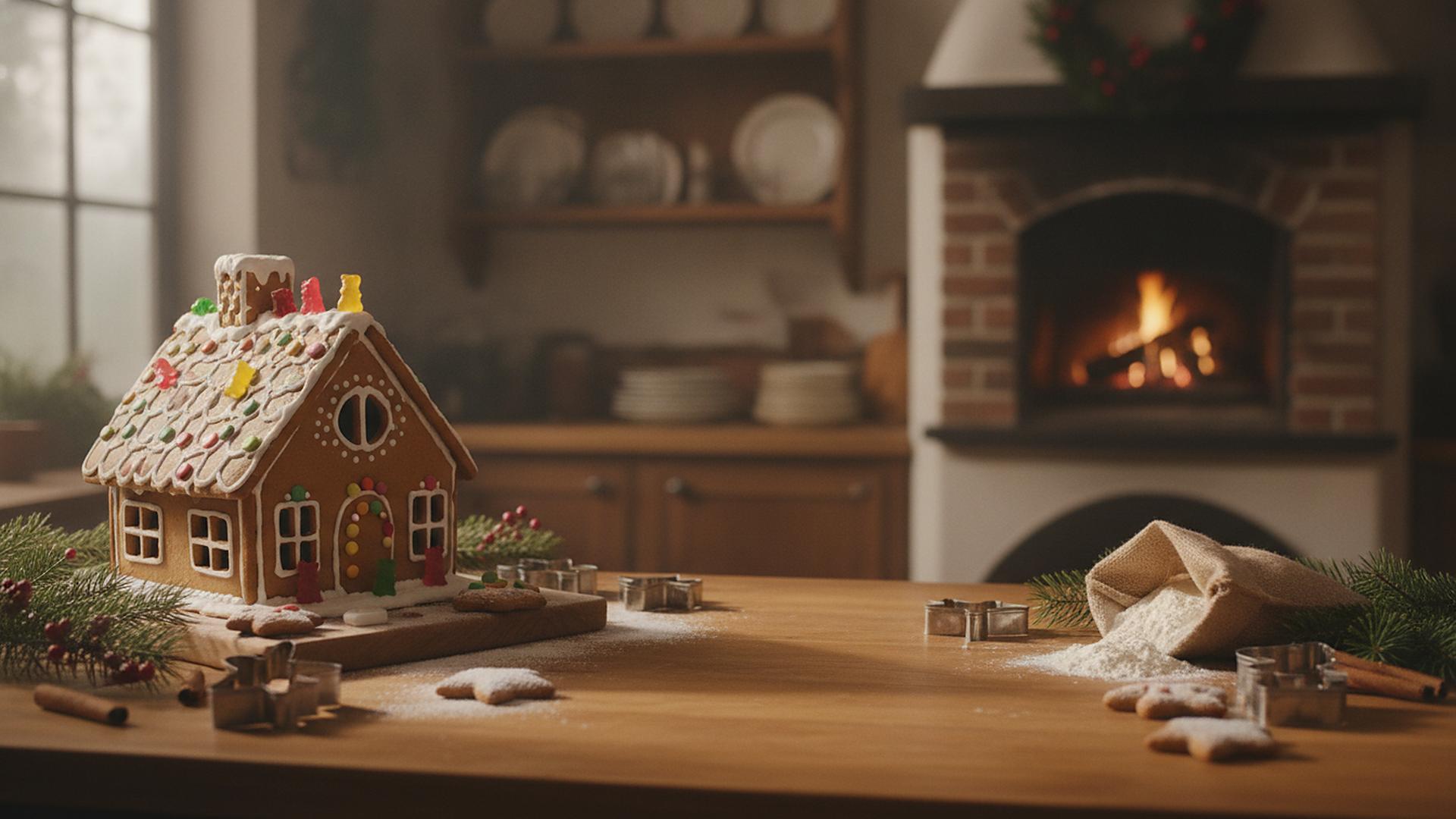


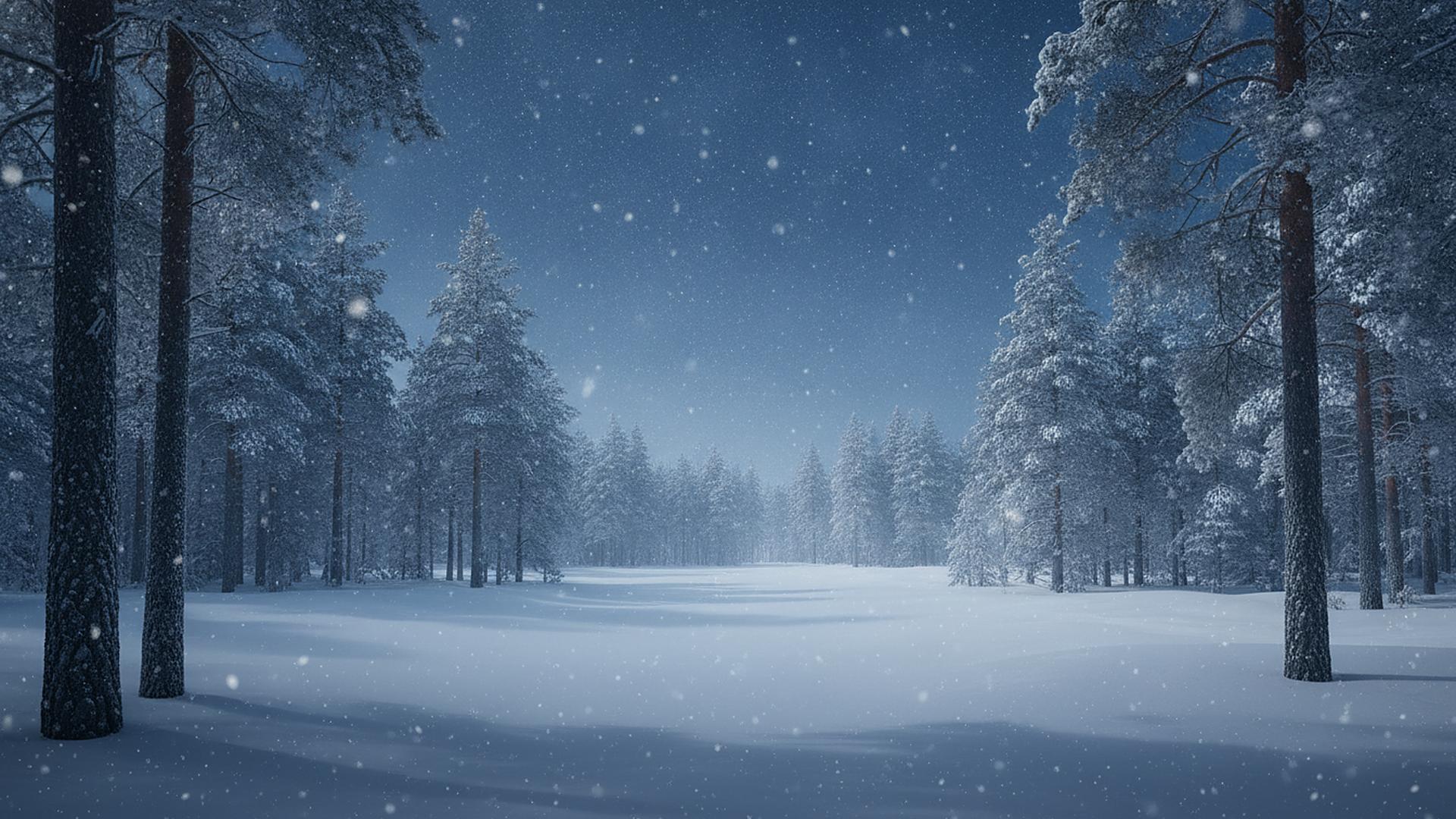
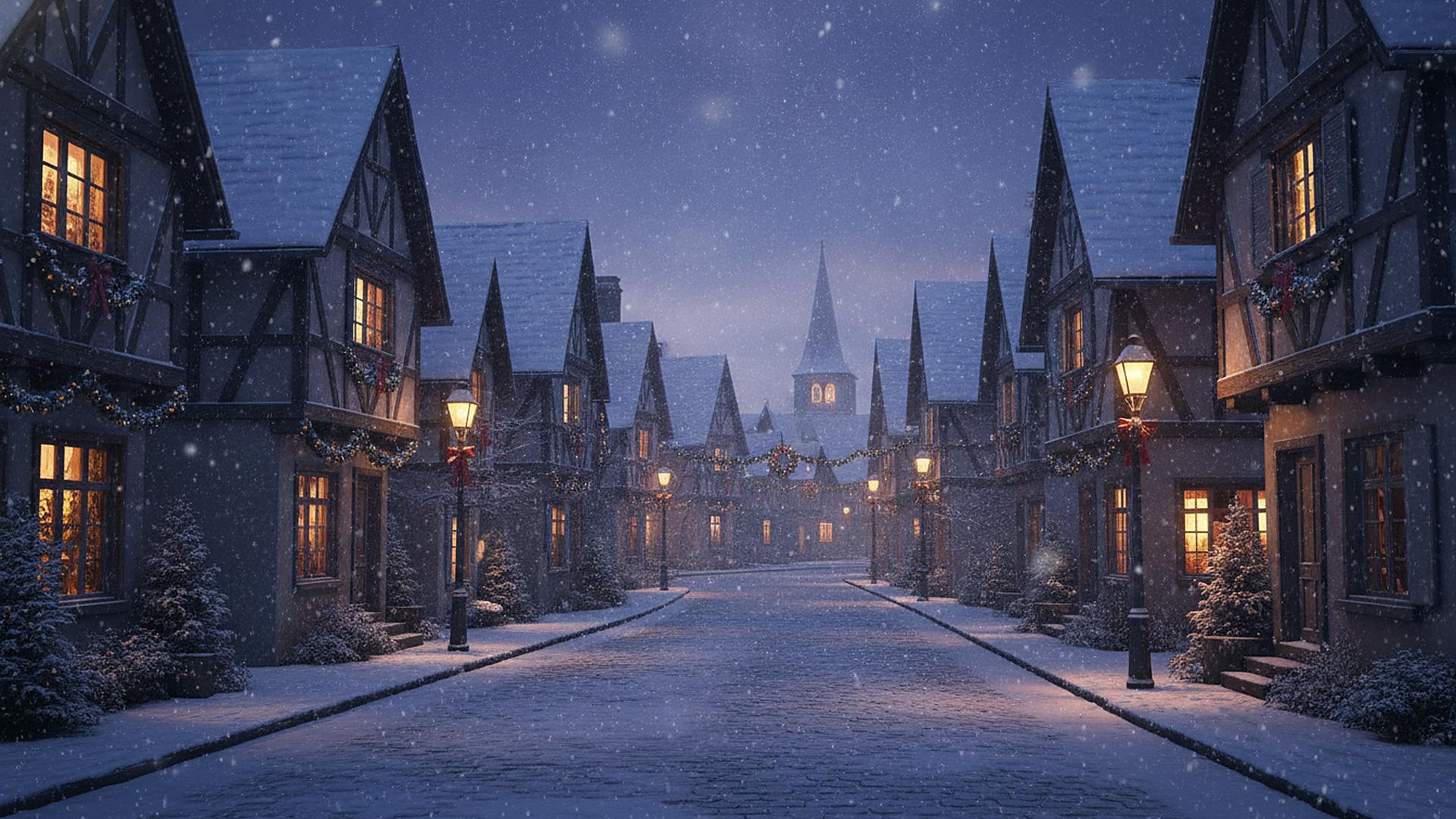
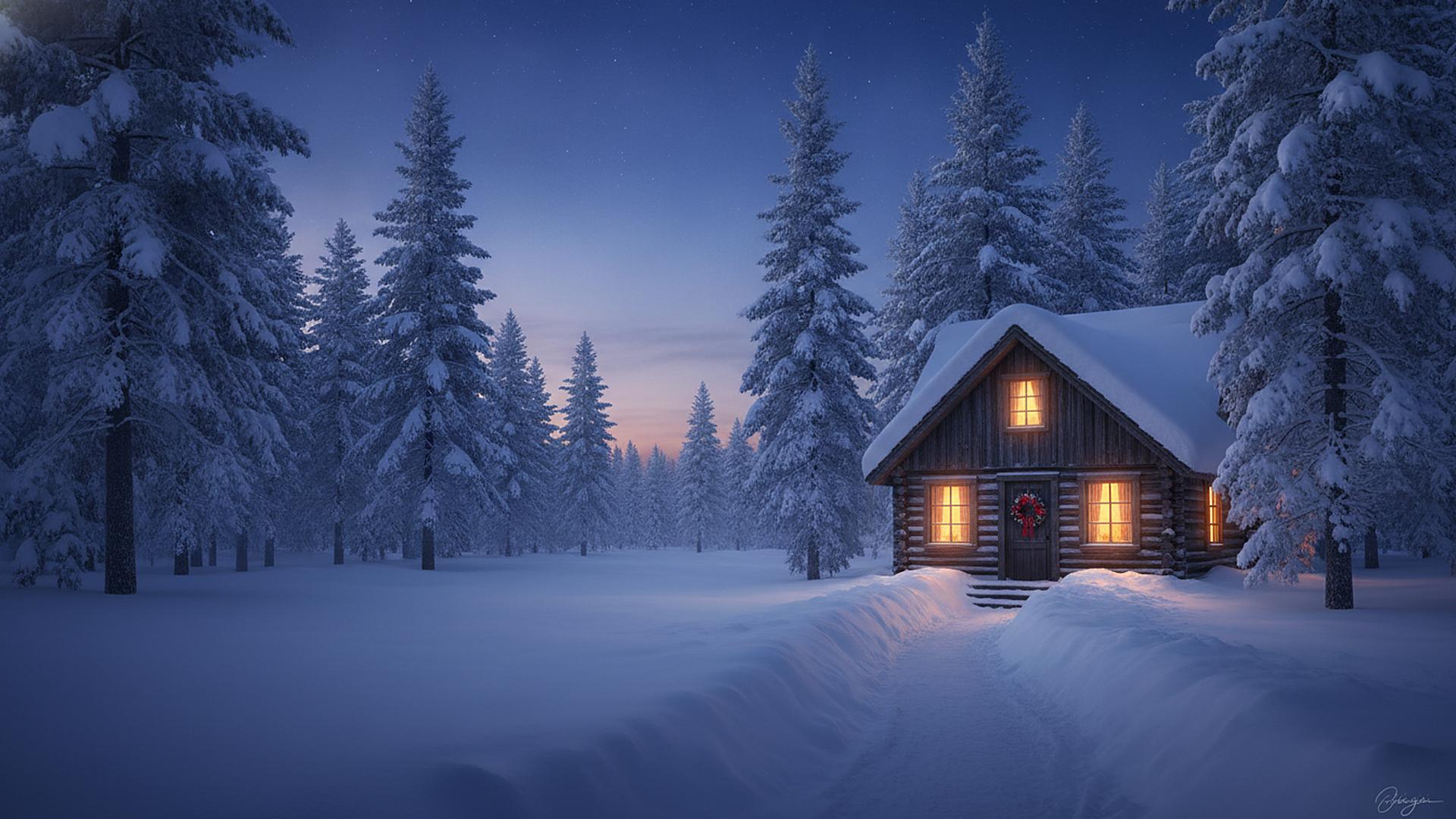
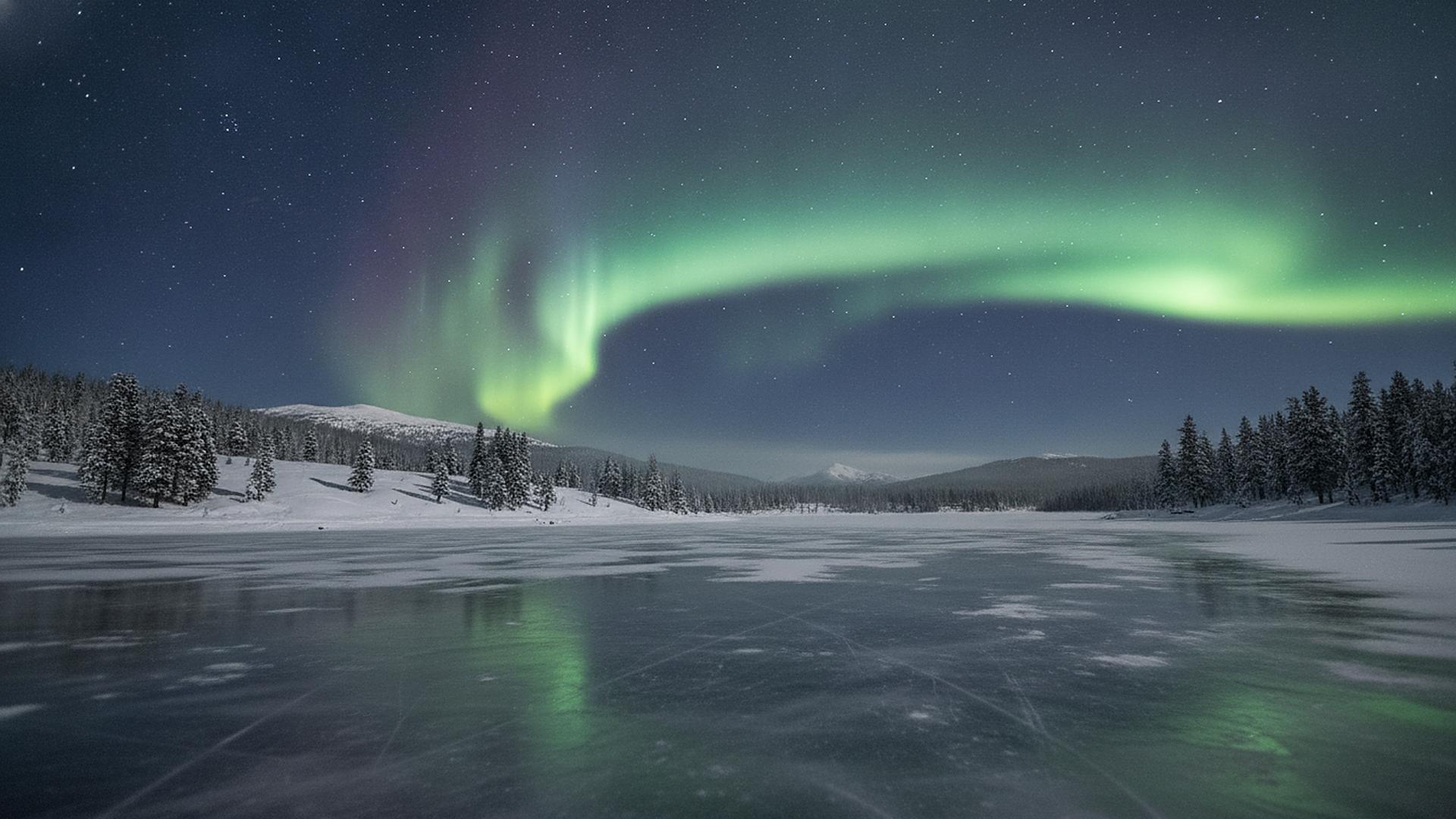
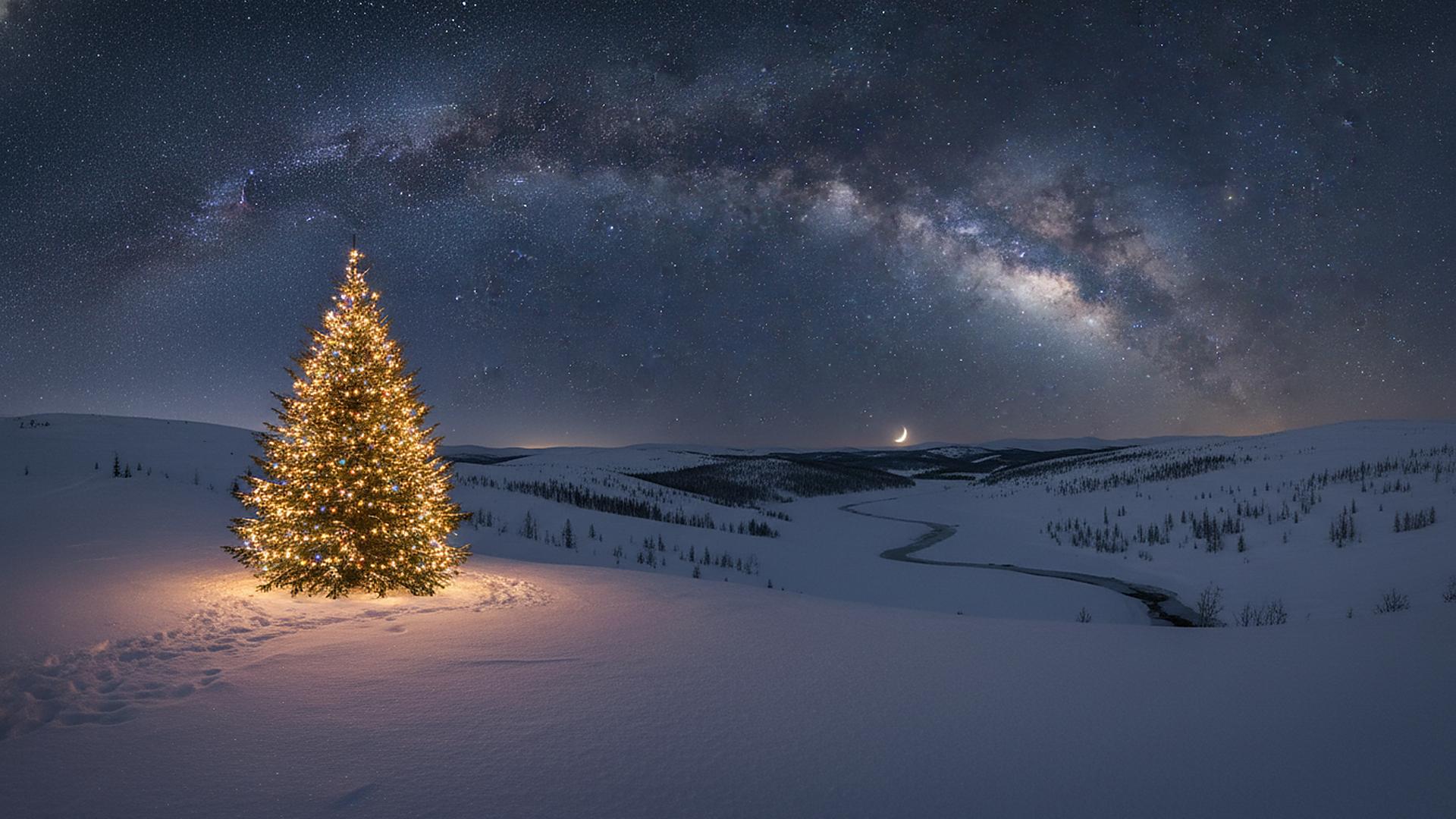
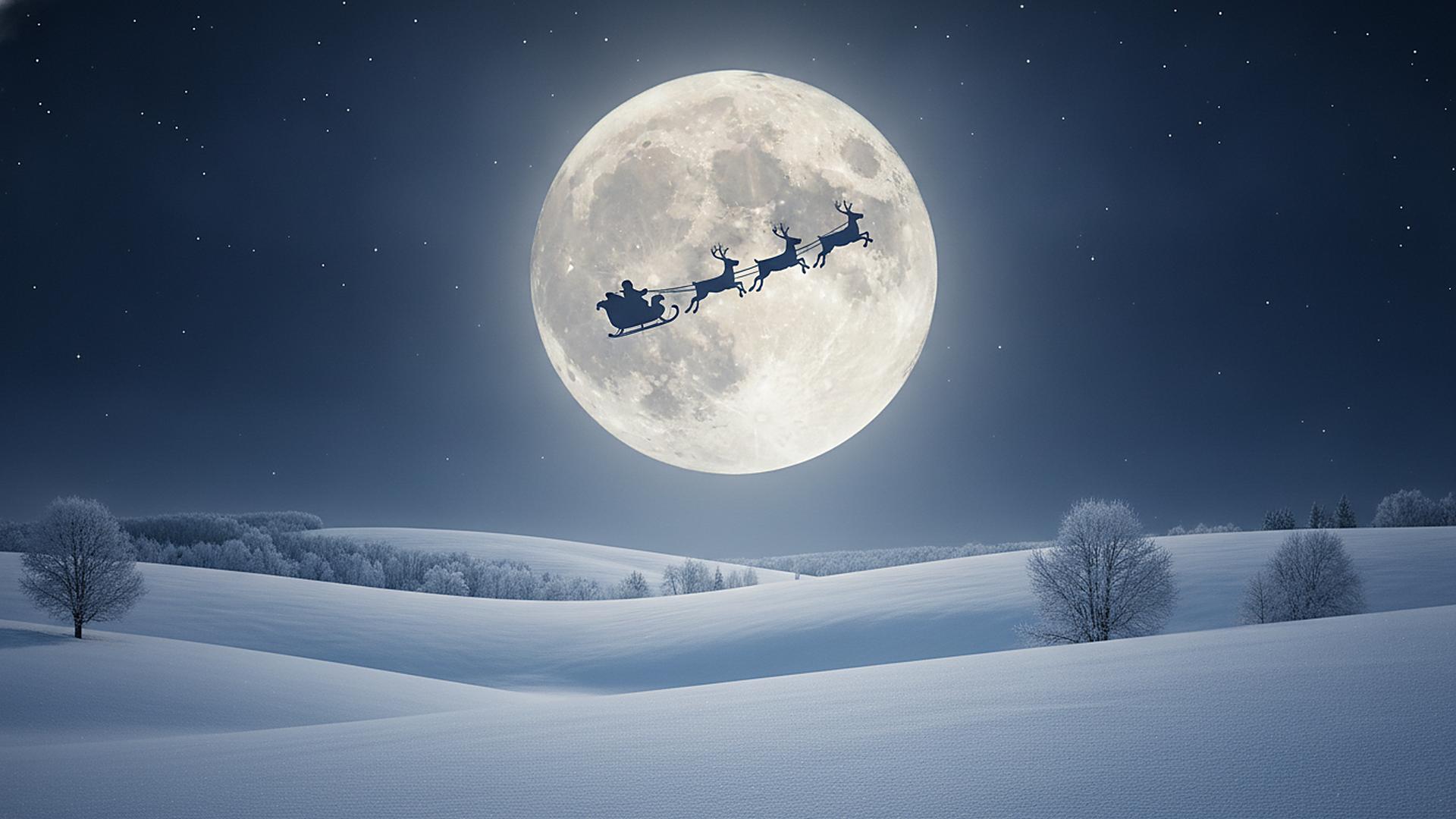

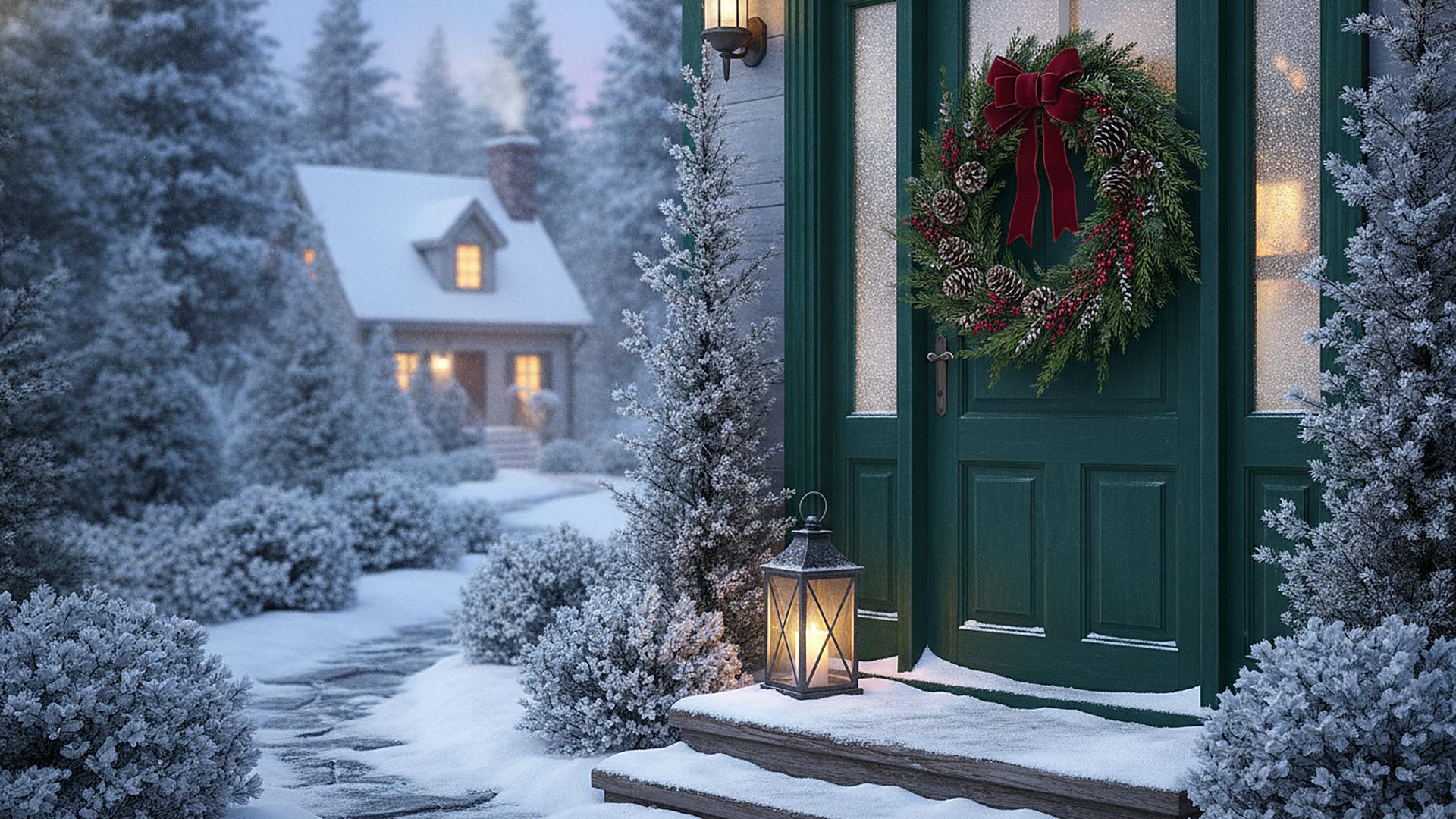
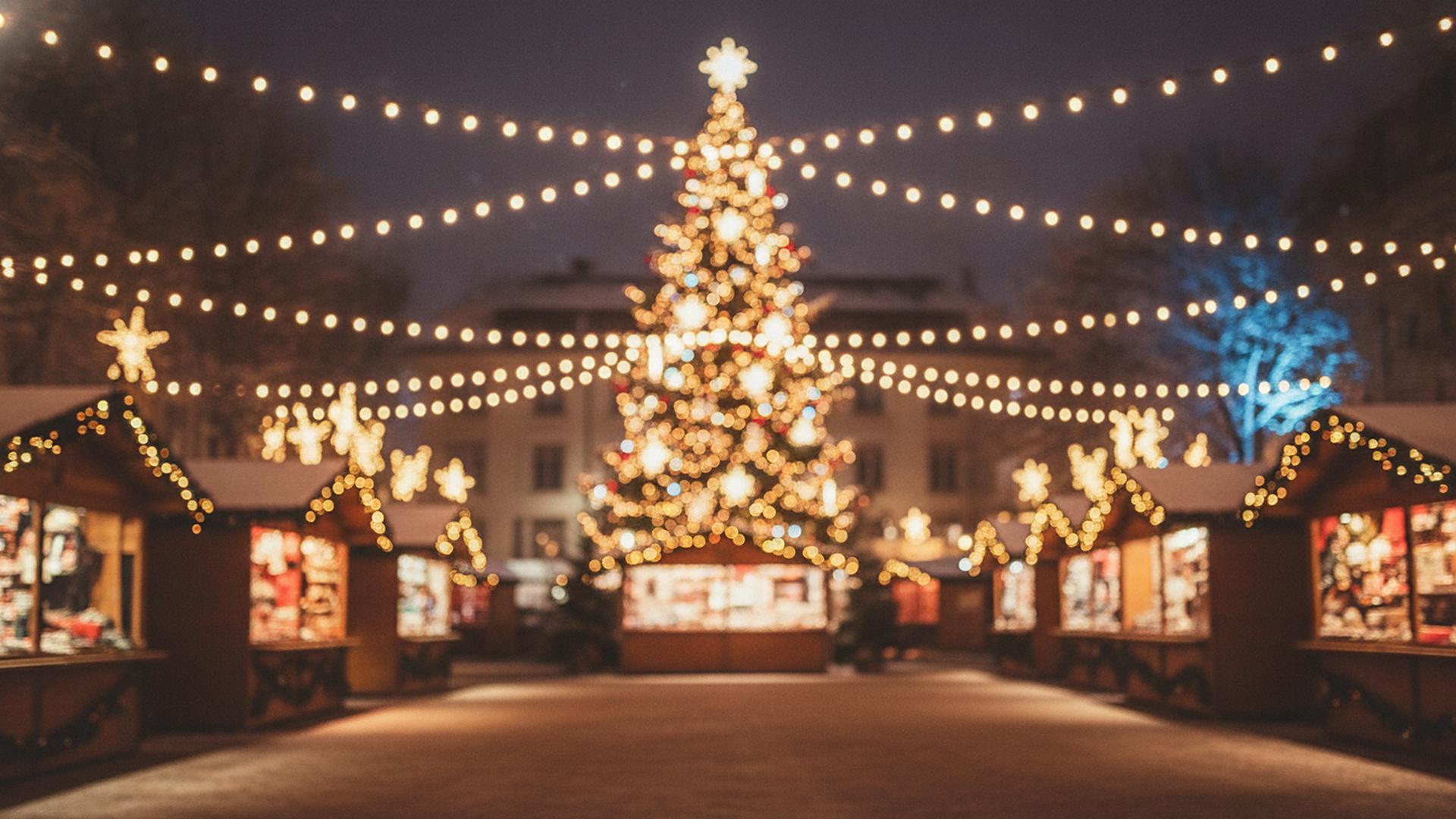






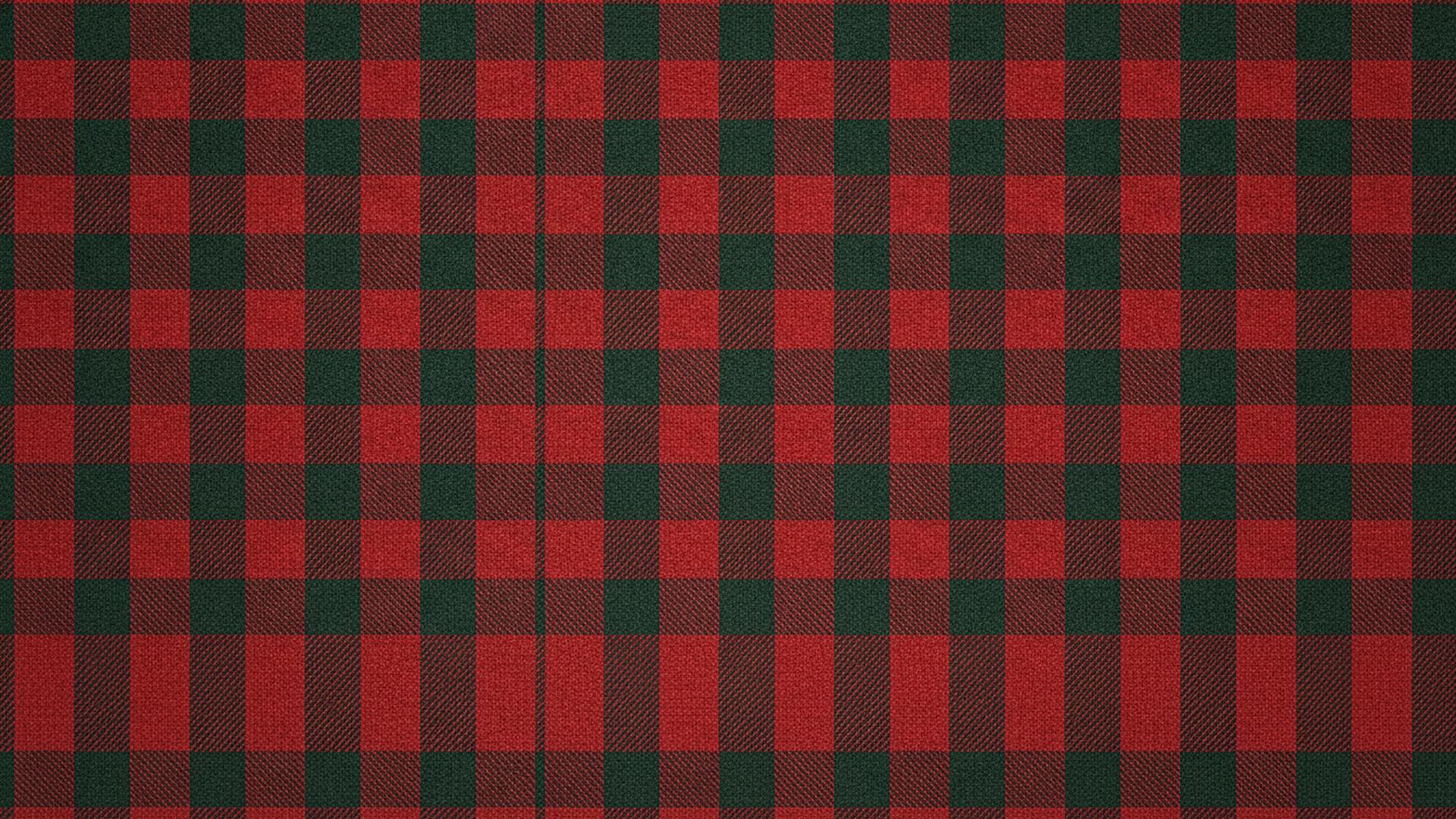



Free for personal use: your phone, computer, video calls and photos you make for yourself or your family. Please don't resell the files or repost them as a download pack; link to this page instead. Phone files are JPG, about 300 to 500 KB each.
Which size to download for each screen
Each background comes in two crops. They are separate compositions, not one image squeezed two ways: the phone version keeps the busy part of the scene low so the clock has room, and the desktop version keeps the middle calm for your icons or your head on a call.
| Where you'll use it | File to pick | What to know |
|---|---|---|
| iPhone wallpaper and lock screen | Phone, 1290 x 2796 | Exact fit on the iPhone 15 Pro Max. Same 19.5:9 shape as every iPhone since the iPhone X, so smaller models just scale it down. |
| iPhone 16 Pro Max or 17 Pro Max | Phone, 1290 x 2796 | Those screens are 1320 x 2868. iOS enlarges the file by about 2 percent, which you won't notice. |
| Android phone | Phone, 1290 x 2796 | Most Android phones are a little wider or narrower (20:9 is common), so expect a slight crop at the sides or top. |
| Laptop or desktop | Desktop, 1920 x 1080 | Sharp on a 1080p screen. On a 4K monitor it is stretched to double size and looks soft up close. |
| Zoom virtual background | Desktop, 1920 x 1080 | Zoom asks for 16:9, at least 1280 x 720, PNG or JPG, 15 MB or less. |
| Microsoft Teams | Desktop, 1920 x 1080 | Microsoft recommends 16:9 at 1920 x 1080 or larger. |
| Google Meet | Desktop, 1920 x 1080 | Google doesn't publish a size for custom backgrounds; a 16:9 JPG is the safe choice. |
Zoom and Microsoft figures come from their help pages, checked November 2026.
How to set a Christmas wallpaper on iPhone
- Tap the background you like above, press and hold the full-size image, and choose Save to Photos.
- Open Settings, then Wallpaper, then Add New Wallpaper.
- Tap Photos and pick the image.
- Pinch and drag until nothing important sits under the clock, then tap Add.
- Tap Set as Wallpaper Pair for the same picture on both screens, or Customize Home Screen to blur it or swap in a plainer one.
Faster route: open the picture in the Photos app, tap Share, then Use as Wallpaper.
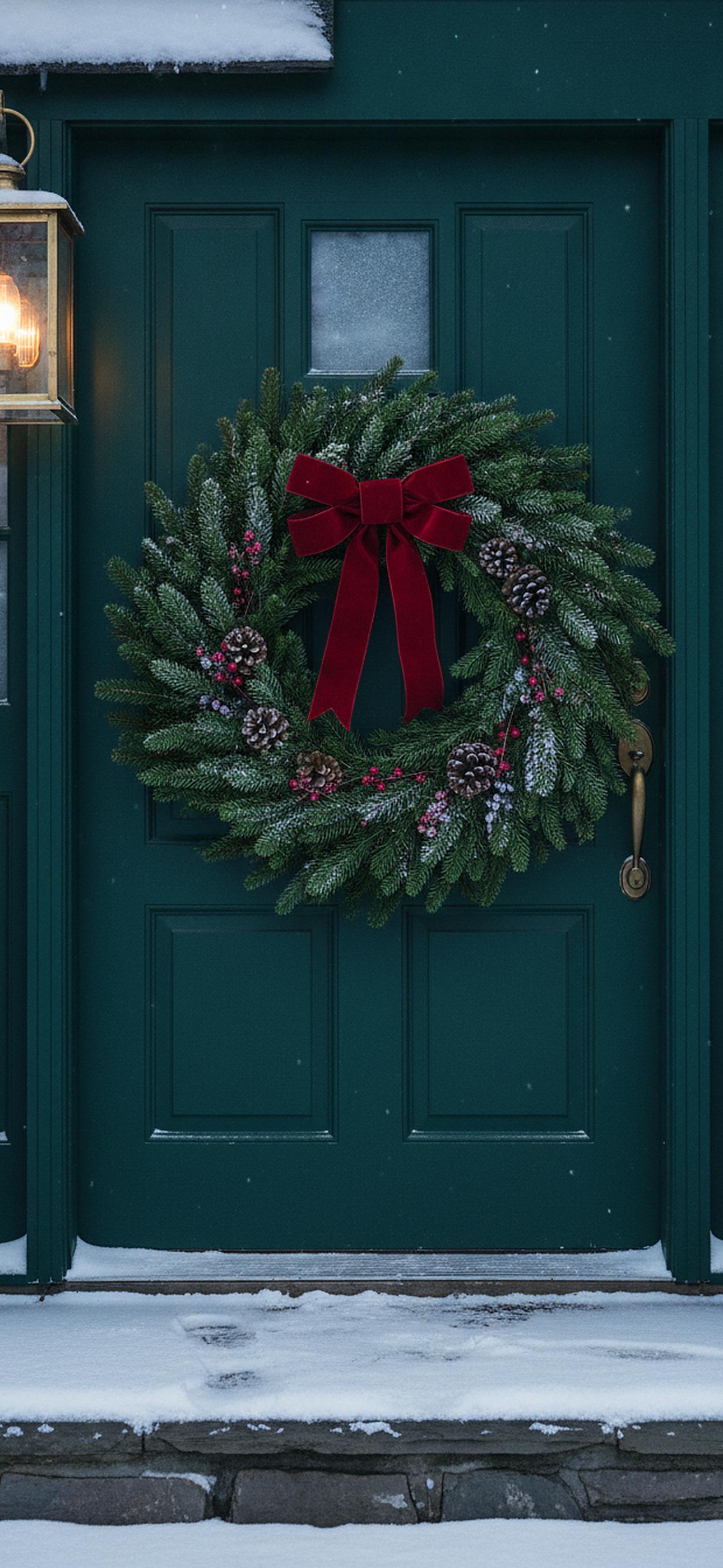
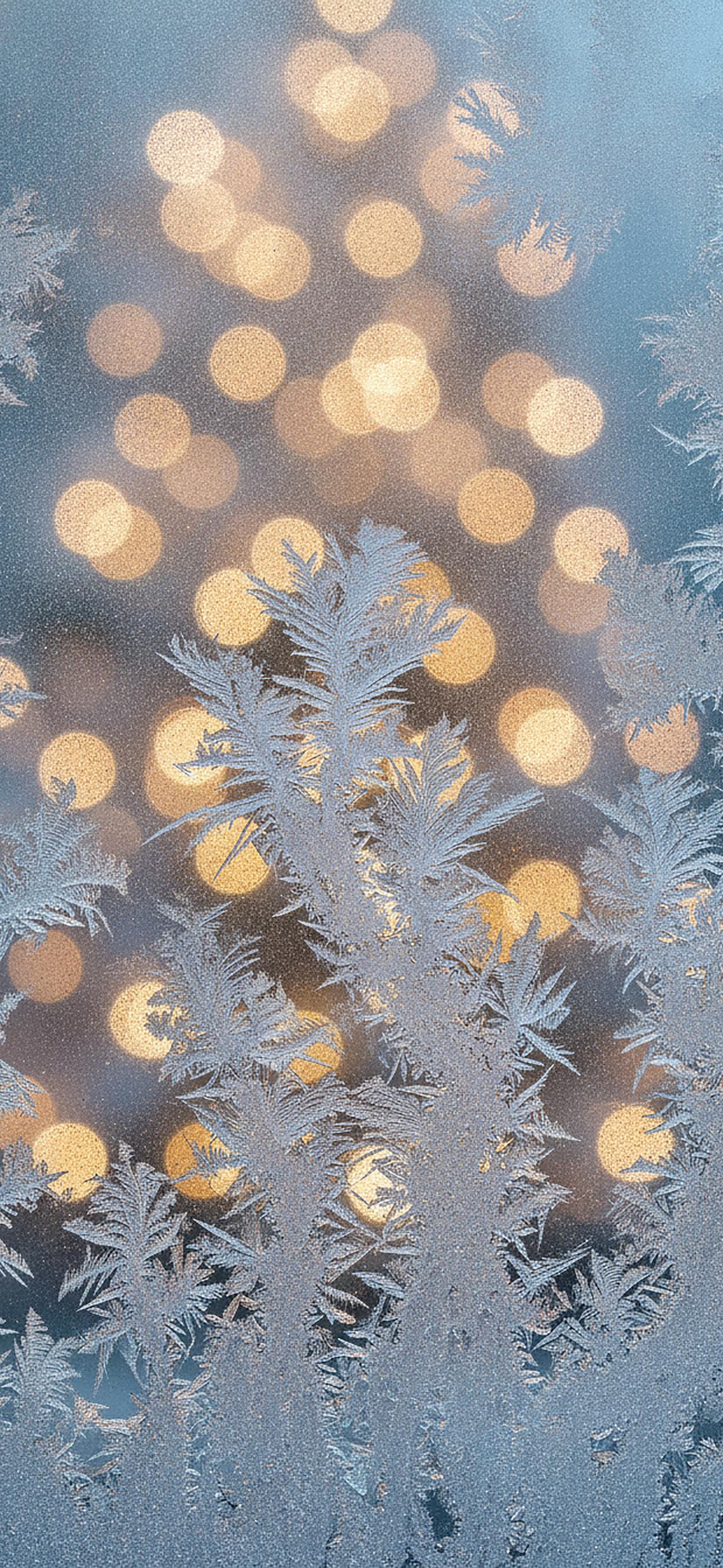
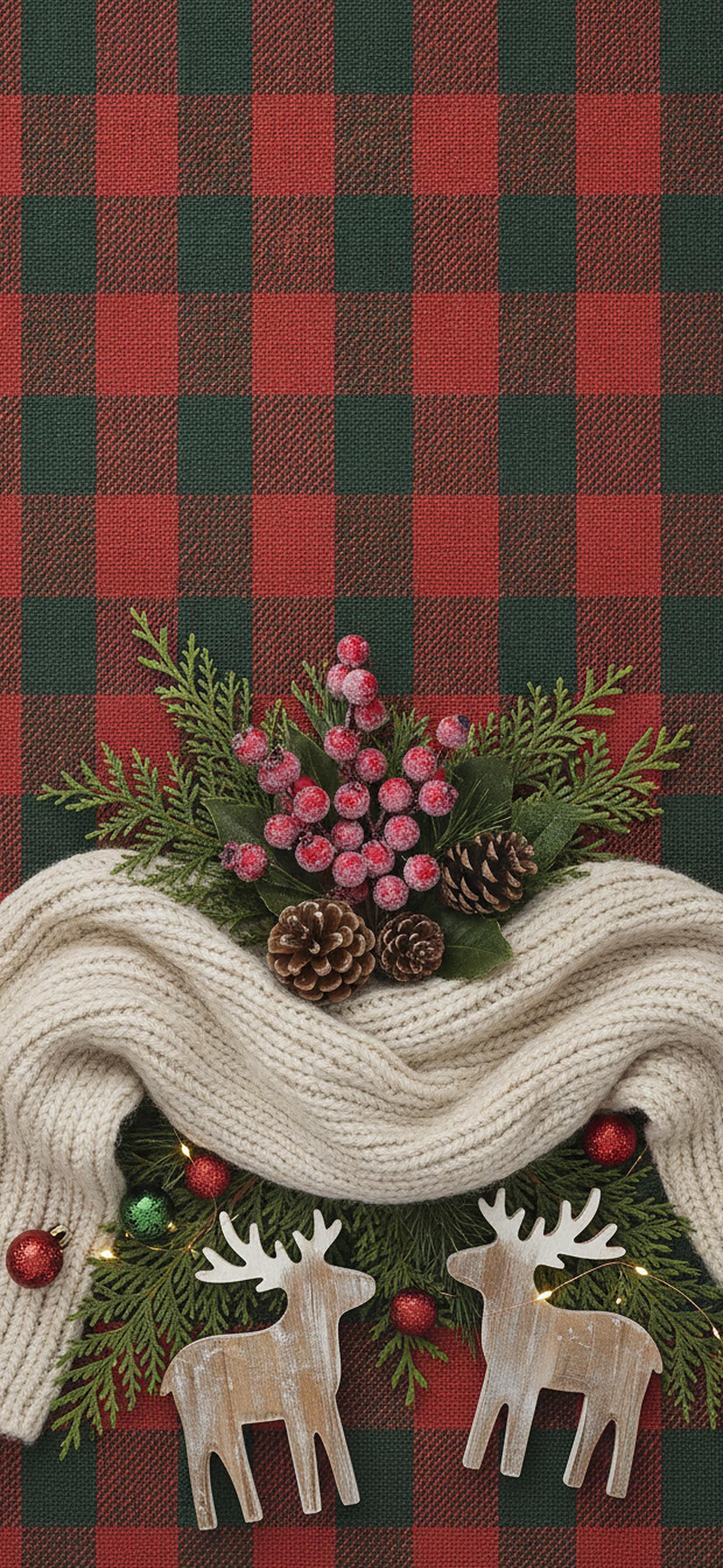
A lock screen tip. iOS has a Depth Effect that tucks the clock behind a subject in the photo. It needs a clear foreground object, so on this page it has the best chance with the snowman, the cabin, the wreath on the door and the lone tree on the hill. Flat textures such as the plaid or the glitter will never trigger it. If Depth Effect is grayed out in the menu (tap the three dots while editing the lock screen), the picture didn't pass Apple's check, and moving it up or down a little sometimes fixes that. In iOS 26 you can also change the height of the clock, which helps on the tall scenes like the northern lights.
Want a wallpaper built around your own family photo instead? We compared the options in the best Christmas wallpaper apps for iPhone.
How to set it on Android
On a Google Pixel: touch and hold an empty spot on the Home screen, tap Wallpaper & style, then Change wallpaper (or More wallpapers), choose a photo, pick Home screen, Lock screen or both, and tap Apply.
On a Samsung Galaxy the path is nearly the same: hold the Home screen, tap Wallpaper and style, Change wallpapers, then Gallery. Menu names shift a bit between One UI versions. Google Photos also works on most phones: open the image, tap the three dots, Use as, Wallpaper.
Christmas backgrounds for Zoom, Teams and Google Meet
The virtual background is the part of a video call nobody else can blame you for. Some pick better than others, though. Background replacement works by guessing where your hair and shoulders end, and a pattern with hard repeating lines (the plaid, the candy cane stripes) gives the software a harder time, so edges shimmer when you move. Scenes with depth and a soft middle hold up better:

Cozy fireplace: reads as a real room behind you 
Cabin in the snow: dark and calm in the center 
Cocoa by the window: warm, low-key, office friendly 
Winter village: lots of depth, good for wide shots
Zoom
In the Zoom Workplace app, click your profile picture, then Settings, Video & effects (older versions say Backgrounds & effects), Virtual backgrounds. Click the plus sign, Upload Image, and choose the 1920 x 1080 file. During a call, click the small arrow next to the video button and pick Video & effect settings to get the same panel.
Microsoft Teams
On the pre-join screen, turn the camera on and open Effects and avatars (some builds say Video effects), then Backgrounds, Add new. Mid-meeting it is under More, Video effects and settings. Your organization can switch custom uploads off, so if Add new is missing, that's why.
Google Meet
On the preview screen, click the Backgrounds and effects button under your video, then "Add your own personal background" and choose the file. In a meeting, find it under the three-dot More options menu. Work and school accounts may have it disabled by an admin.
A plain wall behind you and a lamp in front of you do more for a clean outline than any background choice.
Put yourself on a Christmas background
Lots of people searching for Christmas backgrounds want the opposite of a wallpaper: a photo of themselves standing in front of a fireplace or a snowy cabin. You can do that with free tools today.
- On an iPhone (iPhone XS or newer, iOS 16 or later), open the photo of the person in Photos and touch and hold them until a glowing outline appears. Tap Copy. Apple's Photos app can't paste the cutout onto another picture, so you need a second app.
- In Canva (free), start a design at 1080 x 1350 for Instagram or 1290 x 2796 for a phone, upload one of the backgrounds above, and right-click it (or tap it on mobile) and choose Set image as background.
- Paste the cutout, size it so the feet or waist sit low in the frame, and match the light: a person lit by daylight looks pasted on in front of the warm fireplace, so warm them up a little with Canva's Adjust tools.
Canva's own background remover is a paid Pro feature (checked November 2026), which is why step 1 uses the iPhone instead. For snow, lights and color tweaks after that, see the Christmas photo editor guide, and for a festive profile photo made the same way, our Christmas profile picture page lists the sizes each app wants.
PiXmas has web tools that place you into a Christmas scene from one upload, with the lighting matched for you. They're available at picsmas.com. The iPhone app, PiXmas for iPhone, is on the App Store.
How these backgrounds were made
Each scene started as a short written brief from our team (subject, mood, where the calm space should sit) and was generated with Google's Gemini image model, once as a tall phone composition and once as a wide one. We then cropped and resized every file to the exact pixel sizes above, sharpened it lightly and saved it as a JPG. A person looked at each image at full size before it went up, checking for stray lettering and warped objects. There are no people, brand logos or movie characters in any of them. Because they are AI images, small details (a pine cone, a window frame) can look a little too perfect up close; on a phone screen that is hard to spot.
Looking for more festive phone ideas? The wallpaper and profile picture guides collect them in one place.