
AI Christmas Photo Before And After Transformations
Quick answer: An AI Christmas photo before-and-after shows the original upload next to the generated holiday version, letting you judge likeness, background, wardrobe, and lighting changes. Apps like PiXmas (also spelled Pixmas) generate the after image from one uploaded photo in minutes, without a studio session, though results vary with the source photo's sharpness and lighting.
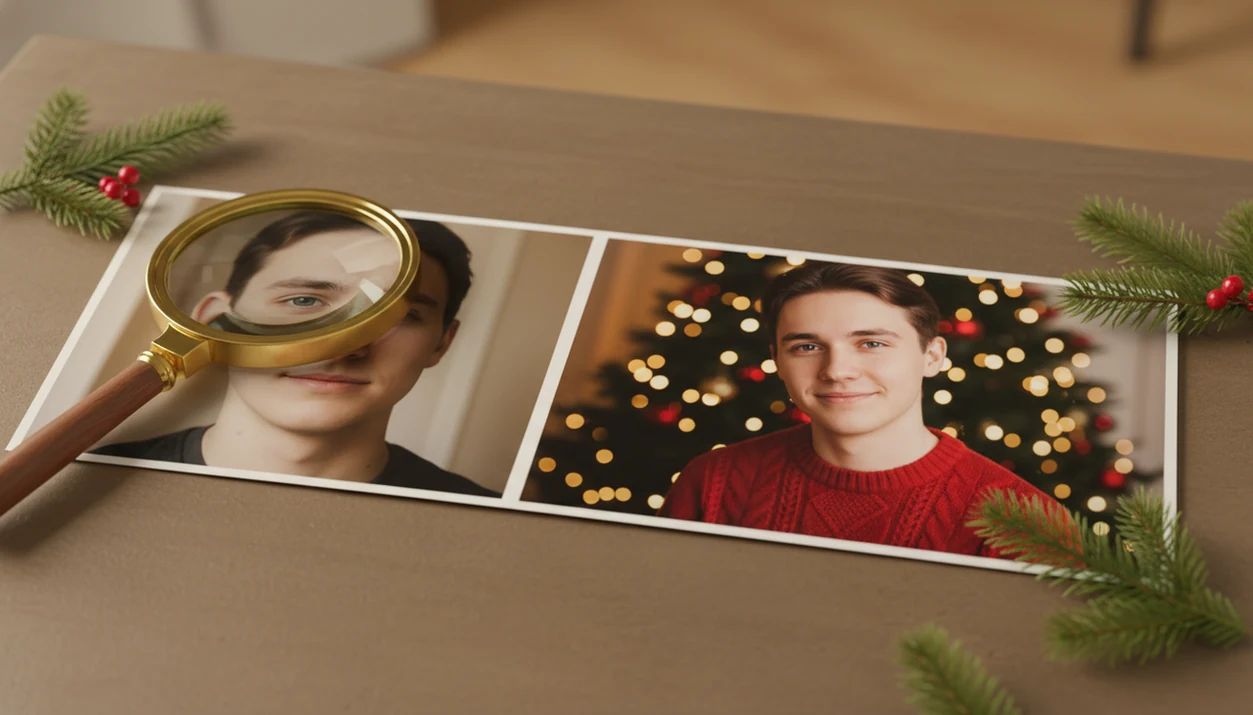
AI Christmas photo before and after comparisons show how the original image affects the final holiday portrait: sharp, well-lit, front-facing photos usually produce the most realistic Christmas transformations, while blurry or obstructed photos create more artifacts.
PiXmas is a Christmas photo app that transforms one uploaded photo into holiday portraits, Santa scenes, and Christmas wallpaper for families, couples, pet owners, and creators.
- Strong before-and-after holiday portraits start with clear lighting, visible facial detail, and a centered subject.
- AI Christmas transformations are not simple filters; they rebuild backgrounds, outfits, lighting, and festive styling around the uploaded face or subject.
- Not every after image is print-ready, so judge results by use case: cards, wallpapers, profile photos, or playful social posts.
AI Christmas Photo Before And After Quality Signals
A before image is the uploaded source photo, and the after image is the generated Christmas portrait, Santa scene, wallpaper, or holiday card image. The comparison is useful because it shows what changed, what stayed recognizable, and what should be checked before saving.
Start with likeness. Then inspect eyes, lighting, clothing edges, background realism, hands, jewelry, and any text in the scene. A family photo preview shared in the group chat may look charming at phone size, but uneven smiles around the mantel can reveal identity drift fast.
Small details matter.
Strong before-and-after comparisons help decide whether an output fits a holiday card, social post, wallpaper, or avatar. Photo editing is already mainstream; Adobe reported that 82% of U.S. consumers use tools or apps to edit or enhance photos before sharing online in a 2023 survey source.
Five Facts About Christmas Photo Transformation Results
- Input photo quality strongly controls output realism; warm yellow kitchen light, motion blur, or a tiny face in a group shot can weaken the final likeness.
- Modern Christmas photo transformation tools use image-to-image generation, not only decorative overlays or simple seasonal filters.
- Front-facing, well-lit, unobstructed faces usually preserve identity better than sunglasses, masks, cropped heads, or side profiles.
- Artifacts can appear, including odd hands, warped accessories, soft teeth, mismatched earrings, or decorations that look melted.
- Privacy and over-editing concerns matter because face uploads and polished seasonal images can affect how people share family portraits.
Pew Research Center reported that 32% of U.S. adults have used AI for image generation, editing, or enhancement source. The habit is no longer niche, but the pocket check is real.
AI Christmas Photo Before And After Generation Mechanics
AI Christmas photo before-and-after tools usually work through image-to-image generation. The app analyzes the uploaded photo, maps key identity cues, then creates a new festive version with a different scene, outfit, color temperature, lighting, and composition.
In plain terms, the system tries to keep “you” while rebuilding the holiday setting around you. That is why facial detail, pose, compression, occlusion, and lighting all matter. A blurry sleeve across a child’s cheek can become a strange collar. A backlit selfie may turn into a softer, less accurate face.
Dedicated Christmas Pictures Apps focus on holiday portraits, Santa scenes, Christmas wallpaper, cards, and share-ready festive images rather than general AI art. For a deeper mechanism walkthrough, the practical explanation is covered in how AI Christmas photo apps work.
Six-Step AI Christmas Photo Before And After Test
Use this test when you want to know whether an AI holiday result is card-ready or just fun for a story post.
- Choose a sharp source photo with a clear face, steady lighting, and no heavy obstruction.
- Upload one image from your camera roll, ideally the one where everyone is actually looking at the camera.
- Select a festive style, such as Santa, fireplace, snow, pajamas, couple portrait, or Christmas wallpaper.
- Generate several variations so you can compare likeness, background, hands, and clothing edges.
- Check the after image at the size you plan to use, especially for cards or prints.
- Save the version that fits the use case, not just the most dramatic style.
PiXmas is one example of an AI Christmas photo app from one photo that turns a single phone upload into festive portraits and scenes. A good AI Christmas photo app that transforms one uploaded photo into studio-quality holiday portraits, Santa scenes, and Christmas wallpaper across hundreds of festive styles should deliver fast seasonal variations, not guaranteed studio-perfect identity in every frame.
Before-And-After Holiday Portrait Examples By Source Photo Type
Clear solo portraits usually work best for likeness, while group and cluttered photos raise the chance of identity mix-ups. The table below shows what to expect before choosing a style.
| Before photo type | Likely after result | Common risk | Best use |
|---|---|---|---|
| Well-lit selfie | Strong likeness with clean festive styling | Slight skin smoothing | Card-ready or profile photo |
| Backlit selfie | Moody result with softer facial detail | Face may look changed | Social post |
| Blurry photo | Playful transformation, weak detail | Soft eyes and warped edges | Story or message |
| Cropped face | Close festive portrait | Missing hair or chin shape | Avatar |
| Full-body pose | Outfit and background changes | Hands or shoes may distort | Wallpaper or social |
| Group photo | Family-style scene | Face swaps or extra limbs | Small share image |
| Pet photo | Cute seasonal pet portrait | Fur edges or wet nose distortion | Wallpaper or social |
For card use, test a solo portrait first. If you are comparing workflows, the one photo vs many photos AI portraits question matters for likeness and convenience.
Annotated AI Christmas Photo Before And After Examples
Annotated examples make the tradeoffs easier to see: the cleanest source usually wins for cards, while imperfect photos can still work for wallpaper or social sharing. Read each before-and-after pair by checking what stayed recognizable, what changed, and where artifacts gathered.
- Compare a sharp, front-facing selfie against the Christmas version first. This is the card-ready example: the face stays clear, the outfit becomes festive, and the background can shift to a fireplace, snow scene, or studio-style holiday setup.
- Review a backlit selfie next. The after image may look cozy and dramatic, but the visible likeness can soften because the original face had fewer shadows, eye details, and skin tones for the system to preserve.
- Inspect a group photo carefully. Label identity-drift risks around each person: swapped facial features, uneven ages, extra fingers, merged shoulders, or one child looking less like themselves.
- Check a pet portrait at the fur line. Cute antlers or a snowy blanket may work well for wallpaper, but soft whiskers, melted fur edges, or a distorted wet nose can appear.
- Choose the output by use: clear selfie for cards, full-body or pet scenes for wallpaper, and backlit or group variations for quick social sharing.
Christmas Photo Transformation Use Cases From One Upload
The best after image depends on output size, facial accuracy, composition, and whether small artifacts are visible. A portrait that works as a phone wallpaper may not survive glossy card printing.
Card-ready Christmas portraits
Holiday cards, family updates, couple portraits, and Santa scenes need clean faces and balanced framing. For a parent making a Santa portrait on December 23 after bedtime, there may be no studio appointment left. The practical path is simple: upload, select a festive style, review the result, then save or share.
For family cards, a clear source photo is often easier than manual editing because the app can rebuild the background and outfit in one pass.
Social-first festive images
Instagram posts, profile photos, pet portraits, creator content, and phone wallpapers can tolerate more stylization. McKinsey’s 2023 generative AI research found that marketing and sales were among the functions with the largest estimated value from generative AI, which helps explain the rise of personalized seasonal visual content source. If your goal is one-upload variety, an app that turns one photo into Christmas pictures fits that job better than building every scene manually.
Common AI Christmas Photo Before And After Mistakes
“Can AI turn any selfie into a flawless Christmas portrait?” No. AI cannot reliably turn every dark, blurry, low-resolution selfie into a clean studio-style result.
Sunglasses, masks, extreme side angles, cropped heads, and cluttered scenes reduce realism because the system has fewer identity cues to preserve. The iPhone Photos grid often has six almost-identical kid snapshots; choose the one with clear eyes, not the funniest blur.
AI Christmas apps are not merely filters, but they also do not guarantee exact identity preservation. Screen-ready images may look fine in a group chat yet appear soft in a large print. According to Statista, 48% of U.S. social media users edit photos “often” or “always” before posting, so polished results are expected, but polish is not the same as accuracy source.
If you are still deciding whether the category fits your needs, the does AI Christmas photo app work guide covers common expectations.
What makes an AI Christmas before-and-after comparison different from a single generated photo?
A single AI Christmas photo only shows the result. A before-and-after view puts the original upload side by side with the generated version so you can check specific changes rather than judge the output in isolation.
This matters because Christmas styling often changes several things at once: the background becomes a festive scene, clothing shifts to holiday wardrobe, and lighting shifts to a warmer tone. Seeing both images together makes it easier to spot whether facial likeness held up through those changes, which is harder to judge from the after photo alone.
Who benefits most from comparing before-and-after Christmas photo results?
Before-and-after comparisons help anyone choosing between styles before committing to a card or print, since checking likeness across a few generated options first can save a reprint. Parents documenting kids' yearly photos often want a quick check that the child still looks like themselves under a new outfit and backdrop. Couples creating a joint card benefit from comparing options where both faces need to hold up equally well. People sending casual holiday texts care less about this step and can generate quickly without heavy comparison.
How does PiXmas compare to a photographer or a DIY Christmas photo setup?
- AI Christmas photo generators on Facebook typically work by users uploading a single selfie and choosing a Christmas style such as Santa scenes, cozy sweater portraits, snow globes, or festive wallpapers before posting results to their feed. (PiXmas guide on AI Christmas photo trend on Facebook (Picsmas), 2026)
- Reporting in late 2025 notes that the AI Christmas selfie trend added a "magical holiday touch" to everyday photos and was spreading rapidly as users posted AI-retouched festive portraits on Instagram, Facebook and X. (Analytics Insight story on Christmas 2025 AI festive portrait trend, 2025)
- The same 2026 guide reports that popular AI Christmas photo tools can offer hundreds of styles from one selfie, including portraits, Santa scenes and festive wallpapers that users download and share on social platforms. (PiXmas guide on AI Christmas photo trend on Facebook (Picsmas), 2026)
For judging real quality differences, generate a few styles in PiXmas from one clear photo and compare the after images side by side against the original before choosing one for a card or print.
Limitations
Before-and-after examples are helpful, but they do not prove that every upload will produce the same result.
- Low-resolution or motion-blurred source photos cannot be fully recovered.
- Group photos can cause identity mix-ups, extra limbs, or warped faces.
- Hands, jewelry, glasses, text, and tiny decorations may distort.
- Aggressive styles can change age, face shape, skin texture, or expression.
- Outputs may be better for screens than large-format prints.
- Cloud-based tools require a privacy check before uploading face images.
- A selected-photos-only permission prompt can limit what the app sees, but users should still review storage and deletion options.
- Before-and-after galleries are illustrative, not a guarantee of matching quality.
Printer tray warm with glossy paper is the moment problems show. Check the saved image before printing ten copies.
Related guides
FAQ
How long does it take to generate a before-and-after Christmas photo?
Generation typically takes a few minutes once a photo is uploaded to an app like PiXmas. The exact time can vary slightly with the style chosen and current app load, but no scheduling or shoot time is needed.
Can I compare more than one Christmas style from the same original photo?
Yes, most AI Christmas apps let you generate several styles from a single uploaded photo. This makes it easy to line up multiple after images against the same before photo and pick the strongest likeness.
Does creating a before-and-after Christmas photo change or delete my original picture?
No. PiXmas and similar apps keep the original upload separate and generate a new stylized version alongside it, which is what makes the before-and-after comparison possible in the first place.
Can couples or kids' photos be used for before-and-after comparisons?
Yes, solo, couple, and single-child photos generally produce the most consistent before-and-after comparisons. Facial likeness tends to hold up better with fewer faces in the source photo.
Do I need a camera setup or props to create the after photo?
No physical setup is required. PiXmas generates the festive background, wardrobe, and lighting from one phone photo, which is the main practical difference from a photographer session or DIY prop setup.