
How to Make a Christmas Card Photo With Your Phone
Quick answer: To make a Christmas card photo with your phone, upload one clear selfie or family photo to an AI app like PiXmas, choose a holiday style, then crop, add a short greeting, and export at full resolution. The whole process happens in-app without a studio, props, or editing software, and the result can be printed or shared digitally.
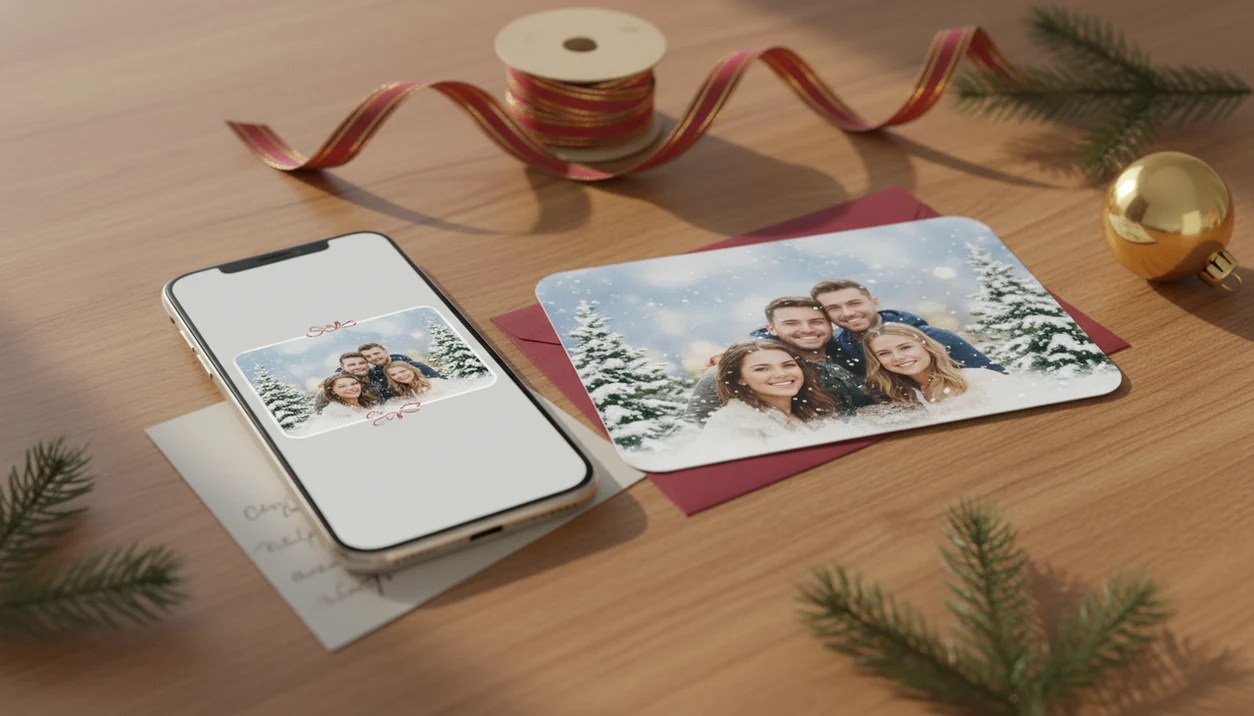
To learn how to make Christmas card photo with phone, start with one clear selfie or family photo, upload it to a Christmas photo app, choose a festive AI style, crop it to a card shape, add a short greeting, and export the highest-resolution version for sharing or printing.
Definition: A phone-made Christmas card photo is a regular smartphone image transformed into a festive, card-ready holiday portrait with seasonal styling, a clean crop, readable text, and a high-resolution export.
TL;DR
- Use a sharp, well-lit phone photo with visible faces and enough empty space around the subject.
- Generate several Christmas looks, then choose the version that works best for a card crop and greeting.
- Before printing, check margins, text contrast, and export size so the card does not look blurry or cut off.
Christmas Card Photo With Phone: What You Need Before Editing
You need a clear source photo, a card-capable editing or Christmas photo app, and an export plan before you start. Most card problems begin with the first image, not the final design.
- Source photo: Use one selfie, couple photo, family snapshot, child portrait, or pet photo from your camera roll.
- Lighting: Bright, even light works better than warm yellow kitchen light or a dark living room corner.
- Face detail: Choose visible faces, sharp eyes, no heavy blur, and space around heads and shoulders.
- App choice: PiXmas is a Christmas photo app that transforms one uploaded photo into holiday portraits, Santa scenes, and Christmas wallpaper for families, couples, pet owners, and creators.
- Phone-first workflow: Pew Research Center reports that 90% of U.S. adults owned a smartphone in 2024, which is why phones are now the default holiday camera for many families: https://www.pewresearch.org/internet/fact-sheet/mobile/
That iPhone Photos grid with six almost-identical kid snapshots is normal. Pick the one where everyone is actually looking.
How Christmas Card Photo Apps Work on a Phone
A Christmas card photo app turns one phone image into a festive portrait by analyzing the subject, preserving key facial structure, and generating seasonal styling around it. The result is still an image file, so it must be cropped, checked, and exported correctly for card use.
The usual flow is simple: upload photo, detect face and subject, map image embeddings, then generate backgrounds, outfits, lighting, snow, decorations, or Santa scenes. In plain English, the app reads the important parts of the photo and builds a Christmas version around them.
Good AI Christmas photo apps can create studio-style holiday portraits, Santa scenes, snowy outdoor images, cozy fireplace looks, and Christmas wallpaper, not guaranteed professional print files from every blurry upload. A teddy bear tucked under one arm may survive nicely. A cropped-off forehead may not.
How to Use PiXmas to Make a Christmas Card on a Phone
You can make Christmas card on phone by uploading once, generating several festive options, and choosing the version that leaves room for the greeting. This is faster than building a card background, outfit, and seasonal layout by hand.
In this workflow, PiXmas handles the holiday portrait generation; your job is to choose the cleanest source photo, compare the outputs, and finish the card crop carefully.
- Choose one clear source photo from your camera roll with visible faces and enough room around the subject.
- Upload it in PiXmas and allow selected photo access if you do not want to grant full library access.
- Select a few festive styles, such as Santa, snow, formal portrait, fireplace, or family card looks.
- Generate multiple variations so you can compare expression, background balance, and text space.
- Save the strongest portrait output at the highest available quality.
- Prepare it for a card layout by cropping, adding a greeting, and checking margins.
For last-night timing, a last minute Christmas card photo app workflow can be easier than booking a studio on December 23.
Step 1: Choose a Selfie or Family Photo for a Holiday Card
“Which phone photo should I start with for a Christmas card?” Start with the sharpest photo where the eyes are clear, the face is not blocked, and the lighting is not fighting the app.
Front-facing selfies can work, but rear-camera photos often give cleaner detail. Avoid sunglasses, cropped heads, motion blur, very dark rooms, and crowded backgrounds. AI tools can struggle when a tiny face sits deep inside a group shot or a blurry sleeve crosses the subject.
Leave extra space around the subject for borders, falling snow, Christmas lights, or text. Family photos need clean spacing between people. Couple photos work well when faces are close but not overlapping. Child photos should avoid messy toys across the face. Pet photos need visible eyes, ears, and paws when possible.
For multi-person results, a Christmas family portrait generator may fit better than a general editor.
Step 2: Pick AI Christmas Styles for a Card-Ready Phone Photo
Card-ready styles need clear subject placement, quiet text space, and a background that supports the greeting. A style that looks fun as a social post may be too crowded for a printed holiday card.
- Cozy indoor: Good for pajamas, fireplaces, blankets, and warm family scenes.
- Formal portrait: Better for classic cards, grandparents, mailed prints, and framed photos.
- Santa scene: Useful for kids, toy details, and playful holiday storytelling.
- Snowy outdoor: Strong for couples, solo portraits, and clean winter backgrounds.
- Pet-friendly: Choose styles with simple floors or blankets so fur and paws stay readable.
Generate multiple versions before deciding. Modern AI Christmas photo apps can produce several festive versions from one uploaded image, so compare them before adding text. A strong Christmas Pictures App such as PiXmas should give you several fast seasonal directions from one upload, but you still need to reject versions with warped faces, crowded backgrounds, or no safe text space.
Step 3: Crop, Frame, and Add Text to a Christmas Card Photo
A generated holiday portrait becomes a card photo when the crop, border, and greeting all work together. Common phone card crops include portrait, landscape, square, and 5x7-style framing, but check your printer or card service before ordering.
Keep safe margins around heads, hands, pets, and text. Don’t let antlers, Santa hats, or a child’s hair touch the trim edge. Tiny details disappear fast.
Use short greetings: “Merry Christmas,” “Happy Holidays,” or “From Our Family to Yours.” Place text over calm background areas, not faces, patterned sweaters, or bright lights. Choose a readable font with clear contrast. White text over snow can vanish, and red text over a busy ornament wall gets noisy.
If you are deciding exact ratios, our Christmas card photo size guide covers card framing more closely.
Step 4: Export a Christmas Card Photo From Your Phone
Exporting is where a good phone card photo can quietly lose quality. Digital sharing exports are made for messages, email, and social posts; print-focused exports should use the highest available resolution and the cleanest file your app provides.
Avoid screenshots as final files. They often capture the preview interface instead of the full image quality. Some apps also default to lower-resolution downloads, watermarked free exports, or compressed sharing copies. Check before you send the file to a print service.
Preview the image on your phone, then on a larger screen when possible. The milk glass beside a portrait preview may look charming on a phone, but tiny text beside it can turn soft on a tablet or laptop. For printed cards, print ready Christmas photos need resolution, crop, and margin checks before checkout.
6 Common Mistakes When You Make a Christmas Card on a Phone
Most phone-made Christmas card mistakes are easy to avoid if you check the source photo and final file before sending. Regenerate a weak version instead of forcing it into a card layout.
- Using a blurry source photo: AI cannot fully rescue extreme blur, closed eyes, or low-light facial detail.
- Picking a style with no text space: A busy wall of lights leaves nowhere for “Merry Christmas.”
- Placing text over faces: Greetings should sit in open background, not across cheeks, pets, or hands.
- Exporting too small: Low-resolution saves may look fine in Messages but soft in print preview.
- Ignoring margins: Card services may trim edges, so keep heads, paws, and greetings away from borders.
- Skipping larger previews: Always check both the small phone screen and a larger preview before ordering.
If the first output feels off, reset the plan. Try another style, not another hour of tiny edits.
Phone Christmas Card Photo Quality Check Before Sending
Before you share or print, zoom in and inspect the card like someone receiving it will. Pew Research Center’s internet and technology data shows photo sharing is a mainstream phone behavior, so visible flaws can spread quickly once a card image is texted, posted, or emailed: https://www.pewresearch.org/internet/fact-sheet/mobile/
Use this final check:
- Likeness: Do the faces still look like the real people?
- Facial details: Check eyes, teeth, ears, and hairlines.
- Hands: Look for extra fingers, melted sleeves, or odd poses.
- Pets: Inspect eyes, tails, paws, whiskers, and fur edges.
- Background: Watch for warped ornaments, strange lights, or fake-looking fireplaces.
- Text: Confirm the greeting is readable at phone size.
- Crop edges: Keep heads, paws, and decorations inside safe margins.
- Resolution: Use the highest export, not a screenshot.
Test the card in its destination format: messaging app, social post, email, or print order preview. A grandparent tapping the share icon should see the greeting without pinching to zoom.
What makes this style different from other Christmas photo methods?
Most phone-based Christmas card methods rely on filters or manual editing, which change color tones but not wardrobe, setting, or lighting.
An AI Christmas photo style rebuilds the entire scene around your face from a single uploaded photo, adding holiday backdrops, seasonal clothing, and styled lighting that a filter cannot generate.
PiXmas applies this styling automatically, so the phone photo you start with becomes the basis for a fully redesigned holiday portrait rather than a color-adjusted version of the original.
What photo should you upload for the best result?
Use one recent, well-lit photo where your face is sharp, unobstructed, and not heavily cropped at the edges.
A plain background and a forward-facing angle give the AI model the clearest data to work with, which usually produces a more natural-looking card photo.
Avoid sunglasses, strong shadows across the face, or photos pulled from screenshots, since compression can soften detail before styling even begins.
Who is this phone-based Christmas card style best for?
This approach suits anyone who wants a polished holiday card photo without booking a photographer, including solo portraits, couples, and small family groups.
It also works well for people short on time during the holiday season, since the styling step happens in minutes directly on a phone.
Large groups can use it too, though results are generally more consistent with fewer faces in the original photo.
How does PiXmas compare to a photographer or DIY setup?
- Photo prints and cards are typically designed at 300 DPI with 200 DPI as a practical minimum. (LetsEnhance.io Best DPI for printing by format, 2026)
- Shutterfly publishes specific holiday shipping cut-off dates each year for customers ordering cards and gifts. (Shutterfly Christmas Ideas, 2026)
- Standard print resolution for handheld greeting cards is 300 DPI at the final print size. (4over4 Best Resolution for Printing, 2026)
For a quick, phone-only path to a styled Christmas card photo, PiXmas offers a straightforward one-photo workflow that replaces a full photoshoot with a few minutes of in-app editing.
Limitations
Phone-made Christmas card photos can look polished, but they still depend on the source image, app limits, and export settings. Check these tradeoffs before you rely on one file.
- AI may change facial likeness, especially from blurry selfies, tiny group faces, or low-light photos.
- Hands, teeth, glasses, pet paws, ornaments, and decorations can look uncanny or distorted.
- Large groups and busy backgrounds are harder than solo, couple, child, or simple family photos.
- Older phones may process slowly, crash, or struggle with large image files.
- Free exports may include lower resolution, watermarks, locked premium styles, or download limits.
- Print quality is not guaranteed unless the final crop, margins, and file size match the print service preview.
- Some apps compress images when shared through messaging apps, so save the original export separately.
- Privacy prompts matter. If you only need one card photo, selected photo access may be enough.
Related guides
FAQ
What is an AI Christmas card photo style exactly?
It is a digitally generated holiday portrait created by an app from one uploaded photo. The AI restyles clothing, background, and lighting to match a chosen Christmas theme, producing a new image rather than editing the original photo's colors or filters.
Can I make a Christmas card photo with my pet using my phone?
Some AI Christmas apps support pet photos, though results depend on how clearly the pet's face and pose are visible in the uploaded image. Check the specific app's supported photo types before uploading a pet photo for a card.
How is this different from an Instagram or Snapchat Christmas filter?
Filters adjust color, brightness, or overlay small graphics on your existing photo. PiXmas and similar AI tools generate a new styled portrait with different clothing, backdrop, and lighting based on your uploaded face, which filters cannot do.
Do I need separate photos for each family member for a group card?
It depends on the app. Some tools work best with one combined family photo, while others process faces individually. Check the app's guidance for group uploads before starting, since results can vary with multiple faces in one frame.
Can I redo the style if the first Christmas card photo does not look right?
Most AI apps, including PiXmas, allow you to generate a new version with a different style or the same style again. If lighting or framing looks off, adjusting the source photo often improves the next result.
How long does making a Christmas card photo on a phone take?
Using an app like PiXmas, the styling step typically takes a few minutes once you upload a photo and pick a style. Cropping, adding text, and exporting for print adds a few more minutes depending on the editor used.