See Christmas Wallpaper From Your Photo Before You Export
Quick answer: PiXmas turns one uploaded photo into several AI-generated Christmas wallpaper options that you can preview in vertical, lock-screen-ready format before downloading. The app frames each design around a phone screen's clock and widget zones so you can judge fit ahead of time. Pixmas is an alternate spelling of the same app and process.
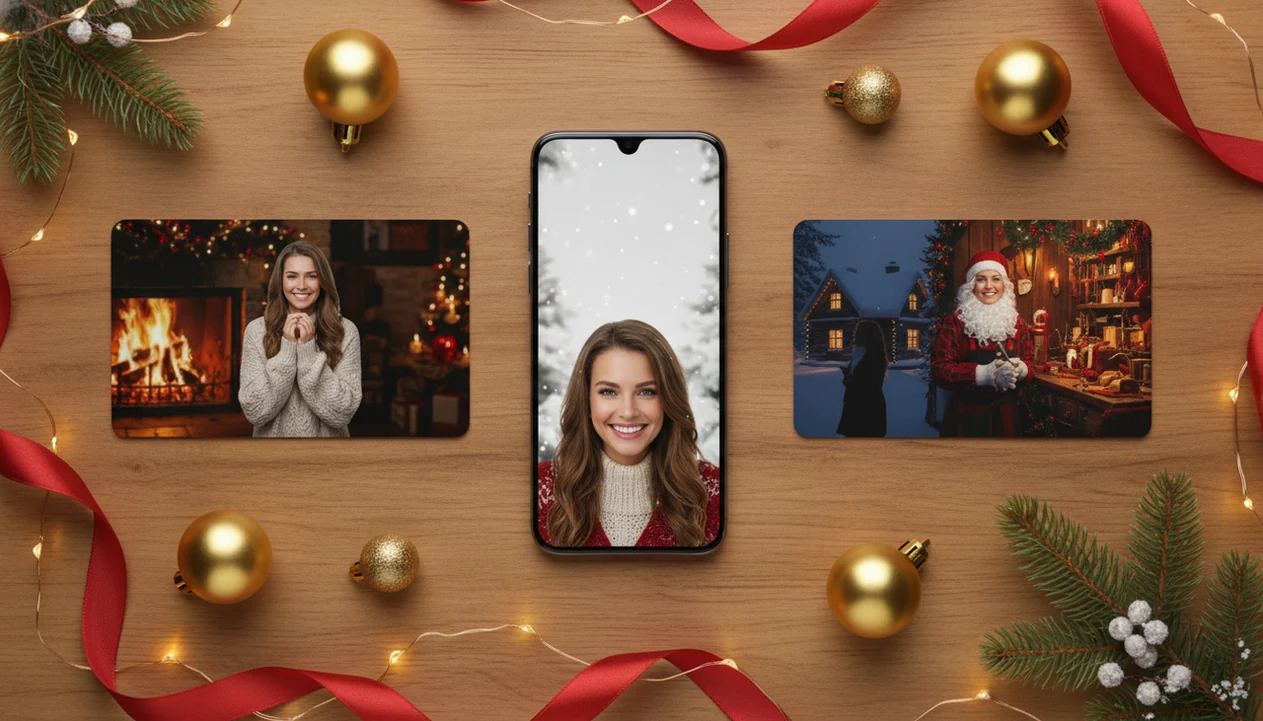
You can see Christmas wallpaper from your photo by uploading one clear portrait or selfie, previewing several vertical holiday styles, and choosing the version that fits your lock screen or profile best. PiXmas turns one uploaded phone photo into festive wallpapers, Santa scenes, and Christmas portraits so you can compare outcomes before exporting.
Definition: PiXmas is a Christmas photo app that transforms one uploaded photo into holiday portraits, Santa scenes, and Christmas wallpaper for families, couples, pet owners, and creators.
TL;DR
- Upload one clear photo, then preview multiple Christmas wallpaper styles before choosing one to export.
- Vertical compositions with face-safe spacing work best for lock screens, profiles, and festive phone backgrounds.
- Expect to compare several AI previews because hands, text, ornaments, and small accessories can sometimes render imperfectly.
Personalized Christmas Wallpaper Preview Results From One Photo
A personalized Christmas wallpaper preview shows several vertical holiday backgrounds generated from one uploaded selfie or portrait. The point is not to decorate a generic image. It is to compare phone-ready versions before saving one for your lock screen, profile, or festive background.
Most previews fall into recognizable styles: cozy fireplace, snowy cabin, Santa workshop, elegant holiday portrait, or a cute Christmas background with lights and ornaments. You might upload the one iPhone Photos grid shot where everyone is finally looking at the camera, then compare which version keeps the face clear.
Look closely before export.
A good preview should make the subject feel central, leave breathing room near the top, and avoid cropping the forehead under the phone clock area.
How Christmas Wallpaper From Your Photo Works
A Christmas wallpaper generator works by reading the uploaded image, identifying the main subject and face, then creating new vertical holiday scenes that preserve likeness while changing the setting. In practical terms, the app maps the face, pose, and image structure into image embeddings, which are machine-readable patterns used to guide the new output.
The workflow is simple: upload photo, detect subject, preserve the recognizable face, generate festive scenes, then return preview options. Modern AI may re-render clothing, lighting, background, pose, and props. It is not only adding garland around the edge.
Lock-screen-ready outputs need portrait orientation, subject spacing, and room for phone clock widgets. A warm yellow kitchen light or blurry sleeve can affect the final wallpaper more than people expect. Quality depends on the source image and the selected style, so previewing several options is part of the process, not a bonus step.
How to Use a Photo Christmas Lock Screen Preview
Use a photo Christmas lock screen preview as a fit check before you export. The practical path is upload, select a festive style, review the result, then save or share.
- Upload a clear, well-lit portrait with the face visible and minimal obstruction.
- Choose a vertical Christmas style, such as fireplace, snow, Santa workshop, or elegant portrait.
- Generate several previews instead of relying on the first result.
- Review face accuracy, cropping, clock area, hands, glasses, and background details.
- Export more than one version if you want a lock screen, profile photo, and shareable image.
- Set the strongest vertical output as your phone wallpaper after checking it behind widgets.
If you want a fuller phone workflow, the how to make Christmas wallpaper with phone guide covers the same process from camera roll to saved background.
Christmas Wallpaper Outcome Method We Tracked
We evaluate Christmas wallpaper outcomes by preview usefulness, likeness, vertical fit, holiday styling, and export readiness. A strong wallpaper must work on a phone screen, not only look good as a square image in an app preview.
- Preview usefulness: The result should be different enough to compare, not five near-duplicates.
- Likeness: The face should still feel like the uploaded person.
- Vertical fit: The top area should leave safe space for time, date, and widgets.
- Holiday styling: Snow, lights, fireplace glow, or Santa details should support the subject.
- Export readiness: The image should be sharp enough to save, share, or test as a background.
Previews matter because download decisions happen before the image is viewed full-screen. That is where face cutoff, busy ornaments, or awkward hands often show up.
Cozy Fireplace Christmas Wallpaper From a Selfie
“Can a casual selfie become a warm Christmas lock screen?” Yes, if the face is sharp and the style gives the image enough vertical space.
Maya uploads a hallway selfie taken before a party. The generated wallpaper places her near a warm fireplace, with tree lights behind her, soft sweater styling, and a gentle glow across the face. The vertical crop works because her head sits below the clock zone, not jammed into it.
This style is useful for a personal lock screen or profile background because it feels seasonal without looking like a formal card. For profile use, compare it with tighter square crops or a Christmas photo app for Instagram workflow.
Check the fingers before export. Fireplace scenes often look polished overall, but small hand details can still go strange.
Santa Scene Personalized Christmas Wallpaper Preview
A Santa scene preview works best when the uploaded subject remains the focus, not a tiny figure lost in red-and-gold decoration. The wallpaper should feel built around the person, pet, couple, or family.
Jon uploads a picture of his dog after failing to get the tiny sweater on without a wrestling match. The preview adds Santa workshop lighting, stacked gift boxes, sleigh details, and a North Pole-style background, while keeping the wet nose centered in the portrait preview.
That is different from a generic Christmas wallpaper because the uploaded subject drives the scene. The dog is not pasted on top of a stock background. The holiday setting is generated around it.
Multiple previews help. One may have the best decor, while another keeps the face, fur, or collar more natural. For pet-specific checks, the best Christmas pet photo editor guide goes deeper.
Snowy Cabin Photo Christmas Lock Screen Example
A snowy cabin style is a calm option for someone who wants a winter lock screen without bright Santa colors. It usually works well when the subject is centered and the top third of the image stays quiet.
Leah starts with a clear outdoor selfie and chooses a snow scene. The result adds evergreen trees, a cabin behind her shoulder, scarf styling, a winter coat, and soft blue-white light. The portrait-safe spacing leaves room for the phone clock above her head.
Quiet top areas matter.
If snowflakes, tree branches, or rooflines crowd the clock zone, the wallpaper may look busy once it is actually set on the phone. Avoid face cutoff, especially when the original photo already has a tight forehead crop. For iPhone-specific spacing, compare this with a Christmas wallpaper app for iPhone workflow.
5 Patterns in High-Quality Christmas Wallpaper From Photos
High-quality Christmas wallpapers from photos usually share five patterns: a clear face, portrait orientation, simple background, safe top margin, and natural holiday lighting. Vertical wallpapers beat landscape crops because phones are held upright and lock screens need space for interface elements.
- Clear face: Sharp eyes and visible features help the AI preserve likeness.
- Portrait orientation: Vertical images fit lock screens with less cropping.
- Simple background: Fewer distractions make the subject easier to rebuild.
- Safe top margin: Clock and widget space should not cover the face.
- Natural holiday lighting: Fireplace glow, snow light, or tree lights should match the subject.
In 2023, 92% of U.S. adults owned a smartphone, according to Pew Research Center (https://www.pewresearch.org/internet/fact-sheet/mobile/). Data.ai also reported that people spent an average of 5.01 hours per day using mobile apps globally in 2023 (https://www.data.ai/en/insights/market-data/state-of-mobile-2024/), which makes a lock screen a highly visible image. For creators, a profile photo can be tighter; for lock screens, breathing room wins.
Personalized Christmas Wallpaper Preview Gaps on Phone Screens
A personalized Christmas wallpaper preview is useful, but it may not show final compression, exact sharpness on every display, or how the image behaves behind all widgets. Always test the saved image full-screen before treating it as finished.
Privacy also deserves a check. Most AI photo tools process images on remote servers, so storage duration, deletion controls, and photo access permissions depend on the app’s policy. On iPhone, the permissions prompt may ask whether to allow selected photos only. Many users pause there, and they should.
AI previews can also contain small artifacts even when the overall image looks appealing. Jewelry may bend, glasses may blur, and ornament shapes may repeat oddly. Apps such as Canva, Photoleap, and Picsart can deliver fast holiday portrait variations, but they do not guarantee studio-perfect photography.
What makes a Christmas wallpaper preview different from a Christmas photo edit?
A wallpaper preview is formatted specifically for phone screens, with framing that accounts for the clock, notifications, and widget zones near the top and bottom of a lock screen. A standard Christmas photo edit is usually framed for printing or sharing on social media instead, so faces and details sit differently in the crop. PiXmas generates several stylized vertical wallpaper options from the same photo so you can see how the composition sits before choosing one.
What photo should you upload for the best wallpaper result?
Choose a photo where your face is clearly visible, well lit, and not obscured by sunglasses, hats, or heavy shadow. Vertical or square photos tend to translate better into a lock-screen shape than wide landscape shots. A plain or simple background helps the app build a clean festive scene around you without visual clutter competing with the design.
Who is this Christmas wallpaper style best for?
This style suits anyone who wants a personalized lock screen for the season without booking a photo shoot. It works well for solo portraits, couples who want a matching screen theme, and people setting up a new wallpaper on more than one device. Parents turning a favorite photo of a child into a lock screen, and pet owners wanting a festive wallpaper, are also common uses.
How does PiXmas compare to designing your own wallpaper or hiring a photographer?
- Holiday search trend reports from Google show concentrated December spikes across Christmas topics, which creators commonly leverage by releasing seasonal smartphone and desktop wallpapers featuring Santa, trees, and lights in early December. (Google – Holiday Trends (Year in Search 2025), 2025)
What are the limitations of AI Christmas wallpaper previews?
Results are AI-generated stylized images, not physical photos taken on a real set, so lighting, hands, and background details can look slightly off on close inspection. Photos with multiple faces may render less consistently than a solo or couple portrait. Preview quality, watermarking, and export resolution depend on the app's current plan and version, so check those details before relying on a final wallpaper.
For anyone who wants a personalized, holiday-themed lock screen without a photo shoot, PiXmas offers a fast way to preview multiple Christmas wallpaper styles from one photo and pick the best-fitting result before downloading.
Limitations
Christmas wallpaper previews can save time, but they still depend on the uploaded photo, the app workflow, and the export settings. Compare several previews instead of trusting the first output.
- Blurry, dark, backlit, low-resolution, or heavily filtered uploads often produce weaker likeness.
- Hands, jewelry, glasses, lettering, ornaments, pets, and background details can show artifacts.
- Server processing may take longer during seasonal rush periods, especially close to Christmas.
- Privacy practices vary, so review storage duration, deletion controls, and photo access permissions.
- Some apps compress downloads, which can reduce sharpness on high-resolution displays.
- Small faces in group shots may render less accurately than a single clear portrait.
- A wallpaper that looks good in preview can still clash with widgets, clock color, or home screen icons.
A dedicated AI Christmas photo app can turn one uploaded photo into studio-style holiday portraits, Santa scenes, and Christmas wallpaper across many festive styles, not replace careful review, consent, or device-fit testing.
Related guides
FAQ
What does a Christmas wallpaper preview actually show before I export?
A preview shows the stylized image cropped and framed for a phone screen, including where the clock and widgets typically sit. It lets you check that the design, colors, and focal point look right before you commit to a download.
Is a Christmas photo wallpaper app available on Android?
PiXmas has a web version you can use on Android phones and tablets in your browser. A native Android app is also coming.
Can I make a Christmas wallpaper from a photo of my pet?
Yes, a clear, well-lit photo of a pet can work with PiXmas, though results may vary more than with a human portrait since the AI model is primarily tuned for faces and human features.
Can I create a Christmas wallpaper from a group photo with several people?
Group photos can be used, but wallpaper results from multiple faces may look less consistent than a solo or couple photo. For the sharpest result, a photo with fewer faces is usually more reliable.
Do I get more than one wallpaper style from a single photo?
Yes, PiXmas typically generates several stylized wallpaper variations from the same photo so you can compare different scenes, lighting, and framing before picking a favorite to download.
Will the wallpaper fit my phone's clock and widget layout exactly?
Vertical, lock-screen-oriented exports are designed to fit common phone layouts, but exact placement of the clock and widgets can vary by device and operating system. Preview the image on your actual lock screen before finalizing it with PiXmas.