How To Make Christmas Wallpaper With Phone Photos
Quick answer: To make Christmas wallpaper with your phone, upload one clear portrait to an AI app like PiXmas, choose a festive style, and export a vertical high-resolution image. The app handles the scene, lighting, and holiday wardrobe automatically, so you avoid manual editing. Always check the crop against your clock, notch, and widgets before setting it as your final wallpaper.
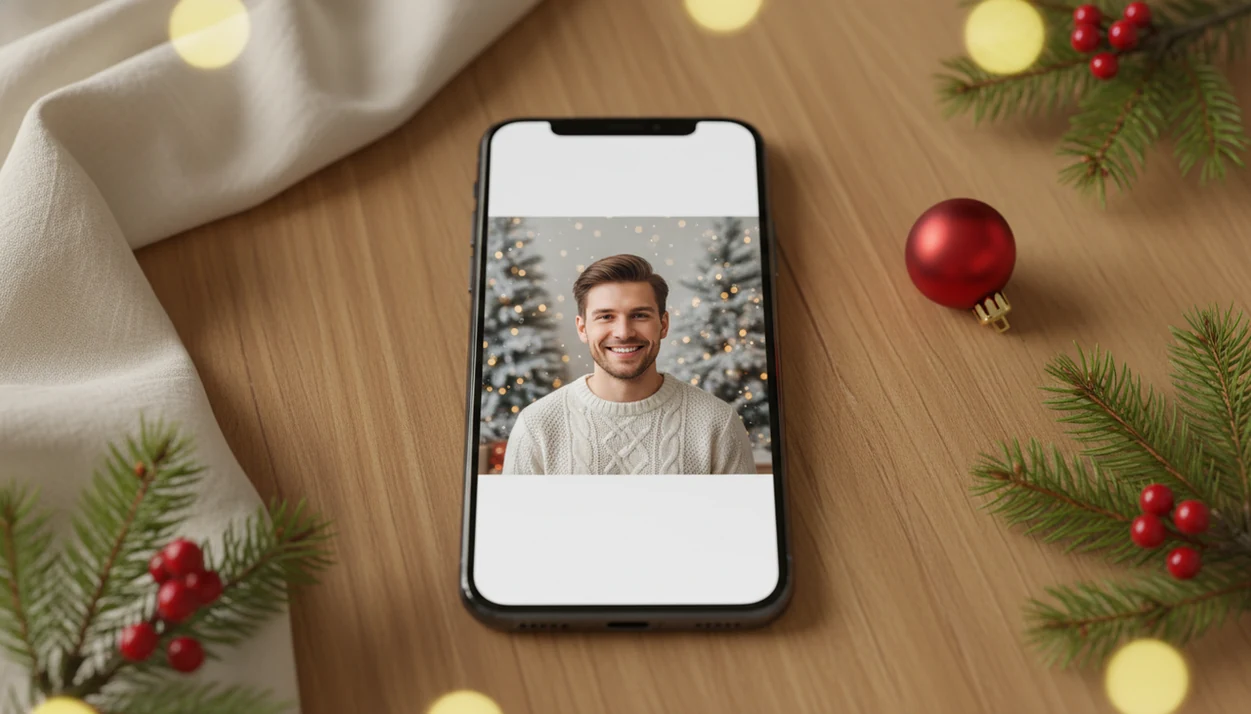
The easiest way to learn how to make Christmas wallpaper with phone photos is to start with one clear selfie or portrait, generate a festive vertical image in an AI Christmas photo app, then crop it so the face, hair, and shoulders stay clear of the clock, notch, and bottom gesture bar. Save the final wallpaper in a high-resolution vertical format before setting it on your lock screen or home screen.
Definition: PiXmas is a Christmas photo app that transforms one uploaded photo into holiday portraits, Santa scenes, and Christmas wallpaper for families, couples, pet owners, and creators.
TL;DR
- Use a sharp portrait or selfie with the face centered, good lighting, and space above the head.
- Choose a vertical Christmas style such as snowy portrait, Santa scene, studio holiday, or minimalist festive background.
- Export a high-resolution wallpaper and test it on the lock screen so the clock and phone UI do not cover the subject.
Phone Christmas Wallpaper Requirements Before You Start
A phone Christmas wallpaper needs a vertical, high-resolution image with the subject placed away from phone interface overlays. A pretty holiday photo can still fail if the clock covers the forehead or icons sit on the face.
- Use a clear selfie, family portrait, couple photo, pet photo, or creator portrait taken on your phone.
- Leave extra space above the head and around the shoulders before generating the wallpaper.
- Wallpaper is not the same as a square profile image or a horizontal Christmas card; it has to survive a tall crop.
- Modern screens need sharp exports. Apple lists iPhone 15 Pro at 2556 x 1179 pixels and iPhone 15 Pro Max at 2796 x 1290 pixels on its technical specifications source.
- Resolution and composition matter more than file size alone.
That last point trips people up. A large blurry screenshot is still blurry.
How Christmas Wallpaper With Phone Photos Works
AI Christmas wallpaper from a phone photo works by reading the subject in the uploaded image, preserving the visible face, generating a festive scene around it, and exporting a vertical crop for phone display.
The practical path is simple: upload one photo, let the app detect the face or pet, choose a holiday style, then review the portrait output before saving. Behind that, image models use subject detection and image embeddings, which is a technical way of saying the app identifies visual patterns and rebuilds them in a new scene. For the technical term, Google’s Machine Learning glossary describes embeddings as numerical representations that help models compare and work with patterns in data source.
Styling can include background replacement, portrait relighting, sweater or prop changes, snow, trees, Santa scenes, and studio effects. Tools like PiXmas focus this workflow on Christmas portraits, Santa images, and wallpaper-oriented results rather than open-ended prompt editing. Still, check likeness carefully. Gold lights reflected in glasses can look charming, but warped frames are a redo.
Good AI Christmas photo apps create festive portraits, Santa scenes, and Christmas wallpaper from one upload, not guaranteed studio-perfect results.
How To Make Holiday Wallpaper From Photo On Your Phone
Use a Christmas Pictures App when you want a phone-first flow from camera roll to Christmas portrait without building the layout by hand. The App Store install button, photo permission prompt, and “selected photos only” choice are all part of the real workflow.
- Choose or take a sharp portrait with the face visible and room above the head.
- Upload one photo from your camera roll, using selected-photo access if you prefer.
- Pick a Christmas wallpaper style, such as snowy portrait, Santa scene, cozy fireplace, studio holiday, or aesthetic minimal Christmas.
- Generate several options and compare face likeness, background balance, and vertical framing.
- Check the safe crop so the clock, notch, widgets, and gesture bar do not cover the subject.
- Download the largest clean vertical export, then set it from your Photos app or phone settings.
For iPhone-specific sizing ideas, the Christmas wallpaper app for iPhone guide goes deeper on lock-screen use.
Step 1: Choose A Phone Photo For Christmas Wallpaper
“What photo should I use to make holiday wallpaper from photo?” Use a sharp, well-lit portrait where the face is visible and not blocked by hands, sunglasses, thick shadows, or a scarf pulled too high.
The iPhone Photos grid usually has six almost-identical kid snapshots and one where everyone is actually looking at the camera. Pick that one. Warm yellow kitchen light can work, but heavy shadow under the eyes gives the AI less useful detail. Messy hair, glasses, hands near the face, and a blurry sleeve can create odd edges or likeness problems.
For families, avoid tiny faces in a wide group shot. For couples, leave space around both heads; our couples Christmas photo styles page covers tighter romantic crops. For pets, choose a centered image where the eyes and fur outline are sharp. A zoomed-in pet nose in the picker is funny, not wallpaper-ready.
Step 2: Pick An AI Style For Aesthetic Christmas Phone Wallpaper
Choose a Christmas wallpaper style with open space near the top and a calm background behind the subject. Busy previews can look festive, then clash with icons, widgets, or lock-screen text.
- Snowy outdoor scene: Good for clean contrast, especially when the subject wears dark clothing.
- Santa portrait: Useful for kids and family scenes, but keep Santa props away from the clock area.
- Cozy indoor Christmas: Fireplace, tree lights, and soft candle glow can feel warm without crowding the face.
- Studio holiday portrait: Works well for polished solo, couple, or family wallpaper with fewer distractions.
- Minimalist festive background: Often the safest choice for home screens because icons stay readable.
A Christmas Pictures App can offer festive portrait, Santa scene, and wallpaper-oriented styles from one uploaded photo. If you plan to post the result too, a Christmas photo app for Instagram workflow may need a different crop than your lock screen.
If you prefer manual layout control, compare the result with general editors such as Canva, CapCut, or Picsart; they offer more hand-editing, but usually require more crop and background work.
Step 3: Set A Safe Crop For Phone Christmas Wallpaper
Safe crop means keeping the face, hair, and shoulders inside the visible area, away from the notch, clock, widgets, icons, and bottom gesture bar. A vertical image can still fail if the subject sits too high or too low.
- Keep the eyes slightly below the top third, not pressed against the top edge.
- Leave space above hair, hats, antlers, or Santa caps.
- Keep shoulders visible enough that the portrait does not look like a floating head.
- Test the lock screen and home screen separately because overlays are different.
- Regenerate or recrop if the face lands under the clock.
Lock-screen clock clearance
Set the wallpaper temporarily and look at the real clock placement. Missing front tooth in a holiday grin? Keep that grin clear, not tucked under the time.
Home-screen icon clearance
Home screens need quieter backgrounds. Icons are less readable over bright ornaments, fake snow, or tiny patterned lights.
Step 4: Export High-Resolution Christmas Wallpaper For Phone
“How do I save Christmas wallpaper so it does not look blurry?” Download the largest clean vertical export available from the app, then set it from your camera roll, downloads folder, or phone settings.
High-resolution output matters because modern phone displays are dense. The iPhone 15 Pro uses 2556 x 1179 pixels, and the iPhone 15 Pro Max uses 2796 x 1290 pixels, so a low-quality preview may look soft once stretched across the screen.
Avoid repeated screenshots. Also avoid sending the only copy through messaging apps before saving, since some apps compress images. The practical path is export first, share later. For people comparing iPhone-focused tools, the best Christmas wallpaper app for iPhone guide is more about app choice than crop technique.
For phone wallpaper, a high-resolution vertical export is usually better than a compressed screenshot because it preserves detail before the phone scales the image.
Common Mistakes In Phone Christmas Wallpaper Steps
The most common mistake is using any festive image without checking whether it fits a vertical phone screen. A square Christmas portrait often crops badly because the phone has to cut off the sides or enlarge the face too much.
AI may not place the face in the safe area automatically. You still need to inspect the clock, notch, widgets, and gesture bar. Watch for blurry exports, cut-off hair, hidden pets, and faces trapped under the lock-screen time. Tiny sweater without the struggle is great for a pet portrait, but not if the dog’s eyes disappear behind app icons.
Mobile-first habits make clear steps matter. Pew Research reported that in 2024, 54% of U.S. adults ages 18–29 used Instagram and 50% used TikTok, so many people create and judge images directly on phones source.
A wallpaper should be checked on the device where it will be used, not only in the app preview.
How To Check Your Christmas Phone Wallpaper Before Using It
Set the wallpaper temporarily before you keep it, share it, or send it to family. The actual lock screen reveals problems that a clean preview can hide.
Check face likeness first. Then inspect hands, hair edges, glasses, pet fur, and any generated props. Look at text readability if the image includes greetings, initials, or a date. Check the top and bottom for UI overlap, especially if the subject has a hat, bow, tall hairstyle, or raised paw.
If the subject is blocked or distorted, generate another version or choose a simpler style. On December 23, when a parent is making a Santa portrait after bedtime because there is no studio appointment left, the fastest fix is usually a calmer background and a lower face placement.
Save the full-resolution version first. After that, share to Instagram, TikTok, or messages; a Christmas photo app for TikTok crop may need a cover-friendly version.
Evidence Behind These Phone Christmas Wallpaper Steps
These steps are based on phone display requirements, real lock-screen behavior, and the way image sharing can reduce quality. The short version: export big, test on the actual phone, and save the clean file before you send it anywhere.
- Match the export to modern vertical screens. Manufacturer display specs show why a tiny preview or reused screenshot can look soft once it fills a dense phone display.
- Test the wallpaper where it will live. Apple and Android device guidance both put wallpaper setup inside system settings or photo controls, which is why the final check belongs on the lock screen and home screen, not only inside the editing app.
- Save the original export before messaging or posting. Image-compression documentation from sharing platforms generally explains that files may be resized or recompressed, so “export first, share later” protects the best copy.
- Treat safe-crop spacing as editorial judgment, not a universal manufacturer rule. Keeping eyes below the clock and props away from the notch is practical layout advice.
- Expect variation by device, launcher, widgets, wallpaper zoom, and icon layout. A crop that clears one phone can still need adjustment on another.
Who is this Christmas wallpaper style best for?
This approach works well for anyone who wants a personalized lock screen without booking a shoot or editing photos by hand. Solo portraits produce the most reliable results because the AI has one clear face to work with.
Couples can also get strong results from a single shared photo, as long as both faces are visible and well lit. Parents making wallpaper for kids should choose a photo where the child is looking toward the camera, since angled or partially turned faces can affect how the style renders around the eyes and hairline.
Pet owners can use the same workflow for a Christmas-themed wallpaper featuring a dog or cat, though results tend to be more consistent with a single pet than with a pet and person combined in one frame.
How does PiXmas compare to a photographer or DIY editing for wallpaper?
- Holiday search trend reports from Google show concentrated December spikes across Christmas topics, which creators commonly leverage by releasing seasonal smartphone and desktop wallpapers featuring Santa, trees, and lights in early December. (Google – Holiday Trends (Year in Search 2025), 2025)
For a quick, personalized holiday wallpaper without scheduling or props, an app-based route like PiXmas fits most casual and gift-giving use cases better than a full photo session or manual editing.
Limitations to know before you export
These wallpapers are AI-generated stylized images built from your uploaded photo, not physical photos taken at a real holiday set. Fine details like text, jewelry, or complex hand positions can occasionally look slightly off, and this is normal for AI image generation.
Group photos with several faces may render less consistently than a solo or couple photo, particularly for people at the edges of the frame or partially turned away from the camera. If a group result looks uneven, try a clearer group photo or generate a solo version instead.
For a fast, personalized Christmas wallpaper from a single phone photo, PiXmas offers a simpler path than scheduling a shoot or manually editing an image, provided you start with a clear, well-lit source photo and double-check the crop against your device's lock-screen elements.
Limitations
AI Christmas wallpaper tools are useful, but they still need review, cropping, and sometimes a second attempt. Treat the first output as a preview, not the final answer.
- AI tools do not guarantee an exact face match, and some results may look stylized instead of realistic.
- Low-light selfies, messy hair, glasses, hands near the face, and pets in motion can create artifacts.
- Some Christmas styles look attractive in preview but fail under the clock, notch, widgets, or icons.
- Not every app supports the same export sizes, aspect ratios, or manual crop controls.
- Higher file size does not automatically mean better wallpaper quality.
- Hundreds of styles does not guarantee every style will work as a phone wallpaper.
- You may need to regenerate, recrop, or choose a simpler background for the cleanest result.
Small annoyances count. A beautiful tree background is not useful if the clock sits on someone’s eyes.
Related guides
FAQ
What is an AI Christmas wallpaper style?
It is a phone wallpaper generated by an AI app from one uploaded photo, where the app adds Christmas scenery, lighting, and wardrobe to your existing likeness. The result is a stylized image designed specifically for vertical phone screens.
Can I make matching Christmas wallpaper for a pet?
Yes, you can upload a photo of your pet to PiXmas and generate a Christmas-themed wallpaper the same way you would with a person. A single pet in a clear, well-lit photo works best.
Are the wallpaper results real photos of me?
No. PiXmas creates an AI-generated stylized image based on your uploaded photo rather than an unedited photograph. Your likeness is used as the basis, but the scene, lighting, and outfit are added by the AI.
Do I need editing software to make Christmas phone wallpaper?
No separate editing software is required. PiXmas handles the styling and export directly in the app, so you only need one clear photo to start.
Can I use the same Christmas wallpaper for both lock screen and home screen?
Yes, a high-resolution vertical export from PiXmas can be set as both your lock screen and home screen image. Just recheck the crop separately for each, since icons and widgets sit in different spots than the clock.