
How To Delete Photos From AI Christmas App Accounts
Quick answer: To delete photos from an AI Christmas app, open the app's account settings and remove both the original uploaded photo (often under Uploads, Source Photos, or Face Profile) and any generated images (under AI History, Projects, or Library). Uninstalling the app does not erase photos stored in a cloud account. In PiXmas, the uploaded photo and the generated portraits are managed separately, so both need to be deleted individually if you want a full cleanup.
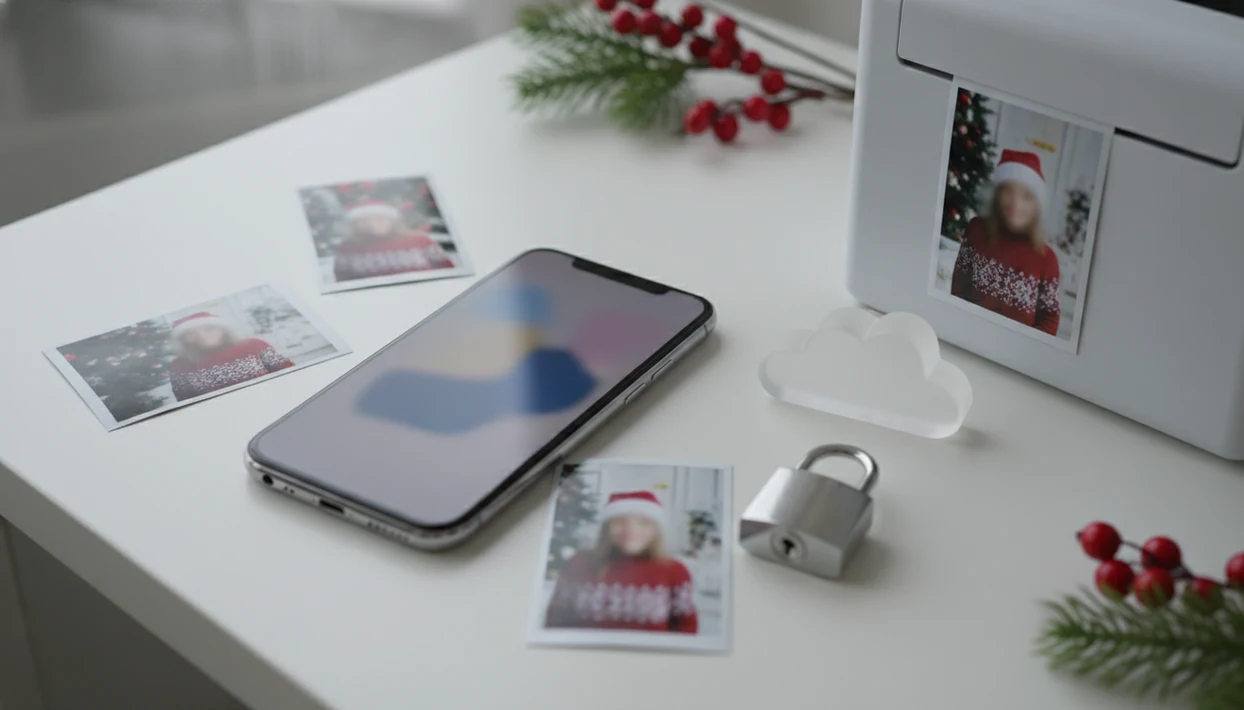
To follow how to delete photos from AI Christmas app accounts, remove the original upload, delete the generated Christmas images, clear any AI history or project library, and then request account or model deletion if the app stores cloud data. Deleting photos from your phone gallery or uninstalling the app usually does not delete copies already uploaded to the app’s servers.
This guide is a privacy-safety checklist, not legal advice. It explains the practical places to check when removing AI Christmas photos from an app account, including uploads, generated images, AI history, model data, and support requests.
- Delete the original uploaded photo and the generated AI Christmas photos separately because they may live in different app areas.
- Check AI history, projects, saved images, downloads, and account settings before assuming your photos are gone.
- For server copies, model data, backups, or vendors, use the app’s privacy controls or send a formal deletion request to support.
AI Christmas Photo Deletion At A Glance
- Delete uploads, generated images, AI history, and account data as separate items; one delete button may not cover all four.
- Deleting from the iPhone Photos grid or Android gallery removes a local file, not necessarily the uploaded cloud copy.
- Backups, logs, cached files, and third-party processing vendors can keep operational copies after the visible image disappears.
- Privacy concern is not imaginary: a 2023 Pew survey found 79% of Americans worry about how companies use collected data source.
- Cisco reported in 2021 that 76% of consumers find it too hard to understand how companies use their data source.
Start with the photo you already used, then trace where it went. The practical check is boring but reliable: upload area, generated image history, trash folder, account settings, then support if needed.
The pocket check is real.
How AI Christmas App Photo Storage Works
AI Christmas app photo storage usually separates the source upload, the generated outputs, and any face profile or model data created to personalize results.
The original upload is the selfie or family photo you selected from your camera roll. Generated outputs are the Santa scenes, portraits, wallpapers, cards, and share-ready images created from it. A model or face profile, when used, is a learned representation of the face, sometimes described through image embeddings. In plain language, the app may store a mathematical “memory” of the face, not just the visible photo.
A good AI Christmas photo app that transforms one uploaded photo into studio-quality holiday portraits, Santa scenes, and Christmas wallpaper across hundreds of festive styles should make upload, preview, save, and deletion paths clear, not make users guess where family pictures went.
Cloud storage can also involve processing vendors, logs, cached files, and encrypted backups. That is why a visible delete button may remove the image from your project library before every operational copy ages out. For broader context, read our guide to AI Christmas photo privacy.
How To Delete Photos From AI Christmas App Uploads
how to delete photos from AI Christmas app uploads starts with finding the original source photo, not the Christmas result. Look for labels such as Uploads, Source Photos, Training Photos, Face Profile, or My Photos.
- Log in to the same account you used when you uploaded the photo.
- Open Account, Library, Uploads, My Photos, or a similar storage section.
- Select the original photo, not only the generated holiday portrait.
- Tap Delete, Remove, or Delete Source Photo.
- Confirm permanent deletion if the app asks for a second approval.
- Check the web account too, if the app offers both mobile and browser access.
We test this path the same way a parent would on December 23 after bedtime, when there is no studio appointment left. The photo might be the one where everyone is looking at the camera, buried beside six almost-identical kid snapshots. If face storage is mentioned, compare it with our explainer on do AI photo apps store your face.
How To Delete AI Christmas Photos From History And Projects
Generated AI Christmas photos are often stored separately from the original upload, so delete them from history or projects after deleting the source photo. This includes portraits, Santa scenes, wallpapers, holiday card images, and other saved outputs.
- Open AI History, Projects, Creations, Saved Images, or Library.
- Select each generated image you want removed.
- Use bulk delete if the app offers multi-select.
- Empty Trash, Recently Deleted, or Deleted Projects if that folder exists.
- Reopen the app and verify the images no longer appear.
Be careful with softer labels. Hide, Archive, or Remove from View may only clean up what you see. It may not request server-side deletion.
Different Christmas photo apps, including Canva, Photoleap, Picsart, Remix, and FestivAI, can organize generated images differently, so the exact label changes. The safety habit does not: delete the output and then verify the account history.
Phone Gallery Deletion Versus AI Christmas App Cloud Deletion
Deleting a downloaded Christmas image from your phone gallery removes that local copy, but it does not automatically delete cloud-stored uploads or generated images inside the app account.
| Action | What it usually removes | What may remain |
|---|---|---|
| Delete from iPhone Photos or Android gallery | The saved download on your device | App uploads, AI history, cloud projects |
| Delete from app upload area | The original source photo in the account | Generated portraits, cards, wallpapers |
| Delete from app project history | Visible generated images | Backups, logs, cached operational copies |
| Clear app cache | Temporary files on the device | Account data stored in the cloud |
| Uninstall the app | The local app package | Cloud account photos and saved outputs |
Downloads saved to camera roll are local copies. If a grandparent tapped the share icon and saved the reveal, their copy is outside your app account.
AI Christmas App Account, Model, And Support Deletion Requests
In-app deletion may not be enough when the app created a face profile, trained model, or account-level AI history. Ask for deletion of uploads, generated images, model or face profile data, account data, logs where applicable, and vendor-held copies where possible.
Under GDPR Article 17, qualifying individuals can request erasure of personal data in certain circumstances, including identifiable photos source. Privacy rights vary, and companies may need to verify your identity before acting.
For families, a formal request is often clearer than tapping around settings because it names each data type and asks for confirmation. If you worry about training use, our guide to can AI apps train on my photos explains the separate issue.
Support request wording
“Please delete my uploaded source photos, generated AI Christmas images, AI history, face profile or model data, account data, and any copies held by processors or vendors where deletion is available. Please confirm when deletion is complete and tell me whether encrypted backups or logs retain copies for a limited period.”
When To Contact Support, A Privacy Authority, Or Legal Help
Contact support when the app does not give you a clear way to remove uploads, AI history, generated images, or model data. Escalate beyond support when the company ignores a valid deletion request, or when the photo use creates a safety or legal risk.
- Contact support first if the upload folder, AI history, face profile, or delete-model control is missing, broken, or only hides images from view.
- Ask for written confirmation when the upload included children, identifiable faces, account IDs, email addresses, or anything you would not want reused in another holiday template.
- Save records of the request, including dates, ticket numbers, screenshots, and any answer about backups, logs, processors, or retention windows.
- Escalate to a privacy authority if you have statutory deletion rights and the company does not respond, refuses without explanation, or keeps sending you in circles.
- Consider legal advice if the images are connected to identity theft, stalking, harassment, impersonation, or nonconsensual intimate or humiliating image use.
For ordinary cleanup, support is usually enough. For a child’s face, a copied account, or a malicious repost, treat the paper trail as part of the safety work.
Common Myths About Removing Photos From Photo App Accounts
- Myth: Deleting a Christmas image from your phone gallery deletes the cloud upload. Fact: it usually removes only the local download.
- Myth: Uninstalling the app deletes server data. Fact: the account can remain active after the app leaves your phone.
- Myth: Removing a visible image deletes the AI model. Fact: model or face-profile deletion may need a separate control.
- Myth: If you cannot see an image, no copy exists anywhere. Fact: backups, logs, or vendor systems may still hold temporary copies.
- Myth: One deletion action is enough. Fact: safer verification means checking uploads, history, trash, account settings, and support confirmation.
A tiny face in a group shot can still be personal data if the person is identifiable. Warm yellow kitchen light or a blurry sleeve may affect the output, but deletion questions are about storage, not image quality. If disclosure matters before sharing, read our AI Christmas photo disclosure guide.
What photo should you upload if you plan to delete it later?
If privacy matters to you, upload a single clear photo of just the face or faces you want stylized rather than a busy group shot with extra people in the background.
Because most AI Christmas apps, including PiXmas, work from one uploaded photo to generate the finished portraits, a simpler source image also makes it easier to confirm exactly which file needs to be deleted afterward.
Once your Christmas portraits are generated and saved, you can typically delete the original upload without affecting the images already created from it.
Who most needs to delete photos from an AI Christmas app account?
People who share a phone or tablet with family members often want uploaded photos removed once cards or wallpapers are finished.
Parents who uploaded a child's photo, users on a work or shared device, and anyone who tried the app once and decided not to keep using it are common reasons to clear an account.
People who plan to reuse an app like PiXmas every holiday season may prefer to just delete old generated images while keeping the account active, rather than deleting everything.
How do the deletion methods compare?
| Method | Time | What Gets Removed |
|---|---|---|
| In-app deletion (Uploads, History, Account settings) | A few minutes | Uploaded source photo and/or generated images, depending on which section you use |
| Contacting app support | Hours to a few days for a response | Full account data deletion, including backend copies not visible in the app |
| Uninstalling the app only | Seconds | The app itself; cloud-stored photos and account data usually remain |
For most users, in-app deletion handles day-to-day cleanup, while a support request is better for a complete account and data removal.
For anyone uploading a personal photo to create Christmas portraits, understanding where uploads and generated images live separately makes cleanup straightforward, and PiXmas keeps that process manageable for a private, one-photo workflow.
Limitations
Photo deletion is not always immediate, complete, or visible to the user. Treat every app’s delete flow as a request that may involve several systems.
- Some apps remove images from view before deleting server files.
- Backups and logs may keep encrypted copies for weeks or months.
- Model or face-profile deletion may require a separate button or support request.
- Third-party vendors may need deletion to propagate through the company’s process.
- Privacy rights vary by jurisdiction and may require identity verification.
- Shared images, downloaded files, and recipient copies cannot always be recalled.
- App cache clearing does not equal account deletion.
- A “trash” folder may keep files until you empty it or the retention window ends.
Any Christmas Pictures App should still be checked the same practical way: uploads, generated images, account settings, and support if the controls are unclear. Don’t rely on the App Store install button, uninstall flow, or photo permission prompt alone.
Related guides
FAQ
What counts as a photo upload versus a generated image in an AI Christmas app?
The upload is the original photo you provided, often labeled Uploads, Source Photos, or Face Profile. Generated images are the finished Christmas portraits, cards, or wallpapers created from that upload, usually stored separately under History, Projects, or Library.
Will deleting my uploaded photo also delete my finished Christmas cards?
Not usually. In apps like PiXmas, the uploaded source photo and the generated cards or portraits are stored in different places, so deleting one does not automatically remove the other unless the app states otherwise.
How long does it take for a deleted photo to actually disappear?
In-app deletion often removes visible access immediately, but backend or cached copies can take longer to clear completely. If a photo still appears after a reasonable wait, contacting support is the next step.
Do I also need to delete the photo from my phone gallery?
Yes, if you want it fully removed. Deleting a photo from your phone's gallery does not remove a separate copy already uploaded to an app's cloud account, so both locations usually need to be cleared individually.
How do I make a Christmas photo with a free app?
Start by choosing a clear, well-lit portrait with the subject separated from the background. Upload it, select a Christmas template or background, and adjust the crop, lighting, and text. Inspect faces and edges closely before exporting. Save the original photo separately so edits or compression never replace your source file.
Do free Christmas photo apps add watermarks?
Some free Christmas photo apps add watermarks, while others restrict resolution, templates, or AI usage instead. Watermarks may appear only on premium effects or AI-generated images. For example, Photoleap’s reviewed free tier applies a watermark to AI exports and limits credits (Photoleap creative tools review and pricing, 2026).