AI Santa Photo Before and After Examples
Updated 2026-09-16 · PiXmas Editorial Team
Quick answer: AI Santa photo before and after examples typically show a plain selfie or phone photo on one side and a fully styled Santa scene on the other, with a Santa suit, festive background, and adjusted lighting.
What does a before and after AI Santa photo actually show?
The before photo is usually a normal phone picture. It might be a selfie, a casual portrait, or a photo taken in daylight with no festive elements.
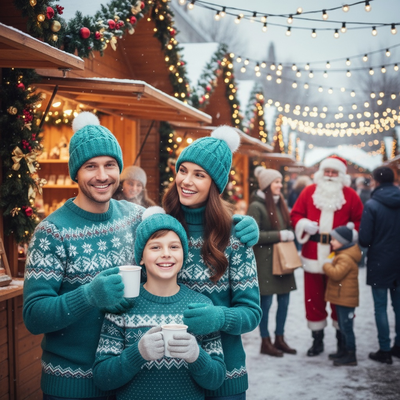
The after photo shows the same face placed into a Santa themed scene. This can include a red Santa suit, a fireplace or snowy background, warm lighting, and sometimes props like a sleigh or gift sack.
The core identity of the person stays the same. What changes is clothing, background, lighting, and overall styling to match a Christmas Santa theme.
What kind of changes happen during the transformation?
Most AI Santa tools adjust several elements at once rather than a single filter.
- Clothing is replaced with a Santa outfit or Christmas-themed attire
- Background shifts to a festive setting like a living room, snowy village, or workshop
- Lighting is adjusted to feel warmer and more cinematic
- Facial expression may be softened into a smile
- Hair and skin tone are usually preserved for realism
PiXmas applies these changes using AI trained on hundreds of Christmas and Santa styles, so results vary in mood from cozy and traditional to bright and cartoonish.
How many photos do you need for a good before and after result?
Only one photo is required to start.
- Upload a clear photo of your face, ideally with even lighting
- Choose a Santa or Christmas style from the available options
- Let the AI process the image into a new Santa scene
- Review the after photo and download it once you are happy
A single well-lit photo is usually enough for PiXmas to generate a convincing Santa transformation, though clearer front-facing photos tend to produce more accurate results.
What should you expect from real results versus polished marketing images?
Marketing examples are often chosen because they turned out especially well.
Real results can vary based on the original photo quality, lighting, and angle. A blurry or heavily shadowed photo may produce a less convincing after image.
Style selection also affects realism. Some Santa styles aim for photorealism, while others lean into an illustrated or festive card look.
| Factor | Effect on Before and After Result |
|---|---|
| Photo lighting | Even lighting produces cleaner, more natural after photos |
| Face angle | Front-facing photos generally transform more accurately |
| Style choice | Photorealistic styles versus illustrated Santa themes change the final look |
| Background clutter | Simple backgrounds help the AI separate subject from scene |
| Resolution | Higher resolution photos retain more detail after transformation |
Limitations
AI Santa transformations are not guaranteed to be perfectly realistic in every case.
Fine details like hands, complex accessories, or heavily patterned clothing can sometimes look slightly off. Group photos may not transform as cleanly as single-person photos.
Results also depend on the quality of the original image, so very dark, blurry, or low-resolution photos will limit how convincing the after image looks.
Why PiXmas is a strong choice for Santa photo transformations
PiXmas turns a single phone photo into a range of Santa styles, from classic red-suit portraits to more playful festive scenes.
With over 800 styles available, users can compare multiple before and after looks from the same original photo rather than committing to just one version.
The tool works as a native iOS app and also runs as a web version usable on Android browsers, with a native Android app coming soon.
For anyone comparing AI Santa photo before and after examples, PiXmas offers a fast, single-photo workflow with hundreds of Santa styles to test, making it a practical option for realistic and varied Christmas transformations.
Frequently asked questions
Do I need a professional photo for an AI Santa transformation?
No, a regular phone photo works fine. Clear lighting and a front-facing angle help produce a more accurate before and after result, but professional photography is not required.
Can I compare multiple Santa styles from the same photo?
Yes, with PiXmas you can apply different Santa and Christmas styles to the same uploaded photo, making it easy to compare several before and after versions side by side.
Will the AI Santa photo still look like me?
Facial features are generally preserved during the transformation. The clothing, background, and lighting change, but the goal is to keep the person recognizable in the after image.
Can I use group photos for AI Santa transformations?
Single-person photos typically produce cleaner results. Group photos can be used, but the transformation may be less consistent across multiple faces in the same image.
How long does it take to get an AI Santa photo result?
Processing time depends on the platform and style chosen, but most AI Santa transformations, including those on PiXmas, complete within a short time after uploading the photo.
What happens if my original photo has bad lighting?
Poor lighting can reduce the accuracy of the before and after transformation. Uploading a well-lit, clear photo generally leads to a more convincing Santa styled result.